Summary
I’d always wanted a large drawing display for digital art, but just couldn’t find one cheap enough. I’ve loved using Procreate on my iPad for years, and my only issue is the size of the iPad screen itself.
My Linux PC had a 24-inch monitor, but drawing with a mouse is an exercise in utter futility. I’ve also got a cupboard full of old Surface Pro 3 tablets and Surface pens.
That got me thinking. Could I make the best of what I already own and put one of those old Surfaces to work as a wireless drawing tablet for my PC? I already had the pen and a pile of AAAA batteries. It honestly seemed worth a try.
My Surface already had the important hardware
The pen held all the potential
My Surface Pro 3 had spent its working life as a business machine, sitting at meeting room tables, quietly taking minutes. Giving it a more creative job felt like a better retirement than leaving it in a cupboard.
It already had a touchscreen and a compatible later-model Surface Pen, so that was the hardware already taken care of. The first task was to remove Windows 10 and install the Surface build of Ultramarine Linux, and pop a fresh AAAA battery into the pen.
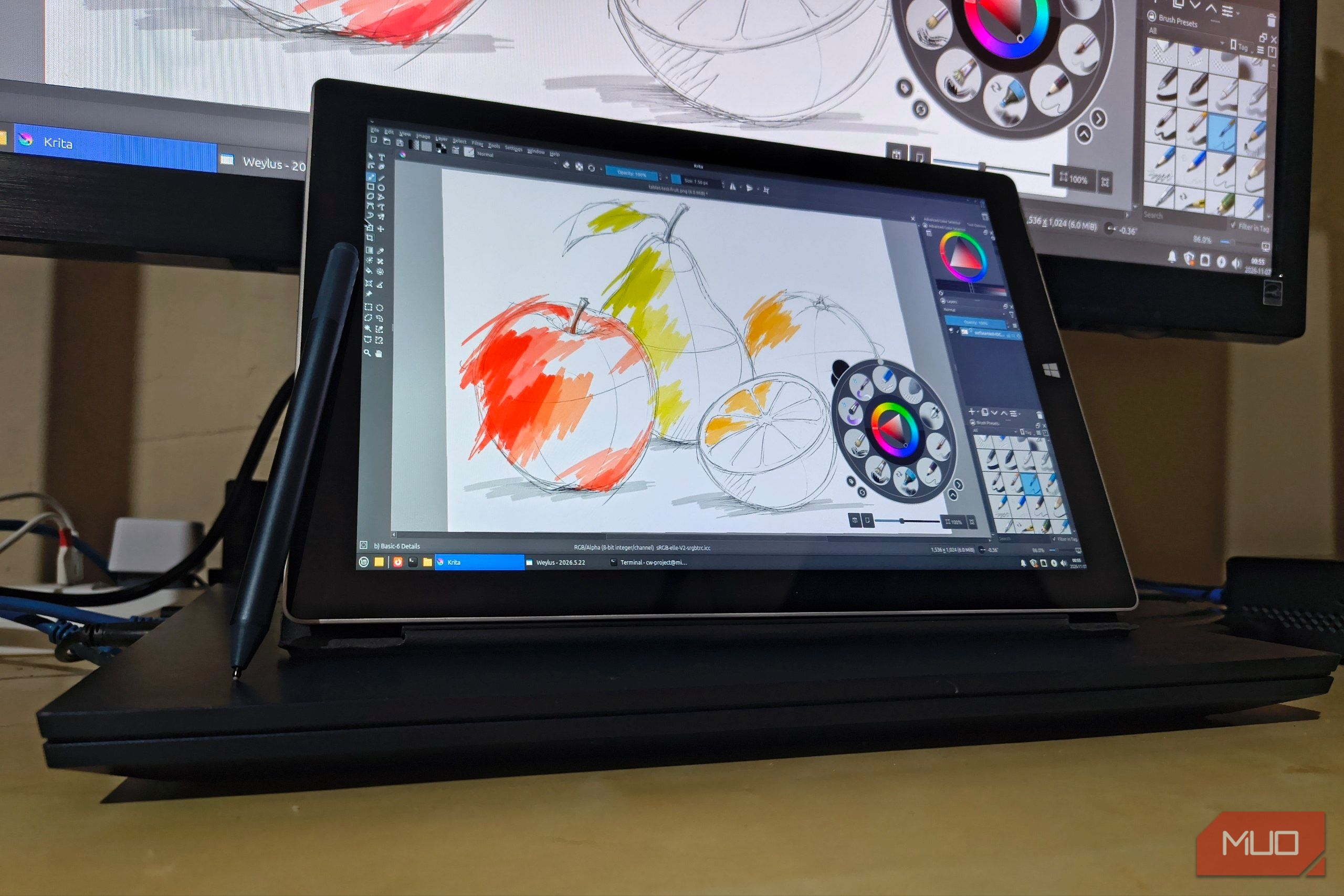
Next, I installed my favorite open-source drawing application, Krita, to see what the old hardware could still do.
The Surface Pro 3 supports 256 levels of pressure sensitivity when paired with a Surface Pen. Newer models offer 4000+, but this was enough for what I wanted. In Krita, light strokes produced nice pale blue marks, while pressing harder mid-stroke made them darker.
I could adequately control the result with my hand rather than immediately reaching for the opacity slider. The results were promising, and it seemed the old glorified note-taking machine still had some artistic potential.
That alone was encouraging. It could run Krita well enough locally, but I still wanted my drawing up on the big screen. Could that same pen control Krita running on another machine? That question and some research led me straight to Weylus.
 Krita
- OS
- Windows, macOS, Linux
- Developer
- Krita Foundation
Weylus connected the pen to another computer
Pressure sensitivity had survived the trip
Weylus is a free software tool that, among other things, lets you turn a tablet into a graphic drawing tablet using its browser. My Linux PC runs Mint Xfce, which lets me stay well clear of Weylus’s experimental Wayland support and its well-known issues and limitations.
I installed Weylus from Flathub and granted my Linux account access to /dev/uinput
, the interface it uses to create virtual pen and touch input. That permission is required for pressure sensitivity and multitouch, so installing the application was only half of the setup.
With Weylus up and running, I opened the PC’s local IP address 192.168.1.181
on port 1701
in Firefox on the Surface. The Mint desktop appeared, with Krita seemingly ready to draw. The only thing the Surface needed to make this happen was a browser.
Now it was time for the exciting part. Pressure from the Surface Pen reached Krita on the Linux PC, changing my brush strokes as I pushed down harder. Hovering also let me position the cursor before touching the screen, which was useful as drawing over the top of a toolbar and inadvertently rearranging its icons wasn’t ideal.
The controls took a bit more fiddling around. The pen’s side button did absolutely nothing. In fact, clicking it didn’t even register a response in Krita’s tablet tester. That was problem number one. The second problem was that the top button, which I intended to use to initiate the eraser, did nothing except open Xfce’s application menu.
I had to turn to touch gestures to get any resemblance of remote brush and menu control out of the Surface. Even the single-tap floating palette needed some configuration as it wasn’t working out of the box. Temporarily assigning a two-finger tap to it worked. Then switching back to one got it working.
Unfortunately, enabling touch in Weylus meant my palm would now act as a valid drawing input. This required me to disable Touch Painting, though it didn’t stop my palm from inadvertently opening up Krita’s menus.
I finally settled on these gesture controls:
|
Gesture |
What it did |
|
One-finger tap |
Opened the brush and color palette |
|
Two-finger tap |
Undid the last action |
|
Three-finger tap |
Redid the undone action |
|
Two-finger pinch or twist |
Zoomed or rotated the canvas |
With these controls now working, I could draw, change brushes, zoom, undo my silly mistakes, and rotate the canvas with nothing but the pen and my fingers.
 Weylus Community Edition
- OS
- Linux, Windows, macOS
- Developer(s)
- H-M-H Weylus Community Edition turns a tablet into a drawing tablet or touchscreen for your computer through a web browser. It offers screen mirroring, pen pressure, and touch input, with features varying by host operating system.
- Platform(s)
- Desktop host application
- Price model
- Free and open source I could draw on the screen or ignore it Two different drawing tablets with one pen My original plan for the Surface was to use it like a screenless pen tablet while watching Krita on the monitor. Disabling video in Weylus gave me exactly that, but with an unexpected but very welcome surprise. The Surface kept sending pen input, with a clear blue trail showing my movements against a dark background. That’s a feature that you just can’t get on a screenless tablet. Turning the video back on, put the canvas directly beneath the pen. I could see where I was drawing directly on the Surface, while the other computer kept running Krita. The benefit of this was the familiarity of interaction, similar to using Procreate on the iPad but without the tiny screen. Regardless of what mode I used, a visible hover cursor helped me position the pen before making contact. Switching Krita to canvas-only mode also got the menus out of the way and reduced the likelihood of accidentally hitting a button in the middle of a brush stroke. Pressing the Tab key in Krita will hide the interface, allowing you to concentrate on the canvas. Pressing it again will restore it. Right-clicking on the canvas at any point will bring up the floating palette menu where you’ll find a color picker, zoom controls, and brushes. The choice came down to where I wanted to look. Running Krita locally on Linux remained a third option for using the Surface without another computer, though with only 4 GB of RAM, the experience wasn’t great. Still, I could switch between all three without needing to buy another drawing device. My old Surface has earned a place on the desk An imperfect compromise I’ll keep using This setup took a lot more configuration than a drawing tablet would, and the pen buttons were essentially useless. Wireless drawing also depended heavily on network performance, though I didn’t experience any lag because I was sitting next to the access point. The physical logistics of it also needed work. The Surface’s back slid around on the desk, and its older-style kickstand left it too upright for comfortable drawing. I had to lay it down with something underneath it to prop it up. Palm input was the bigger annoyance. The Surface was never designed to be a drawing tablet, so even though I wore my drawing glove, my hand kept triggering either the palette or the cursor position. Still, opening up some of my older existing artwork moved this test beyond just test strokes. Hardware I already owned plus free creative software had given me another way to draw once I got sick of squinting at the iPad. I’ll be using this often, though I still prefer Procreate. I haven’t stopped wanting a larger display or a dedicated graphics tablet with a screen, but this is a compromise that’s much easier on the wallet.