Summary
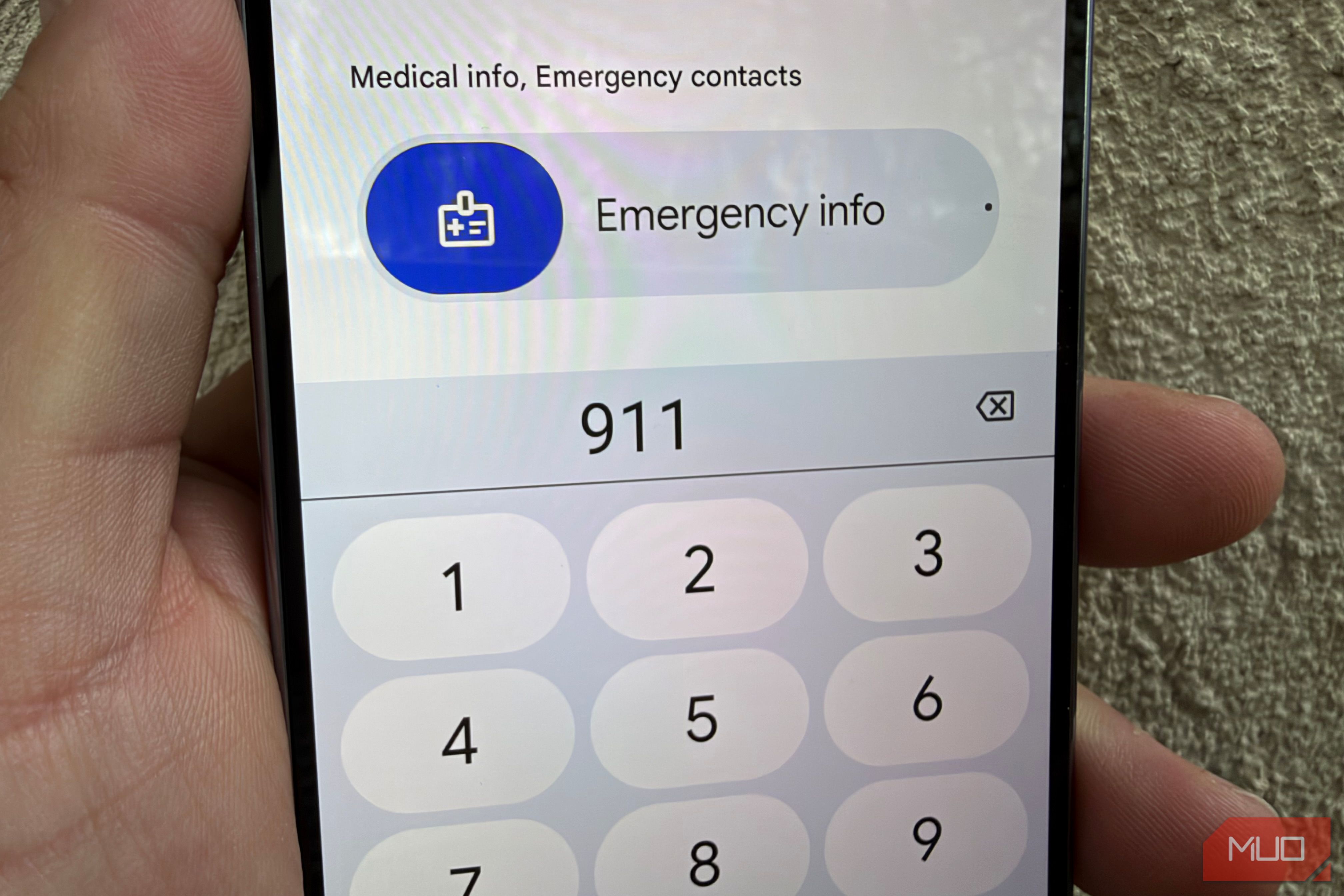
Your Android phone has a built-in panic button if you just set it up. Your phone can act as your guardian with pre-scheduled check-ins if you’re walking alone at night or in a situation where you might not be safe. It can even detect when you’ve been in a car crash and automatically call 911. Most of these potentially life-saving features are built right into your phone, you just have to enable them and set them up. Here’s how to do that. Set up Emergency SOS Get help fast In an emergency, you can rapidly press your phone’s power button five times, then press and hold the screen prompt to begin automated emergency actions: your phone will call 911, it’ll text your emergency contacts a link to your real-time location, and it can even begin recording a video. This acts like a panic button right on your phone — if something bad is happening, you don’t need to think about which app to open to get help, you just keep pressing the power button. To do this on Pixel, go to Settings > Safety & Emergency > Emergency SOS > enable the emergency actions you want your phone to do, like call emergency services or share your info with emergency contacts. You can even enable Satellite SOS if you have a newer Pixel (Pixel 9 and above). If you have a Samsung Galaxy, you have this same functionality, but it’s in a different spot. Go to Settings > Safety and emergency > Emergency SOS. From here you can specify the actions your phone will take in an emergency, with options to require a swipe to place an emergency call or if you want it to happen automatically. Put medical info on the lockscreen Help first responders help you If you take medication, have a medical condition, or a rare blood type, it’s important that first responders have this information before giving you care. You can put this information right on your lock screen, allowing anyone to see your medical info without needing a password. To do this on Pixel, go to Settings > Safety & Emergency > Medical information. On Samsung Galaxy, you can find this in Settings > Safety and emergency > Medical info. Then, if someone wants to see your medical information, they just turn on your phone and tap the Emergency or Emergency Call button, and they’ll then be able to see your medical info. Set up Safety Check It uses a timer to check on your well-being This safety feature has many uses and requires you to “check in” at certain intervals, and if you don’t take action at those intervals, your phone will automatically send an SMS to certain contacts with a link to your real-time location. You can pick multiple people to be notified during a Safety Check. The way it works is that you specify a check-in interval. It could be every five minutes or every hour. Your phone will bring up a Safety Check confirmation at these intervals, requiring you to action on an “I’m OK” slider. If you are incapacitated or unable to confirm you’re okay, your phone will automatically contact your preset emergency contacts with a link to your location after 60 seconds when you don’t respond, and you’ll also get a button to contact emergency services (like 911) with one tap. When would you use this? It could be during a natural disaster, or while walking alone at night, while taking public transportation, or maybe you’re just going for a run. It could be perfect for your kids when they are alone with their friends or doing an activity that might be unsafe. How to set up a Safety Check On a Pixel, this feature can be found in the Safety app. Open it, then tap on Safety Check, where you’ll be prompted to add in your emergency contacts and give permission to share your location. Once set up, you can initiate a Safety Check session by going back to the Safety app, tapping Safety Check, then specify the duration, which is the interval of how often you want your phone to check in on you. It’ll also ask for a reason for the Safety Check, like walking alone, hiking, or you can type in a custom reason. What happens if your battery dies? The countdown is actually tracked on Google’s servers, so it’ll still work even if your phone is dead. Your emergency contacts will get your last known location instead of your current location (since your phone is off). If you have a Samsung Galaxy, this feature is not built in and you’ll need to download Google’s Personal Safety app from Google Play, which you can download below. Make sure Car Crash Detection is on Your phone can call for help if you’re unable This one is easy to do and it could save your life. Car Crash Detection uses your phone’s sensors to determine if you’ve been in a car accident, then can automatically call emergency services or share your location with your emergency contacts if you don’t take action. To turn this on if you have a Pixel (it’s region-limited to around 20 countries), just go to Settings > Safety & Emergency > Car Crash Detection > On. On Samsung Galaxy, this feature is not built in, despite the hardware being there should Samsung decide to enable it in the future, but you can use an app like the popular Life360 which has similar functionality to Google’s Car Crash Detection and is also an excellent tracking tool for an old Android device. Your phone could save your life (you just have to set it up) There’s no real downside to setting up the safety features mentioned in this article. It’s a good thing when technology works to make our lives better and keep us safe, and by using key sensors in your phone to detect when bad things happen and by utilizing an emergency list of contacts, you don’t have to feel alone and helpless when you’re out in the world, even if you find yourself in difficult situations at times. You can even manage in an emergency if you’re offline with the help of various apps and tools.