Summary
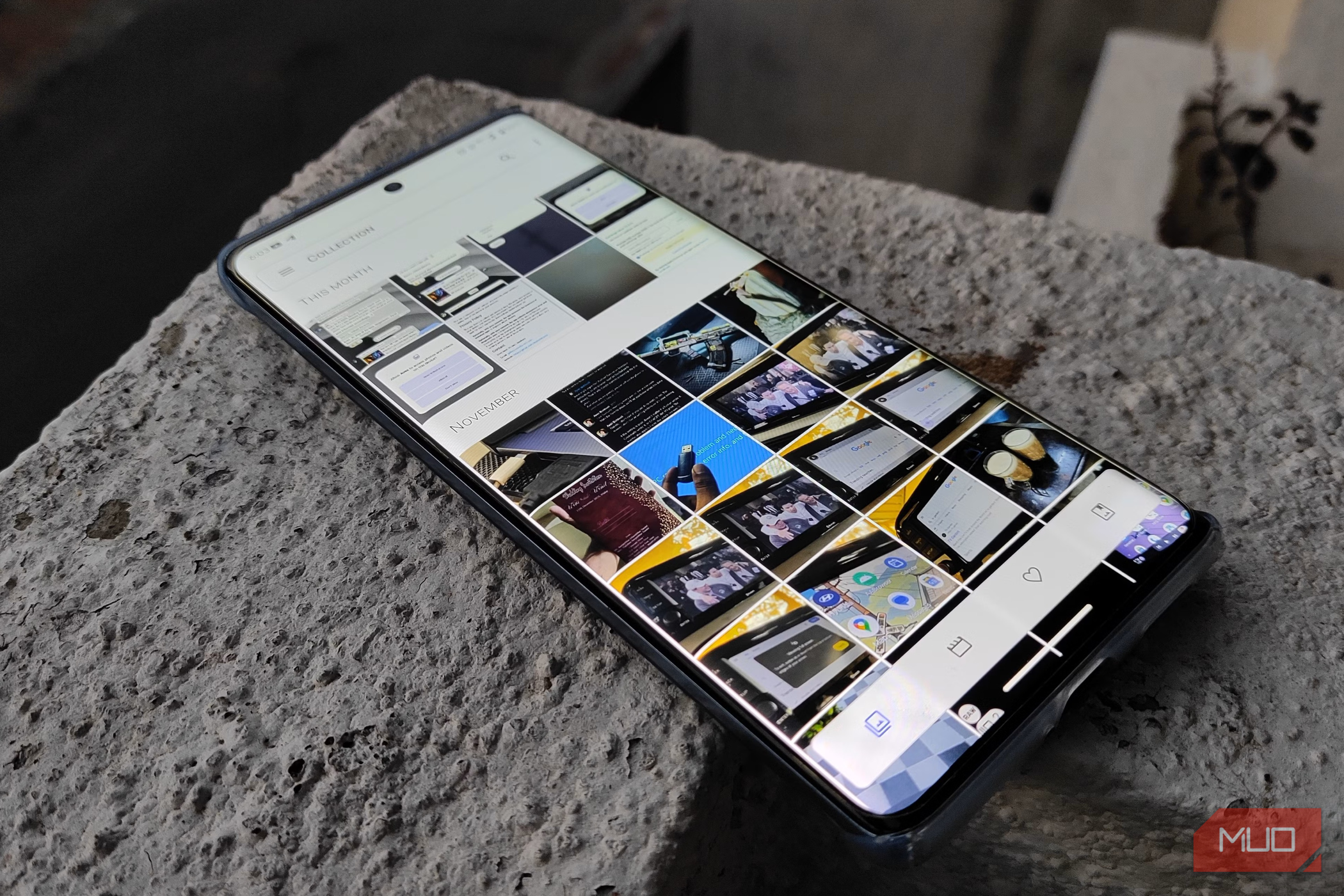
Losing a photo you meant to keep is never fun, but it can happen. The good news is that “deleted” doesn’t always mean gone for good. If you act quickly, you have a good chance of recovering deleted photos from your gallery app, cloud storage, or an SD card. You just need to know where to look. Check the recycle bin before anything else The 30-day safety net you probably forgot about Most gallery apps on Android come with a Recycle Bin or Trash folder, and its job is to hold your deleted photos and videos for 30 days before deleting them permanently. So, unless you’ve emptied that bin yourself, or it’s been over a month since the photos disappeared, you should be able to recover them easily. I know it sounds too obvious, but it’s the first place you should check before you panic. If you’re using the Samsung Gallery app, tap the Menu icon, and choose Recycle bin. It’ll show you all the photos deleted within the past 30 days. If you find your deleted photos here, simply select them and hit Restore. If you’re using Google Photos as the main gallery app, head to Collections > Bin and look for your deleted photos there. Check your cloud backup next Google Photos or OneDrive might have your back If you’ve got automatic backup enabled on your phone through Google Photos, OneDrive, or any other cloud service you use, check there next. Deleting a photo from your phone’s gallery app doesn’t remove it from your cloud backup, so you should be able to download it from there. You can use the built-in search tool in Google Photos or OneDrive if you know exactly what you’re looking for. Even if you’ve deleted the image from your cloud backup, you may still be able to recover it. Most cloud services have their own Trash folder that holds deleted photos for 30 or 60 days — depending on your cloud storage provider’s policy — before removing anything permanently. So that’s another place worth checking out. If you use Google Photos, open the app or site, and go to Collections > Bin. Long-press on each image you want to recover and hit Restore. They’ll be added back to your library. For Microsoft’s OneDrive, open the app and go to Me > Recycle bin. Select your files and tap the Restore icon. OneDrive keeps deleted files for up to 30 days, although it may delete them sooner if your recycle bin is larger than 10% of your total storage space. All other cloud apps work in similar ways—nothing is ever fully deleted straight away, so there’s a good chance you can recover your photos from there. Recovering photos from an SD card is slightly different It’s a long shot, but you might have a chance Android phones with an SD card slot are rare these days, but if you’re using one and have accidentally deleted photos from it, there’s one more thing you can try: a data recovery tool. This isn’t straightforward, though. You’ll need to connect your card to a computer and use recovery software to recover the lost pictures. And there’s one more caveat — this won’t work if your SD card is encrypted, which is often the case on modern phones. You can use it on both Windows and Mac, and it lets you recover up to 2GB of data before you have to pay. Once you’ve installed it, connect your memory card to your PC or Mac, either through a card reader or via your laptop’s built-in SD card slot. Then run a scan to see if it can find your deleted photos. The scanning part can take a while, depending on the storage capacity of your card. If the tool does find your photos, select the ones you want to recover and save them somewhere on your PC. You can then transfer them back to your phone. There are no guarantees, of course. Deleted files only stick around on an SD card until something else overwrites them. So, as soon as you realize that you’ve deleted photos by mistake, you should remove your card from your phone to reduce the risk of them being overwritten. This method sadly doesn’t work on your phone’s internal storage because Android doesn’t use the old USB Mass Storage protocol anymore. Save yourself trouble next time As you’ve probably gathered by now, getting deleted photos back isn’t always a sure thing. The best way to avoid losing them is to keep them backed up somewhere. Of course, photos aren’t the only important kind of data on your device — you need to be just as careful about backing up everything else on your Android phone. With a regular backup plan, you’ll always have a copy of your information and never risk losing anything again.