Summary
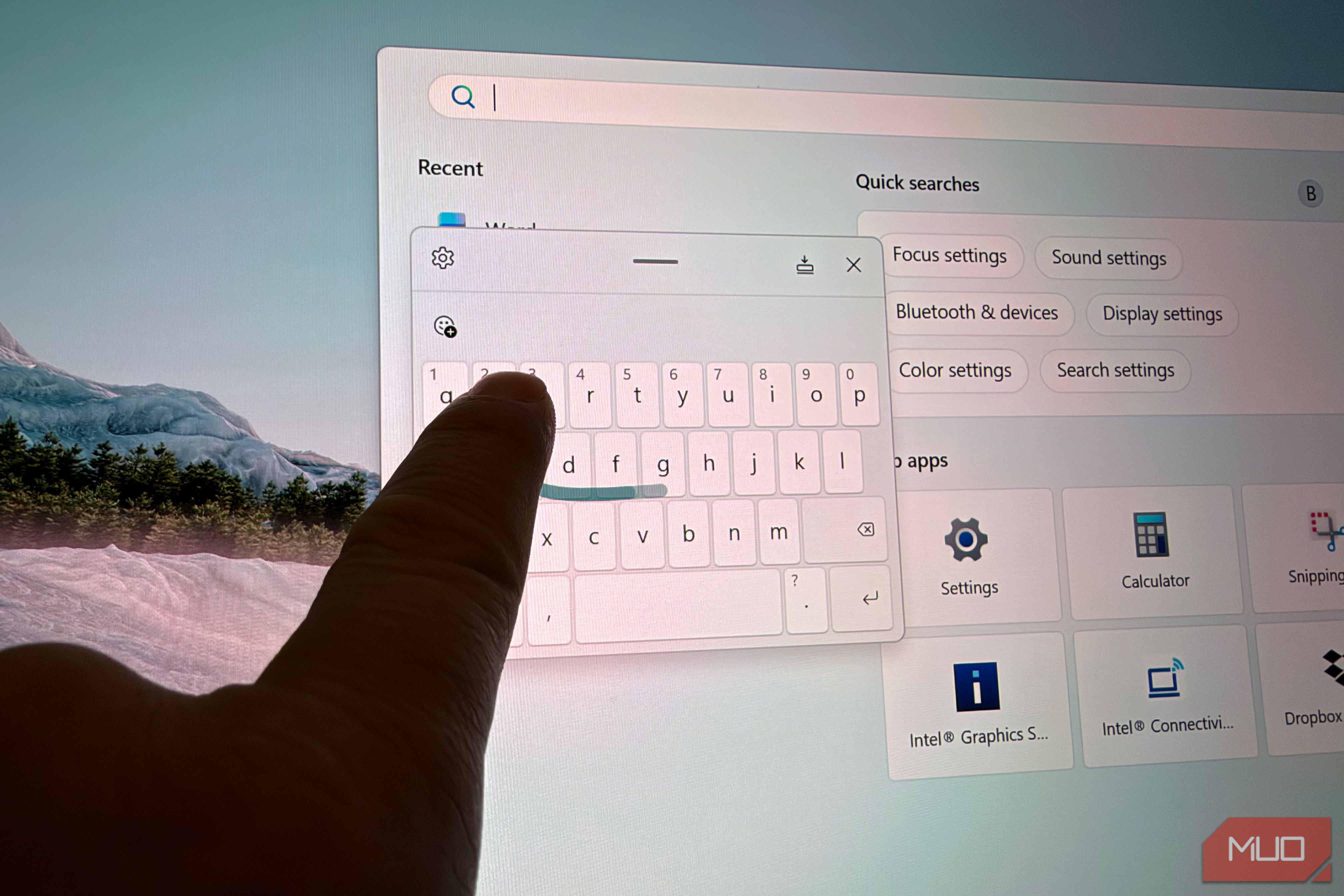
The laptop industry has done a poor job at justifying why displays need to be touch-enabled. In most cases, touchscreens on laptops don’t make sense. At least that’s what I had thought for years, until I stumbled upon a feature of Windows 11 that makes text input better because it can give you a phone-like floating keyboard. Since finding this feature, I’ve been touching my laptop’s screen a lot more. Here’s how you too can get phone-like typing on your Windows laptop. Touchscreen laptops don’t really make sense It’s hard to justify the price premium There have been touchscreen Windows laptops for many years, and it wasn’t until 2026 that Apple gave in and offered a MacBook with a touchscreen. This is because touching a laptop screen isn’t natural when you have a mouse and keyboard always at the ready. Reaching up to touch a vertical display on a laptop is awkward, as using the mouse and keyboard is much more efficient and keeps your hands on the same plane. It’s nice to have a touchscreen when you want to quickly snap a window with Windows’ Snap Layout function, or if you want to quickly scroll a list without touching the trackpad, but that’s really it. But I found one area where it makes sense: the on-screen keyboard, where you can bring up a phone-like keyboard that actually makes text input quite fast (and delightful!) and offers the ability to quickly “draw” words with gesture typing, just like in Android or iOS. How to add an icon in your tray to easily bring up the touch keyboard By default, Windows doesn’t pop up the on-screen keyboard if you have a regular laptop. However, you can easily add a permanent keyboard icon in your tray so that you can have the option to bring up the virtual keyboard at any time. This will give you access to multiple on-screen keyboard layouts, including one that will let you type like you do on your phone. To turn on this toggle, just right-click on your taskbar > Taskbar settings > Touch keyboard > Always. Windows 11 gives you four keyboard layouts The one you want is the smallest When you toggle the touch keyboard in Windows, you can pick from one of four different layouts if you tap the gear icon in the upper left and go to Keyboard layout. First you have Default, which is the standard four-row keyboard; there’s Traditional, which is similar to Default but adds a handy dedicated number row; and then there’s Split, which offers a split keyboard that is ideal for typing with your thumbs, and finally you have Compact (which on some laptops might be called “Small”), which is a floating phone-style keyboard that offers swipe typing. Actually, the Default keyboard also supports swipe typing, but it’s more challenging to use with a larger keyboard because your swipes have to be pretty long. Swipe typing on a laptop is the fastest I’ve typed without a real keyboard Did you even know you could do this? That fourth keyboard layout — Compact — is most similar to typing on a phone, and it brings a little surprise: it supports swipe typing, which is the fastest way to input text. While voice typing is also very fast, it’s imprecise, often requiring multiple revisions and a lot of editing. But with swipe typing, I can type faster than using a real keyboard because your finger doesn’t have to travel very far with the compact keyboard layout since it’s so small. Another benefit to using Compact is that it takes up so little space compared to the other keyboards that it makes it easier to see the content on your screen without blocking a huge chunk. What is it like to swipe type on a laptop touchscreen? It’s both fast and fun, especially on a laptop (like my Lenovo Yoga 9i) that has a high refresh screen because the swiping is so responsive and quick. There’s perhaps a certain novelty to swiping on a large OLED laptop screen after many years of swiping on a phone display (and by the way, if you like swiping, did you know there’s a keyboard for Android that lets you swipe with two fingers?) An honest caveat This works best on a 2-in-1 While it’s nice to have the option to swipe type on your Windows laptop, it’s really only useful if you have either a laptop with a strong enough hinge to let you swipe on the display without it swaying too much, or if you own a 2-in-1 laptop that can turn into a tent or tablet form factor thanks to a rotating hinge. If you’re not in either of those camps, swipe typing probably won’t make sense for you. But for me, as an avid swipe typist, this newfound input method has made me rethink the idea of having a touchscreen on a laptop, which I previously thought was pretty pointless.