Summary
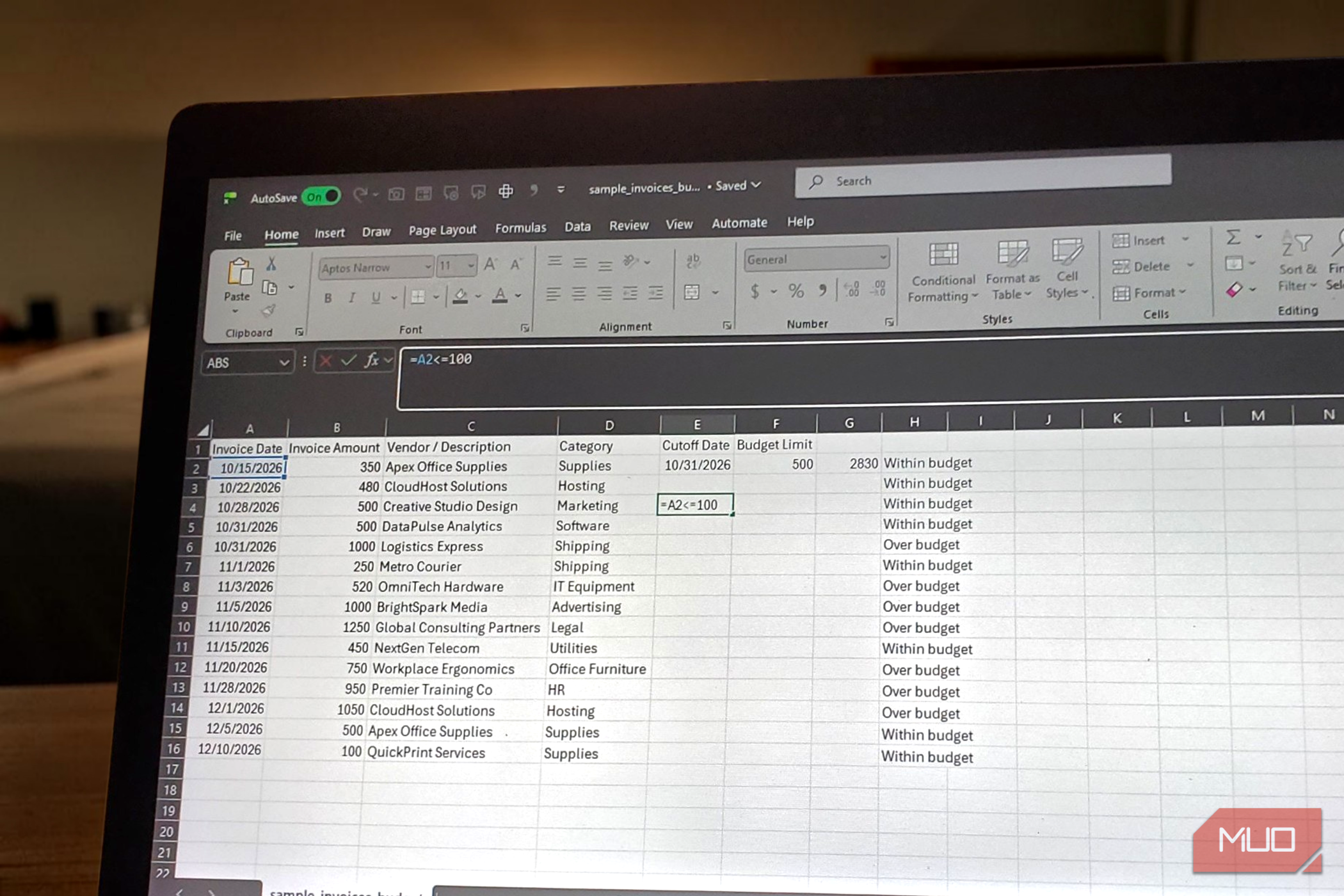
Some time ago, I had to create an Excel formula that would trigger a restocking alert whenever one of my products reached its reorder limit of 100 pieces. The formula seemed straightforward enough, but when the stock level hit 100, I didn’t get an alert. Excel wasn’t glitching, either. The problem came down to the comparison operator I was using. After adding one more character to it, the formula started doing what I had intended all along. Why ⇐ beats < at the limit One extra character fixes the boundary problem At its simplest, Excel compares two values and returns either TRUE or FALSE. A formula such as =A2<100 asks whether the value in A2 is below 100. If you put 99 in A2, you’ll get TRUE. If you put 101 there, you’ll get FALSE. However, when you enter 100, Excel will still return FALSE because 100 technically isn’t less than 100. Mathematically, that’s correct. In a spreadsheet, though, that may not match the rule you’re trying to enforce. In that case, you’d change the formula to =A2⇐100 and Excel will return TRUE when the cell contains 100. The ⇐ operator means less than or equal to, so it includes the boundary. That may seem like a small difference until you consider the kinds of rules spreadsheets often handle. Say you’re tracking a 1,000, a check such as =B2<1000 returns FALSE even though you haven’t exceeded the limit. With =B2⇐1000 , Excel correctly treats 1,000 as still within the limit. The same logic works in plenty of other scenarios. Your inventory can trigger a reorder when stock reaches 10 or fewer units. A temperature can remain within its permitted range as long as it stays at or below the maximum. You just have to decide whether the boundary value should count, and then choose the operator that expresses that rule correctly. You can also put the comparison operator inside an [IF statement in Excel](https://www.makeuseof.com/excels-if-statements/) like this: =IF(B2<=500, "Within budget", "Over budget") This formula will use the comparison to decide which message to display. If B2 is 500 or less, you’ll see “Within budget.” Anything above 500 will return “Over budget.” The comparison still works when a calculation comes before the operator. For example: =L2+55<=120 Excel calculates L2+55 first and then compares the result with 120. Arithmetic operators (like addition/subtraction +/- and exponentiation ^ ) have higher precedence than comparison operators such as <= , so you generally don’t need extra parentheses for a straightforward expression like this. You can still use them, though, when your longer formula becomes harder to read. <= gets even better inside COUNTIF and SUMIFS It’s not only useful in IF formulas [Functions such as COUNTIF(S), SUMIF(S), and AVERAGEIF(S)](https://www.makeuseof.com/excel-functions-should-learn-beyond-sum-and-vlookup/) accept criteria that tell Excel which cells should be included. When that criterion contains a comparison operator, you’d put the operator in quotation marks because Excel expects the criterion as text. For example, =COUNTIF(A2:A100,"<=100") counts every numeric value in the range that is 100 or lower. Similarly, =SUMIF(A2:A100,"<=100",B2:B100) adds the corresponding values from column B whenever the value in column A is no greater than 100. Dates work the same way, although I prefer not to hardcode them when I expect the cutoff to change. Suppose column A contains invoice dates and column B contains invoice amounts. You could total every invoice issued through October 31, 2026, with this formula: =SUMIFS(B2:B100,A2:A100,"<=10/31/2026") It works fine, but putting the cutoff date in a cell makes the formula much easier to reuse. Instead, if cell E2 contains the cutoff date, you can write this: =SUMIFS(B2:B100,A2:A100,"<="&E2) The <= stays in quotation marks because it forms part of the criterion text, while the ampersand joins it to the value in E2. If E2 contains October 31, 2026, Excel interprets the criterion as anything less than or equal to that date. If you change E2 later, the formula will automatically follow the new cutoff. You can use the same setup for prices or other numeric limits: =COUNTIF(B2:B100,"<="&E2) If E2 contains 50, the formula counts everything priced at 50 or below. When you change E2 to 75, the same formula will work with the new ceiling. A threshold cell makes the whole sheet easier to control If a workbook uses the same limit in several places, hardcoding it into every formula is just unnecessary work. A budget ceiling of 500 might appear in an IF formula, a COUNTIF formula, a conditional formatting rule, and a summary calculation. If you change the limit later, you’d have to hunt down each one. Instead, you can put the limit in one clearly labeled cell and point the formulas back to it. One formula might become =IF(B2⇐F2, “Within budget”, “Over budget”) , while another becomes =COUNTIF(B2:B50,"⇐"&F2) . The F2 reference acts as the shared threshold, so changing that one cell updates every dependent formula. You can take this further by making the threshold cell a drop-down choice or calculating it with another formula. A dashboard could let someone change a spending ceiling, reporting date, score cutoff, or stock level without touching the formulas behind it. One thing to note when you copy your formulas from documents, chatbots, or web pages is that Excel expects straight quotation marks around criteria. Curly quotation marks can cause the formula to fail. Also, putting ⇐ in a cell doesn’t make it behave like a live operator everywhere. Criteria functions can interpret text such as "⇐"&E2 , but a normal IF formula can’t treat arbitrary text as executable formula syntax. In an IF formula, you’d write the comparison directly without quotation marks around the operator. Don’t leave the limit out It’s easy to think of < and ⇐ as interchangeable variations of the same operator. However, when your formula deals with a real-world boundary, you need to decide where the exact limit should land. That extra = can be the difference between a payment that hits the cap, stock that reaches the reorder point, or a date that lands exactly on the cutoff being counted correctly or missed altogether. It’s only one character, but leaving it out can change what your formula means.