Summary
Running Windows 11 on older machines has always been a bit of a challenge, but thankfully there do exist a bunch of community-driven programs to fix this. Some of these programs can even be used to bypass Windows 11’s strict hardware requirements — such as the dreaded TPM 2.0 lockout. To test it out, I installed two separate, fresh copies of Windows 11 on the same Dell Inspiron 7320 laptop, comparing a bunch of parameters to determine the answer to the ultimate question: How good can Windows 11 run without Microsoft’s many unnecessary “features”? Set the power profile to performance and update all drivers It’s the simplest fixes that often make all the difference No matter how many tunings you perform, an already weak machine will start running into problems sooner or later. Most laptops have access to multiple power profiles, and switching to Best Performance usually fixes most of the hiccups you’d notice otherwise. The performance profile ensures that your laptop hits its peak more often, but this comes at the cost of additional power draw. This means more heat and less battery life, and it’s an unfortunate tradeoff you’ll come to live with on these older machines. There is a way to cut your losses though. If you disable CPU boost entirely, it should dramatically improve battery life without much of an impact on performance. Be warned though — disabling CPU boost won’t let you hit turbo frequencies, so it might be detrimental for some workloads such as compilation. Run a debloating script You don’t need Microsoft’s defaults With the power profile tweaks out of the way, the first thing you’ll want to divert your attention to is the Windows 11 installation itself. There’s a bunch of unnecessary background services and telemetry in a stock Windows 11 install, all of which needs to be purged. This can be easily resolved using one of the gazillion helper scripts available on GitHub and GitLab (or other similar platforms). I’m going to be using the CTT (Chris Titus Tech) debloat script here as an example:
- Fire up an elevated PowerShell window. Right-click on the Windows start logo, and drag your cursor to the Powershell text.
- Right-click on the entry and select Run as Administrator. Windows will bring up a prompt. Select Yes to continue.
- Copy and paste the script link: irm https://christitus.com/win | iex and hit the Enter key.
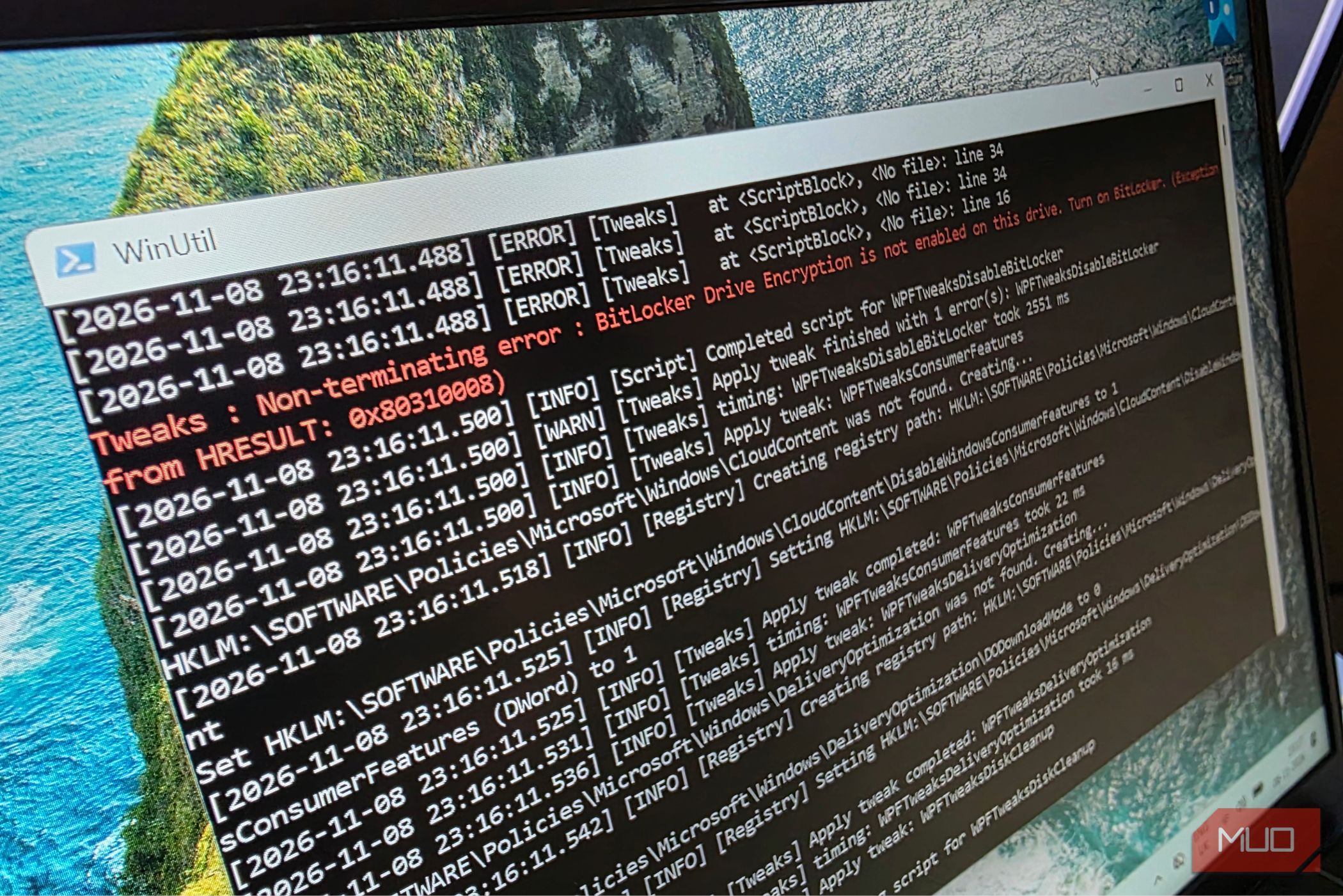
- Wait until the utility pops up, and tweak the options to your liking.
I’d recommend heading to the tweaks tab first, and making all the necessary changes, like disabling telemetry and auto-app installs. Make sure to set the Windows update policy to Recommended so that you don’t keep running into nasty driver overrides from Windows Update.
The difference is substantial. Even if you happen to have a powerful rig, these tweaks are almost mandatory, and I can’t find a reason to want adware and nagware plastered across my desktop.
Swap to an SSD if you haven’t already
Windows 11 on the boot drive makes a massive difference
If you’re looking to upgrade a really old laptop, chances are that it’s using a much slower mechanical HDD. One of the cheapest upgrades you can do for your machine is swapping that crusty old HDD for an SSD.
SSDs are a lot faster, and it’s always recommended to install your operating system on it, Windows, Linux or otherwise. It makes for a very noticeable boost in system responsiveness.
This is especially true for machines with 8 GB RAM or less, since you’ll constantly be running into swap usage. SSDs just handle swap better and are speedier, and it’s even better if you have an NVMe slot.
You don’t even have to throw off that old HDD. Storage is precious and scarce nowadays, and there’s no point in throwing out a perfectly good hard drive. Just use it as a secondary storage for your laptop or home server. USB-C to SATA cables are plentiful and cheap, helping you repurpose that drive.
Switch to Windows 11 LTSC instead
You don’t need an online account to install it
If you’re tired of using Windows 11 but can’t seem to be able to fully commit to Linux just yet, it might be worth looking at the LTSC version instead. LTSC versions of Windows are built for enterprise use, and are stripped down of most consumer features.
This makes a Windows 11 LTSC installation significantly more lightweight than a similar Windows 11 Home install. There are also far fewer services running in the background, which helps out a lot.
The best thing about LTSC is, however, the ability to use a local account. Unlike the consumer versions of Windows 11, Microsoft doesn’t force you to sign in with a Microsoft account during setup.
In addition to shaving off precious seconds from your install speed run, LTSC also feels a lot more secure. I certainly don’t like being forced to use an online account for just Windows.
A few hardware tweaks and maintenance
Clean your laptop for extra FPS
Something as simple as changing the thermal paste and clearing out the fans of your laptop is often more than enough to stabilize performance. More importantly, it stops your laptop from overheating, which is always recommended.
Each laptop has its own layout, but I’d generally recommend flipping it over to expose all its screws. Once unscrewed, carefully lift the back panel to expose the motherboard. You’ll want to remove the heat sink and fans attached to the CPU next.
Next, grab a Q-Tip and some rubbing alcohol (99% is preferred). Soak the Q-Tip with a few drops of alcohol, and gently wipe down the CPU and GPU dies to remove any old thermal paste. Apply the same to the heat sink.
Next, grab a tube of thermal paste; any brand will do. Spread it evenly, screw everything back in together, and you should be done. Your laptop should run noticeably cooler now, and should have fewer throttling issues. You can also consider using PTM7950 instead.
 PTM7950
 is a premium alternative to regular thermal paste. It phase changes into a liquid at higher temperatures, and is incredibly viscous, carrying all that heat a lot more efficiently.
The differences are significant
To finally put everything to the ultimate test, I installed two fresh copies of Windows 11 on the Dell. One was a tweaked, LTSC installation, and the other was a standard Windows 11 Home install with all the bloat and spyware left as-is.
Measuring across multiple parameters, we have the following data:
- Boot Time (cold): 22 seconds/50 seconds
- Idle RAM usage: 4.9 GB/4.1 GB
- Idle CPU usage: 4% 2.07 GHz/1% 1.80 GHz
It’s quite obvious that the debloated, LTSC installation fares a lot better, especially on older, more resource-starved machines. There’s barely any differences to be concerned about when compared to the consumer version, and any missing features can be easily restored.
 Windows 11 is Microsoft’s latest operating system featuring a centered Start menu, Snap Layouts, virtual desktops, enhanced security with TPM 2.0, and deeper integration with Microsoft Teams and AI-powered Copilot.