Summary
My Galaxy S24 Ultra completely spoiled me with Samsung’s Sound Assistant. It lets me turn down a super loud YouTube video without making everything else on my phone whisper-quiet. It’s one of those features you immediately miss the second you switch to a phone that doesn’t have it.
Luckily, there’s an easy workaround. An extension called SoundMaster, built into the free, open-source ShizuTools app, adds individual volume sliders and a few other cool audio tricks to compatible Android phones. Setting it up takes a little bit of tinkering, but the payoff is totally worth it.
SoundMaster makes you earn your volume sliders
A short detour through Shizuku


 SoundMaster works on Android 10 and newer, and it lives inside ShizuTools—a free bundle of handy tools that uses another app called Shizuku to tweak deep Android settings that normal apps can’t touch. The best part is that you don’t need to root your phone, though you will need to turn on developer debugging. If you’ve ever run ADB commands on your phone before, this will feel super familiar.
If you’re on Android 11 or newer, Shizuku’s wireless debugging lets you set everything up without plugging into a computer. If you’re still on Android 10, you’ll need to connect to a PC or Mac using the standard ADB method. Here is exactly how I got it working on my Galaxy:
- Install Shizuku, then download the ShizuTools APK from its official releases page.
Turn on Developer options by tapping Build number seven times. On Samsung phones, you’ll find it under Settings > About phone > Software information. That menu is also home to some Bluetooth volume fixes. - In Developer options, turn on Wireless debugging. Follow Shizuku’s pairing instructions, enter the pairing code, and start its service.
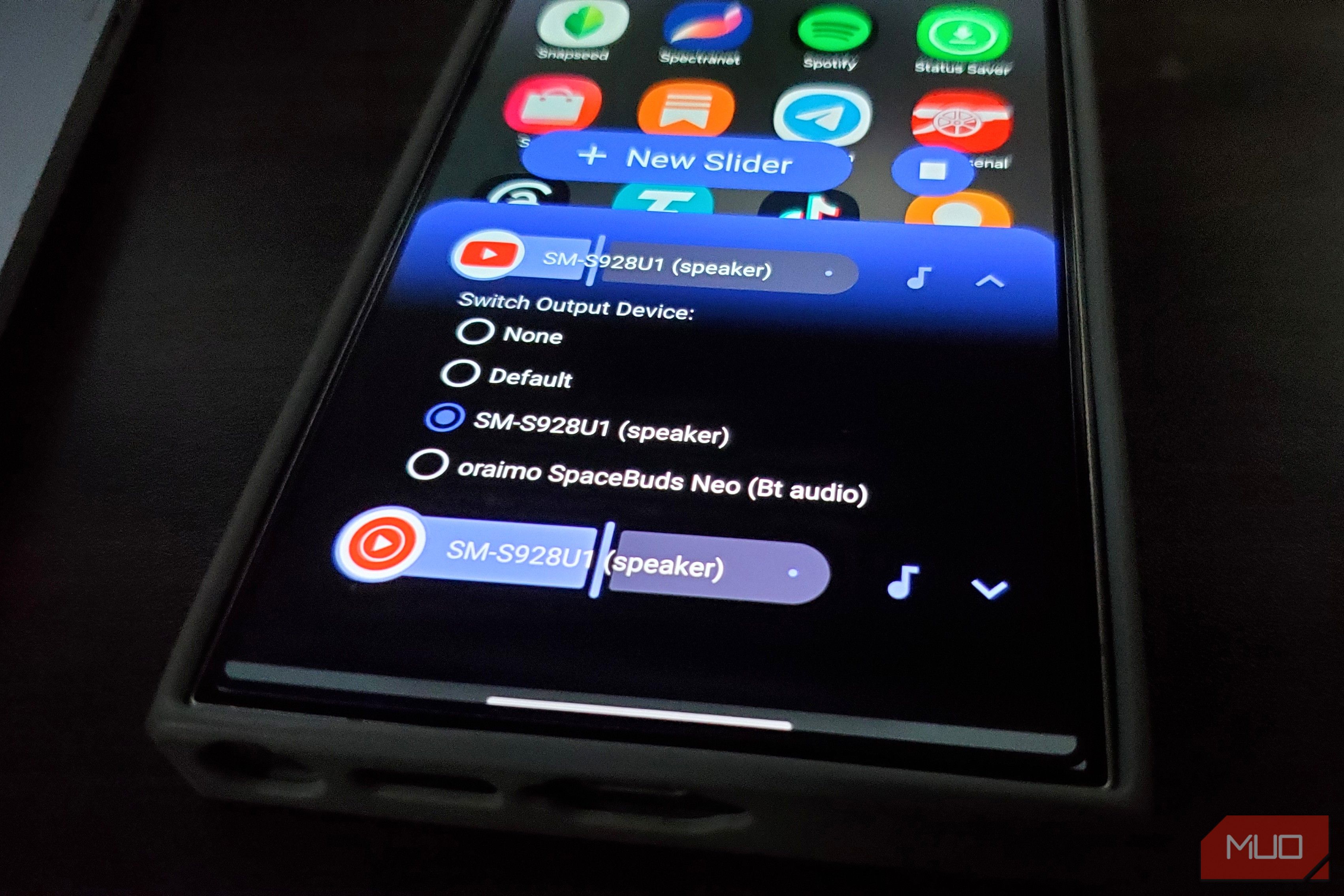
- Open ShizuTools, give it permission to use Shizuku, and tap SoundMaster. There’s a fair bit of permission juggling involved. On older phones, installing apps with ADB is another option. Once SoundMaster is running, it adds a notification that opens its controls at the bottom of your screen. My first look at its app picker wasn’t pretty. It listed 653 items on my phone, including system components that most people have no reason to touch. Luckily, the search box means you don’t have to scroll through every app on your phone. Each app gets a knob, and the knob actually works YouTube, YouTube Music, and a little audio traffic control Tap “New Slider,” search for an app, and choose where you want the sound to play. I started by setting YouTube to my phone’s speaker, did the same for YouTube Music, and hit Play to turn SoundMaster on. After hitting “allow” on a quick pop-up asking to capture audio, both apps popped up in a floating window with their own icons and volume sliders. To test it, I started a YouTube video and turned its specific slider down—and the volume dropped instantly. Then I hopped over to YouTube Music, started a song, and messed with its slider while my YouTube volume stayed exactly where I left it. That’s the whole point of this app. You can keep a podcast or video comfortably low in the background while letting your music blast, all without constantly messing with your phone’s main volume buttons. The little music note button next to each slider is way cooler than it looks. If you tap it, SoundMaster shows you a list of all your connected audio devices. With my wireless earbuds paired, I could send YouTube audio to my earbuds while keeping YouTube Music playing out of my Galaxy’s main speaker. I tried it both ways, and the audio went exactly where I told it to. If you have a Samsung, you may recognize the idea from Separate App Sound, but SoundMaster lets you set up each app and device pairing on its own. If you tap the little arrow on the right side of a slider, you’ll find balance controls for left and right ears, plus a basic 3-band equalizer (EQ) for bass, mids, and treble. They worked perfectly in my tests, letting me tweak the sound profile for one specific app without messing up the audio on anything else. It’s a great little feature if you’re picky about getting the best sound quality out of your wireless headphones. And if you completely mess up the audio settings while experimenting, there’s a handy reset button to start over. When you’re done, just hit the square Stop button to shut SoundMaster down and return all your apps back to your phone’s normal volume control. If you just want to get rid of a single slider while the app is still running, just change its audio output option back to None. There are fiddly bits you should be aware of Spotify and the vanishing controls Spotify refused to work at all during my testing, which turns out to be a known issue. Because SoundMaster has to capture and process an app’s audio in real-time, any service with strict copyright blocks on audio recording can end up off-limits. The developer also says the app adds about 20 to 50 milliseconds of audio delay. While you won’t notice that at all on a podcast, it might get annoying in fast-paced mobile games where timing is everything. Another quirk I ran into was that the floating control panel kept vanishing from my screen after about 10 or 15 seconds. The volume settings and music kept working fine in the background, but constantly pulling the panel back up got old fast. The developer mentioned there’s a “Hide after timeout” setting to fix this, but I couldn’t actually find that toggle in the version I was running. Keep in mind that performance can vary quite a bit depending on what phone you have. There’s one last major rule of thumb you need to know. Make sure to hit stop on SoundMaster before restarting your phone or updating the ShizuTools app. If the app gets suddenly cut off, it can leave your favorite apps completely muted. If that happens .I’ll take the extra knobs I’d happily put up with a few setup hoops for this level of control, provided the apps I listen to cooperate. SoundMaster could use a tidier interface, and Spotify’s absence stings. Still, there’s a certain pleasure in telling an overenthusiastic video exactly how loud it’s allowed to be.