Summary
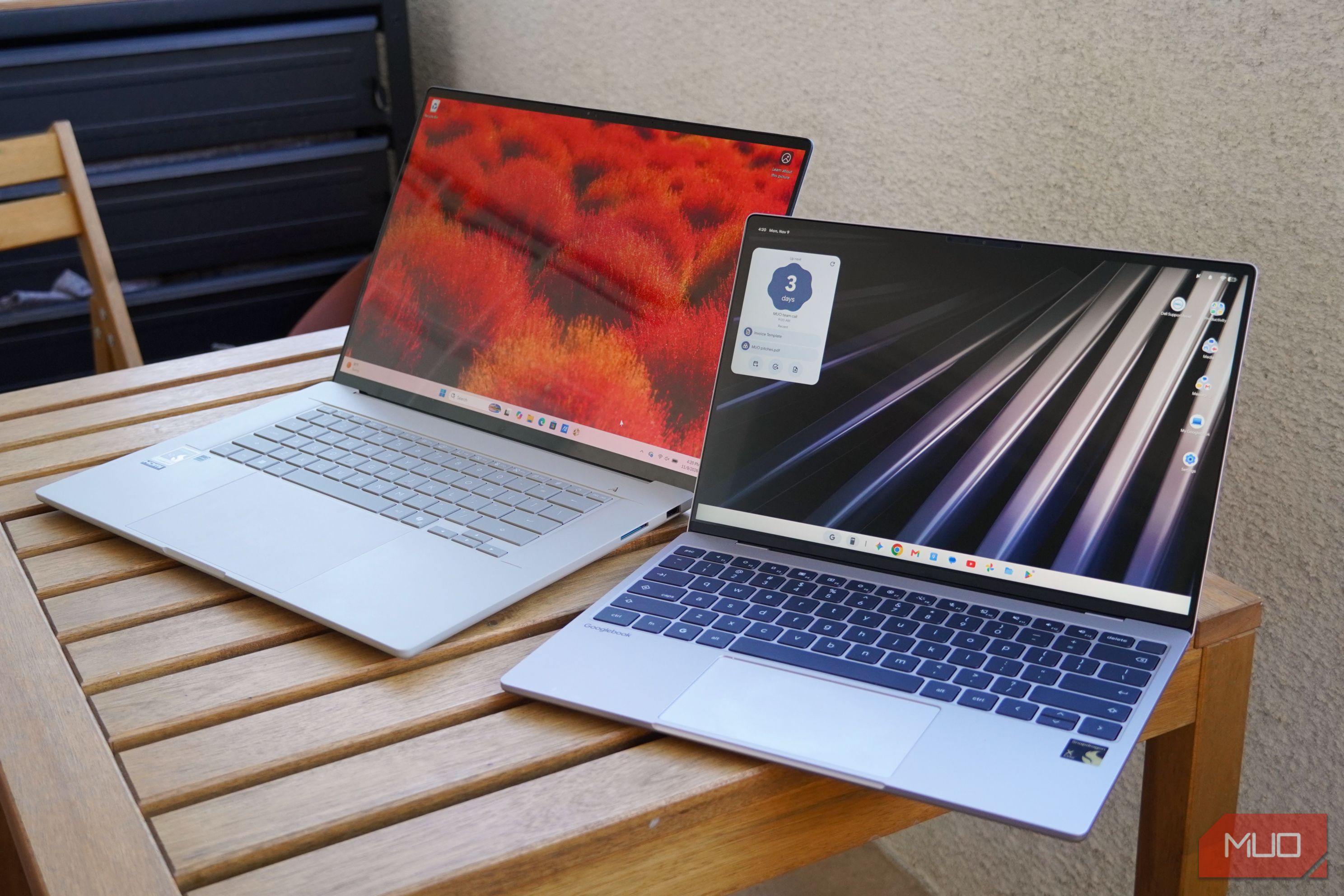
I’ve been using Googlebooks for over a month, which are part of a new class of laptops built for Android users. Similar to the Chromebook lineup, there are five Googlebooks made by Acer, Dell, Lenovo, HP, and Asus available at launch.
While these laptops aren’t made by Google, they run Googlebook OS – an operating system with Android at the core. Googlebooks aren’t as capable as laptops running macOS, Windows, Linux, or even ChromeOS, but they have an enticing selling point: near-perfect integration with Android phones.
As I’ve tested Googlebooks, a constant bright spot has been the “Better Together” suite of cross-device features linking my Android phone and Googlebook laptop. However, they don’t exist in a vacuum. Microsoft’s Phone Link app also bridges the gap between Windows PCs and Android phones.
I compared Phone Link on Windows 11 to Better Together on Googlebook OS, and realized the Googlebook perks didn’t outweigh the drawbacks.
Phone Link is better for messaging
Googlebook OS doesn’t handle Google Messages how you’d expect
By and large, Googlebook OS is better at connecting with Android phones than Windows 11. That said, there’s one aspect of the experience that falls short: messaging. Googlebooks run Android 17, but they don’t use the Google Messages app for Android.
Instead, they use the same Google Messages web client that you’d find on a MacBook, Chromebook, or Windows laptop. The web app isn’t as feature rich as the phone app, and it makes you wonder why an Android laptop can’t run every Android app.
Google Messages notifications from your phone show up on your Googlebook. Click the notification bubble, and a Googlebook doesn’t open the Googlebook OS web app — it opens the Android app cast from your smartphone instead. Google Messages streaming via the Cast My Apps feature has its own limitations. So, whichever way you try to message from your Googlebook, you won’t find the harmony between laptop and phone you expect.
Phone Link isn’t as flashy, but it’s more reliable. Scan the QR code to pair your Windows 11 laptop with your Android phone, and you can send and receive messages from your computer. Phone Link is the way to access your phone from your PC, and Link to Windows is the companion app on your Android phone.
My messages and notifications arrive on my Windows 11 laptop, and I can quickly access them from the Start Menu. There’s a dedicated sidebar for Phone Link, where I can see my messages, make calls, transfer photos, or send files. Phone Link creates the link between my laptop and phone, so I never have to use the limited Google Messages web app on Windows 11.
Instead of jumping between the Googlebook web app and the Android app streamed from my Android phone, Phone Link offers a simple way to send and receive texts from my laptop. That’s all I really want, and today, my Windows laptop does it better than a Googlebook.
Cast My Apps is best for remote control
Phone Link’s screen mirroring leaves a lot to be desired
Windows laptops and Googlebooks can both mirror your smartphone for remote control, but the Googlebook OS implementation beats Phone Link every time. Phone Link’s streaming feature is similar to iPhone Mirroring. I can click my Android phone’s wallpaper and see a mirrored window of my screen. I can’t break out individual apps or resize the window, however.
It’s helpful in a pinch, but Phone Link’s screen sharing feature won’t replace desktop apps or web clients on your Windows laptop. The latency isn’t great, although you can use the Windows laptop’s keyboard, trackpad, and touchscreen to control your mirrored smartphone — everything works as you’d expect.
Googlebook OS doesn’t mirror your entire Android phone screen at all. Instead, the Cast My Apps feature is built to stream individual phone apps on your Googlebook. I can launch apps streamed from my Android phone on my Googlebook via a separate app drawer that lives in my Googlebook OS taskbar. Moreover, I can keep using my Android phone while simultaneously streaming individual, resizable apps to my Googlebook.
Make no mistake, Cast My Apps still suffers from the same limitations of every phone-streaming tool, like low latency and blocked apps. The flip side is that Cast My Apps feels polished and natural on Googlebooks, whereas the Phone Link and iPhone Mirroring alternatives feel silly to use.
File sharing isn’t perfect on either laptop
Quick Access on Googlebook is neat, but it only works one way
Quick Access is one of my favorite Googlebook OS features. When your phone and laptop are on the same Wi-Fi network, your phone appears as a source in the Files app on Googlebook OS. I can access anything saved to my phone’s internal storage from my Googlebook, all while the Android device stays in my pocket or bag. It’s incredibly useful, but it does have a few limitations.
The Wi-Fi network requirement is a bummer, because many public and enterprise Wi-Fi networks outright block peer-to-peer sharing. There’s also a 200MB file size limit. However, both of these caveats are easy for me to overlook — the drawback I can’t get over is that Quick Access only works one way. I’d love to be able to access my Googlebook’s internal storage from my smartphone, but that isn’t currently possible.
Phone Link’s file sharing tool in Windows 11 isn’t nearly as convenient as Quick Access on Googlebook OS, but it does work both ways. I can use the Phone Link app on my laptop and the Link to Windows app on my phone to transfer files and see my clipboard history. The two-way file sharing implementation is handy. You could replicate this with Quick Share on an Android phone and Googlebook, it’s just not automatic like Quick Access.
Another win for Phone Link is that you can access your phone’s entire media library of photos and videos without a manual transfer. Neither Phone Link nor Quick Access is a perfect file-sharing solution, and Microsoft and Google could both learn something from each feature.
Google didn’t do enough to usurp Phone Link
Windows plays nice with Android phones without the drawbacks
I was under the impression that Phone Link in Windows 11 was underrated long before Googlebooks were announced — especially since the feature works with both Android and iOS. The reception of the Better Together features connecting Android and Googlebook OS has me even more confident that Windows and Android users are underutilizing Phone Link. It’s clear that Android phones and Googlebook laptops have exclusive features no other pair of devices can match, but Phone Link isn’t far behind.
I’d choose a Windows laptop with Phone Link over a Googlebook with the Better Together suite to pair with my Android phone. Considering how much more capable Windows 11 is as a desktop operating system today than Googlebook OS, it’s an easy decision.
 Lenovo Googlebook 15
- Operating System
- Googlebook OS
- CPU
- Intel Core Ultra 5 325 (8 cores: 4 P-cores + 4 LP E-cores, 12MB cache)
- GPU
- Intel Graphics (integrated)
- RAM
- 16GB The Lenovo Googlebook 15 is a lightweight 15.3-inch laptop with a 2880x1800 OLED touchscreen that runs at 120Hz. It’s powered by an Intel Core Ultra 5 325 processor with 16GB of RAM and 512GB of storage, and it has two Thunderbolt 4 ports, one USB-A port, HDMI, and a headphone jack. It runs Googlebook OS, Google’s replacement for ChromeOS, which pairs Chrome with Android apps from the Play Store. The Cloud Grey chassis weighs 2.84 pounds and feels solid, and an LED strip on the lid, called the Glowbar, lights up when you wake the laptop, put it to sleep, or plug it in to charge.