Summary
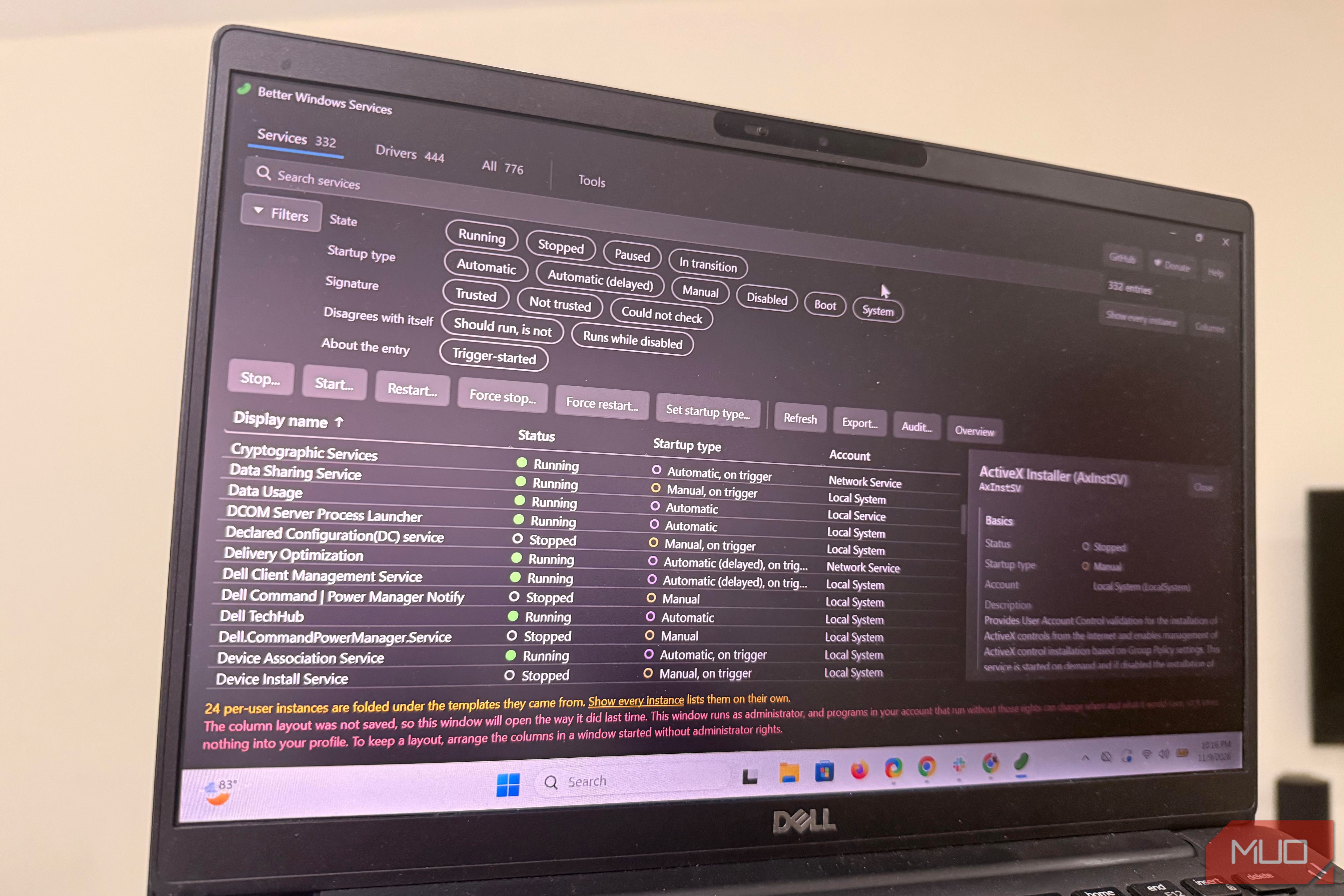
Hundreds of background services are running on your computer and their behavior can be modified by the software you install. Tracing why something breaks may be trickier if you don’t know what background services have changed. This free app called Better Windows Services remembers how services are set up and shows what’s different. It makes it easy to tell a harmless tweak from something more suspicious. Apps that flip your switches One program can turn off Windows Search on its own I came across this Microsoft support article that documents a program whose background service switched Windows Search from Automatic to Disabled. That change broke instant search in Outlook. Microsoft recommended uninstalling the trigger program as a fix. This mechanism is still around, even though the article about it is old. File and email lookups appear instant because of Windows Search, so you wouldn’t immediately connect slow search to an app you installed long ago. The changed setting resides in your Services list, which most people rarely open. Installers, updaters, drivers and one-click tweak scripts that install with admin rights can change how your services start. All through the day, Windows also starts and stops its own services at will, but this is normal behavior. When something suddenly stops working, the trigger is rarely obvious. Services are a common hiding place for software I didn’t mean to keep. Windows keeps receipts, badly Event Viewer logs the changes, then buries them under routine entries Event Viewer has a system log that records a start-type change under the Service Control Manager source as Event 7040, and a newly installed service shows up as Event 7045. Finding them is just not straightforward. Within the same log, you also find every service entering a running or stopped state. This places the entry you want among several other routine entries. Your only way out is if you know how to look, filter by source and event ID, and read the long line of each entry without a snapshot of the machine’s previous state. The Services console doesn’t help much either. Despite its decades of existence, it still doesn’t have search or filtering, and you get one row at a time with no history. It doesn’t readily show you details like who signed a file or what triggers a service. No built-in Windows option will readily show you last week’s setup; Windows only shows today’s. This free and open-source tool called Better Windows Services fills that gap. | Tool | Built in | Change history | Compare over time | |---|---|---|---| | Services console | Yes | No | No | | Event Viewer | Yes | Partial | No | | sc.exe and PowerShell | Yes | No | Only with scripting | | System Informer | No | No | No | | Better Windows Services | No | Yes | Yes | Freeze your setup Save a snapshot now, compare it later, and only read the lines that matter After installing Better Windows Services, one of the first things you should do is take a snapshot. This is a saved copy of how your computer’s services and drivers are set up. It covers the start type, the account it runs under, its launch path, who signed the file, dependencies and more.
- Launch Better Windows Services and click the Audit button.
- Click Take snapshot.
- Optionally give the file a descriptive name, click Save snapshot, choose a location, and save the JSON file. It’s good practice to take snapshots before big Windows updates or major installations. Whenever you suspect something is wrong, compare the first snapshot you took when the computer worked fine with the computer’s current state. To compare, click the Audit button, Compare with this machine, then select your saved snapshot. Comparisons separate changed settings from changes in running state. They typically include the names of what changed and two columns worth looking at: In the snapshot and Now. If a start type goes from Manual to Automatic, it’s worth investigating. A service moving from Stopped to Running, on the other hand, usually isn’t anything to worry about. The comparison window also includes a search field you can use to filter results to rows containing specific words. Aside from comparing a snapshot with the current state, you can compare two snapshots you have taken as well. By default, Better Windows Services opens on the Services page, but you may click the Drivers button and perform similar steps for drivers. Spotting what deserves suspicion Better Windows Services has five filter categories that make diagnosing your device much easier. The first is State which includes filters for Running, Pause, Stopped, and In transition. There are also Startup type, Signature, Disagrees with itself, and About the entry categories. The Signature category is the one I use most often. It includes filters for Trusted, Not trusted, and Could not check. This is my go-to when I need to know the services that look most suspicious on my computer. Right from the tool, I can stop services, restart them, or change their startup options. However, before it stops or starts anything, Better Windows Services shows the actions it will perform, including any dependent services that would stop. This includes every dependent service that would go down too. I’ve loved using this tool, but it’s a young, solo project, built with an AI-assisted workflow. It isn’t a replacement for antivirus software, but seeing what changes between snapshots has been invaluable for troubleshooting.