Summary
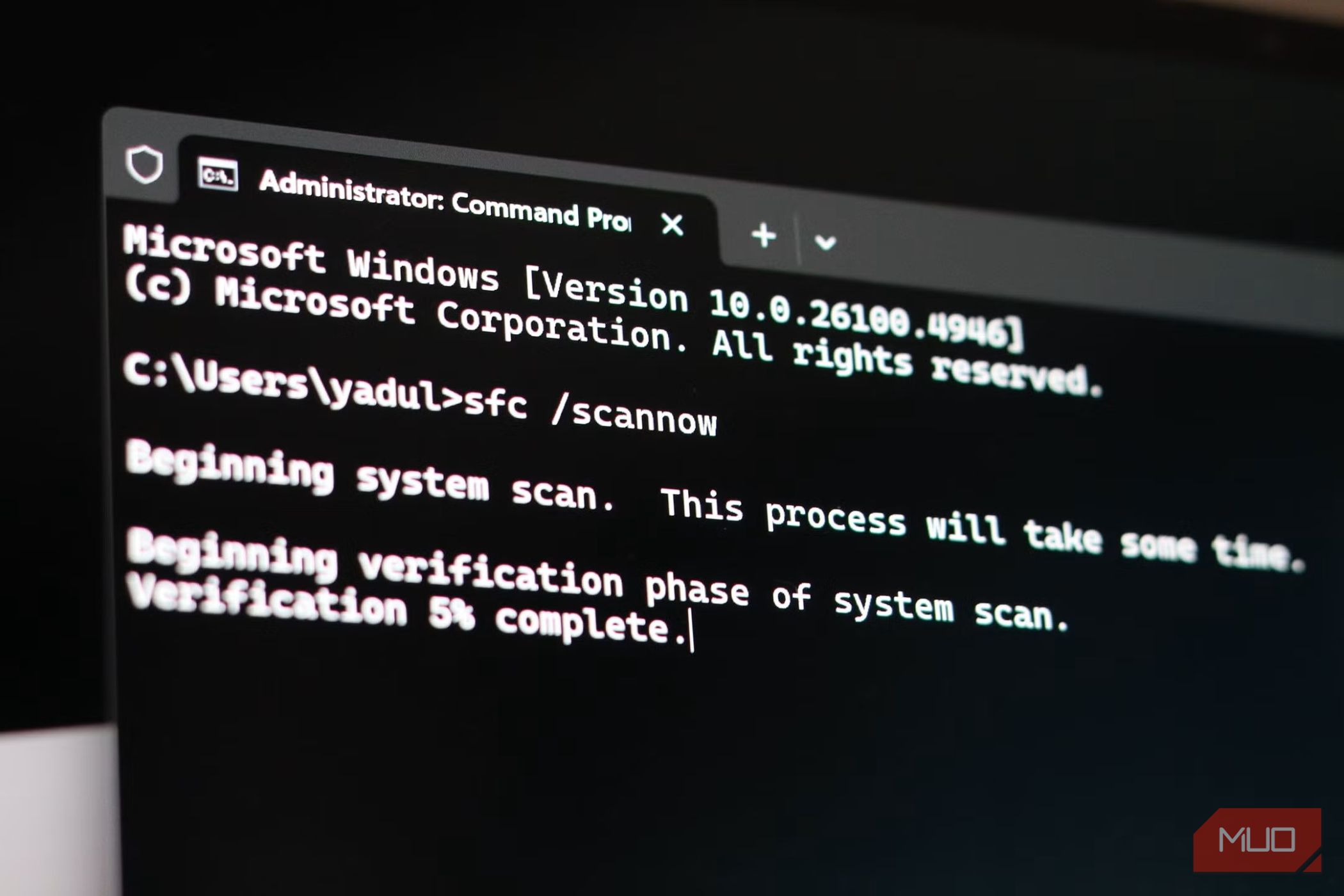
Whenever you’re experiencing a weird glitch, performance issue, or apps simply misbehaving on your Windows PC, there’s an 80% chance someone is going to tell you to “just run sfc /scannow .” It has become synonymous with blowing into a Nintendo cartridge or cleaning the surface of a game disc. And honestly, they’re not entirely wrong; SFC does fix some of those issues. But a lot of people now treat it as a cure-all tool for everything wrong with Windows, which simply isn’t true. In reality, its scope is much narrower than many people assume and understanding what the command actually does can save you from repeatedly running it and expecting a miracle. What sfc /scannow actually does It checks protected Windows system files, not everything installed on your PC The sfc /scannow command launches System File Checker, a built-in Windows utility designed to scan the integrity of protected operating system files. These are files Windows relies on to run core features and services. So, when you run the command and SFC finds a corrupted or missing system file, it attempts to replace it with a healthy copy from Windows’ component store. For example, if a critical Windows DLL gets corrupted and starts causing system features to malfunction, SFC might be able to repair it. The same applies to certain Windows errors, broken built-in features, and instability caused by damaged protected system files. This means SFC’s jurisdiction is limited to just Windows system files. Anything outside that is above its pay grade. It doesn’t scan your installed applications, personal files, downloaded programs, or third-party drivers looking for problems. Why SFC won’t solve every Windows problem Many common PC issues have nothing to do with protected system files A lot of things can go wrong on a Windows PC without a single system file being affected. That’s why running sfc /scannow and getting a clean result doesn’t mean your computer is healthy. For instance, if Chrome or any other application keeps crashing due to a buggy update, corrupted app files, or a problematic extension, SFC won’t repair those components. The same goes for faulty graphics, audio, or network drivers. These can cause freezes, crashes, and performance issues, but they’re outside System File Checker’s scope. Then there are problems that have nothing to do with software corruption in the first place. A PC struggling with limited RAM, a failing SSD, overheating, or too many startup apps won’t suddenly become faster after an SFC scan. And while malware can sometimes damage Windows system files, SFC isn’t an antivirus tool. It won’t hunt down malicious programs or remove suspicious startup entries. But that doesn’t make SFC useless. It just means you need to match the repair tool to the problem. If the issue really is damaged Windows system files, SFC is worth running. If it isn’t, you need to investigate elsewhere rather than repeatedly running the same command. DISM makes SFC a more effective repair tool Repair the Windows component store before asking SFC to repair system files Sometimes, even if the problem with your Windows PC has something to do with a corrupted system file, SFC might still fail. It would scan for the problem and probably detect it, but it won’t fix it. As mentioned, SFC attempts to repair corrupted system files by replacing them with a healthy copy from Windows’ component store. That component store contains files used to service and repair Windows, and they can get corrupted too. So, when SFC tries to replace the corrupted system files with the ones in the component store, it won’t have the healthy files it needs to complete its job. It’s just like trying to replace corrupted files with other corrupted files. That’s why DISM, or Deployment Image Servicing and Management, is pivotal to SFC’s success. DISM can scan and repair the Windows component store, giving SFC a healthier source to use when replacing damaged system files. So, before you run sfc /scannow , always run the following command: DISM.exe /Online /Cleanup-Image /RestoreHealth . By default, DISM can use Windows Update to obtain the files it needs, so make sure your PC has an internet connection. The process can take several minutes, and sometimes longer, so you need to be patient. SFC is a useful tool, not a magic fix I still think sfc /scannow deserves a place in any Windows troubleshooting routine. It’s free, built into the operating system, and can repair damaged system files that might otherwise cause annoying errors or instability. However, running it every time something goes wrong isn’t a substitute for understanding the problem. If Windows itself is malfunctioning because protected system files are corrupted, SFC can help. If its component store is damaged, DISM can help prepare the way for that repair. But if your issue comes from a bad driver, misbehaving application, malware, or failing hardware, there’s simply nothing SFC can do about it.