Summary
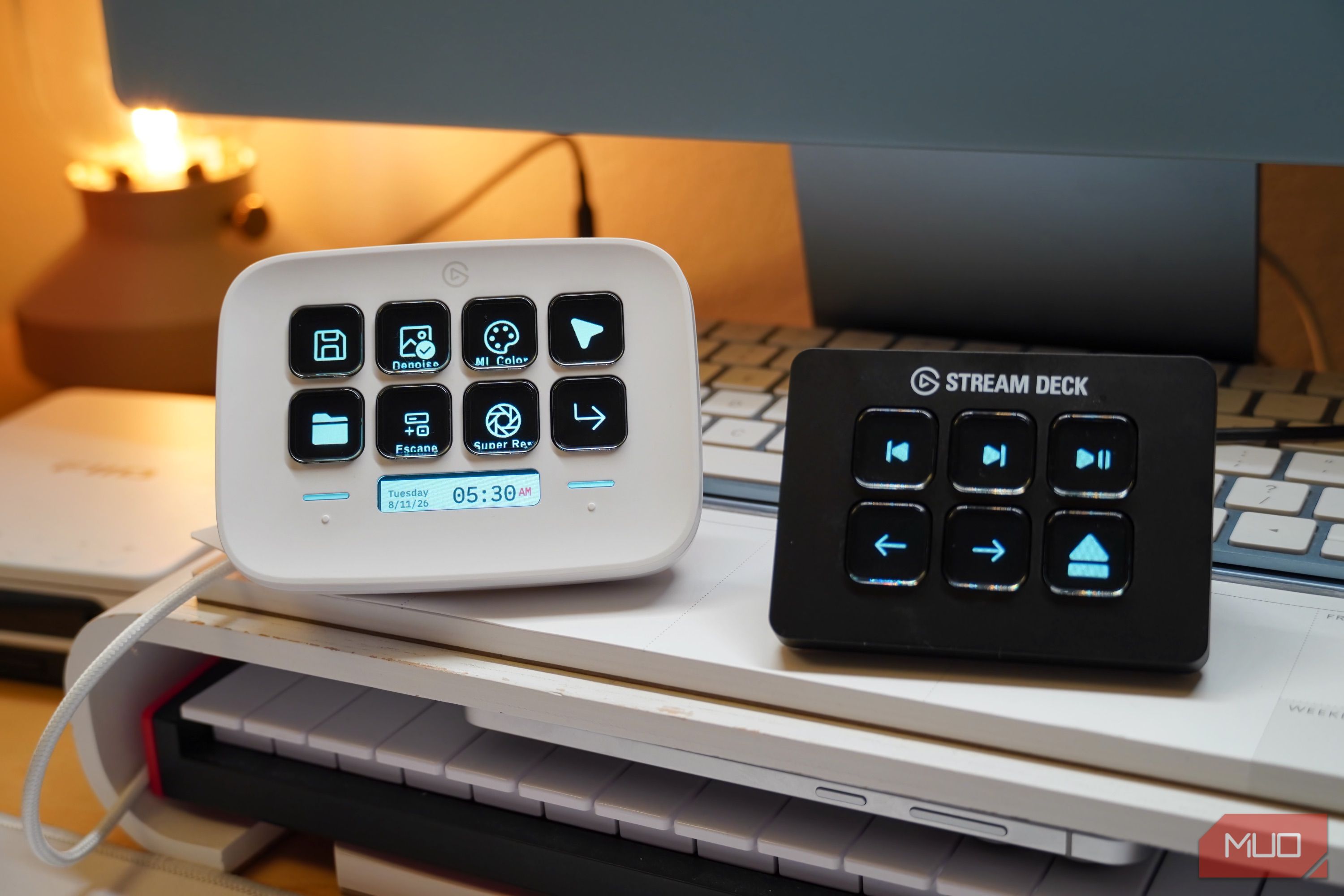
Repetitive processes, keystrokes, or commands in your workflow don’t have to be a pain to execute. I became all too comfortable manually initiating keyboard shortcuts or digging through menus to trigger the same actions, tens or hundreds of times per day. That’s when I finally gave in to the hype and tried a macro pad. Put simply, macro pads are configured to launch a series of actions or keystrokes with a single button press. Using the right software, any keyboard can be transformed into a macro pad. However, I’ve enjoyed fancy macro pads like the Elgato Stream Deck or the Logitech MX Keypad, which use under-key LCDs to remind you which macros you’re pressing. Deciding that you need a macro pad is easy, but picking the right one is trickier. I put four options to the test — the Stream Deck Mini, Stream Deck Neo, Logitech MX Keypad, and the Stream Deck mobile app — and this is the one I’d recommend. I use macro pads to automate shortcuts They’re also handy for custom app control and advanced workflows I didn’t realize I needed a macro pad until I learned how macro pads streamline workflows. They can be used for quickly launching apps or muting and unmuting microphones, but those basic use cases only scratch the surface of their utility. A simple way to use a macro pad is to trigger multi-key shortcuts with a single button press. ML Color, Denoise, and Super Resolution are examples of photo editing tools I use daily in Pixelmator Pro, and they each require multi-button keystrokes to use. I might use these keyboard commands tens of times while editing a single batch of photos, and mapping a macro to these keystrokes saves me a significant amount of time. Turning a three-key shortcut into a single button press is time-saving enough, but the real efficiency gains come with multi-action setups. The beauty of a macro is its ability to kickstart multiple, separate actions with one press. For example, I have a macro that launches Pixelmator Pro, opens my template file, and opens my SD card in Finder, all tied to one button on my macro pad. A mundane process that would’ve taken a minute or two now takes seconds. If there are repetitive processes in your workflow, chances are you can automate them with a macro pad. The premium ones with LCD screens underneath the keys are especially helpful, because you can build multiple pages of macros. Switch between shortcuts based on which app your running or the part of your workflow you’re currently in, and spot the macro you need to hit with custom icons and names. I’ve also used the Stream Deck to control music on my media PC, showing that you don’t have to be a streamer, gamer, or creative to leverage a macro pad in your own setup. Macro pads are built to be personalized, and adapt to your own needs — you don’t need to change your workflow to fit a macro pad. Picking the right macro pad I tested three models, each with their own perks For years, the Stream Deck was the automatic recommendation for those wanting a customizable LCD macro pad. The Stream Deck lineup is somewhat crowded, with nine hardware accessories to choose from. I used the Stream Deck Mini and Stream Deck Neo, and the Neo stood out to me as the better buy. With two extra keys and two dedicated page-turning buttons, the Stream Deck Neo is more versatile than the Mini. The Stream Deck Neo is 80 on sale, and if you can wait for a discount, it’s a no-brainer upgrade. However, the Stream Deck is no longer an automatic macro pad recommendation, because Logitech’s MX Keypad is a viable alternative. It’s priced the same as the Stream Deck Neo, but the MX Keypad has nine LCD keys and two dedicated page-turning buttons. On paper, the Logitech MX Keypad sounds compelling. It’s actually one half of the Logitech MX Creative Console, which pairs the MX Keypad with a wireless battery-powered dial. Compared to the Stream Deck Neo, the MX Keypad falls short. The Stream Deck Neo has an integrated kickstand and a braided USB-C cable. Meanwhile, the MX Keypad has a detachable USB-C cable, but the one included in the box is rubbery and stiff. The stand is a separate plastic piece, compared to the Stream Deck Neo’s stowable stand. As a result, the MX Keypad’s stand isn’t height-adjustable, and looks cheaper overall than the Neo. The MX Keypad is well-built and comes in two attractive colorways, but the USB-C cable and stand are real weak points. The real MX Keypad dealbreaker for me was the macro pad’s software. It uses Logi Options+, which you may be familiar with if you’ve used Logitech products before. The programming suite for the MX Keypad is surprisingly basic, lacking the ability to copy and paste actions. You also can’t duplicate pages. The MX Keypad is built for context-aware macro pages that switch based on the app you’re currently using, but the utility starts to fall apart due to the limitations of Options+. I’d like to duplicate actions and pages stored across multiple app profiles, and this is a hassle without a true copy-and-paste function. Elago’s Stream Deck configuration app lets you copy and paste actions, and it’s hard to see Options+ as anything but a downgrade. I’ve used both for weeks, and the extra LCD key isn’t enough for me to choose the MX Keypad over the Stream Deck Neo. Logitech’s software is more intuitive and the app plugins are genuinely useful, but power users will quickly run into an Options+ limitation that the Stream Deck doesn’t have. Twice as nice as a smartphone Apps can do some of the same things, but are less convenient You may not need to buy a hardware macro pad at all, because your phone can do the same job for free. However, I don’t regret the money I spent on the Stream Deck Mini or Stream Deck Neo one bit. A hardware macro pad is always directly wired to your computer, and you don’t have to fiddle with apps, pairing, or wireless connections. As a Stream Deck user that happens to love Logitech mice and keyboards, I was excited to try an MX Keypad review sample. Unfortunately, it didn’t fit into my workflow as easily as the Stream Deck. There are some things to love about the MX Keypad, like how it works even when the Options+ app is closed and the integration with creative and coding apps. I just don’t use enough apps with quality plugins to make the MX Keypad a worthwhile part of my setup. If you’re in the market for a programmable LCD macro pad with eight or nine keys, I’d recommend the Stream Deck Neo. That said, if you’re a frequent user of apps like VS Code, GitHub Copilot, Claude Code, or Figma, the scales might tip in favor of the MX Keypad.
Logitech MX Keypad
- Connectivity
- USB-C
- Color
- Graphite, pale gray
- Keypad
- 9 LCD keys
- Integrations
- VS Code, IntelliJ, GitHub Copilot, etc. The Logitech MX Keypad is a macro pad with nine customizable LCD keys designed for agentic AI workflows. The keypad connects over USB-C and works with macOS and Windows. It’s programmable using the Logi Options+ app.
Elgato Stream Deck Neo 100 Save $5- Connectivity
- USB-C
- Color
- White
- Keypad
- 8 programmable LCD keys, 2 for page navigation
- Brand
- Elgato
- Weight
- 210 g / 0.46 lb Elgato’s Stream Deck Neo is a beginner-friendly option to add controls to your setup. With 8 programmable buttons using the superb Stream Deck software, it is only held back by limitations like its short, built-in cable that can’t be replaced.