Summary
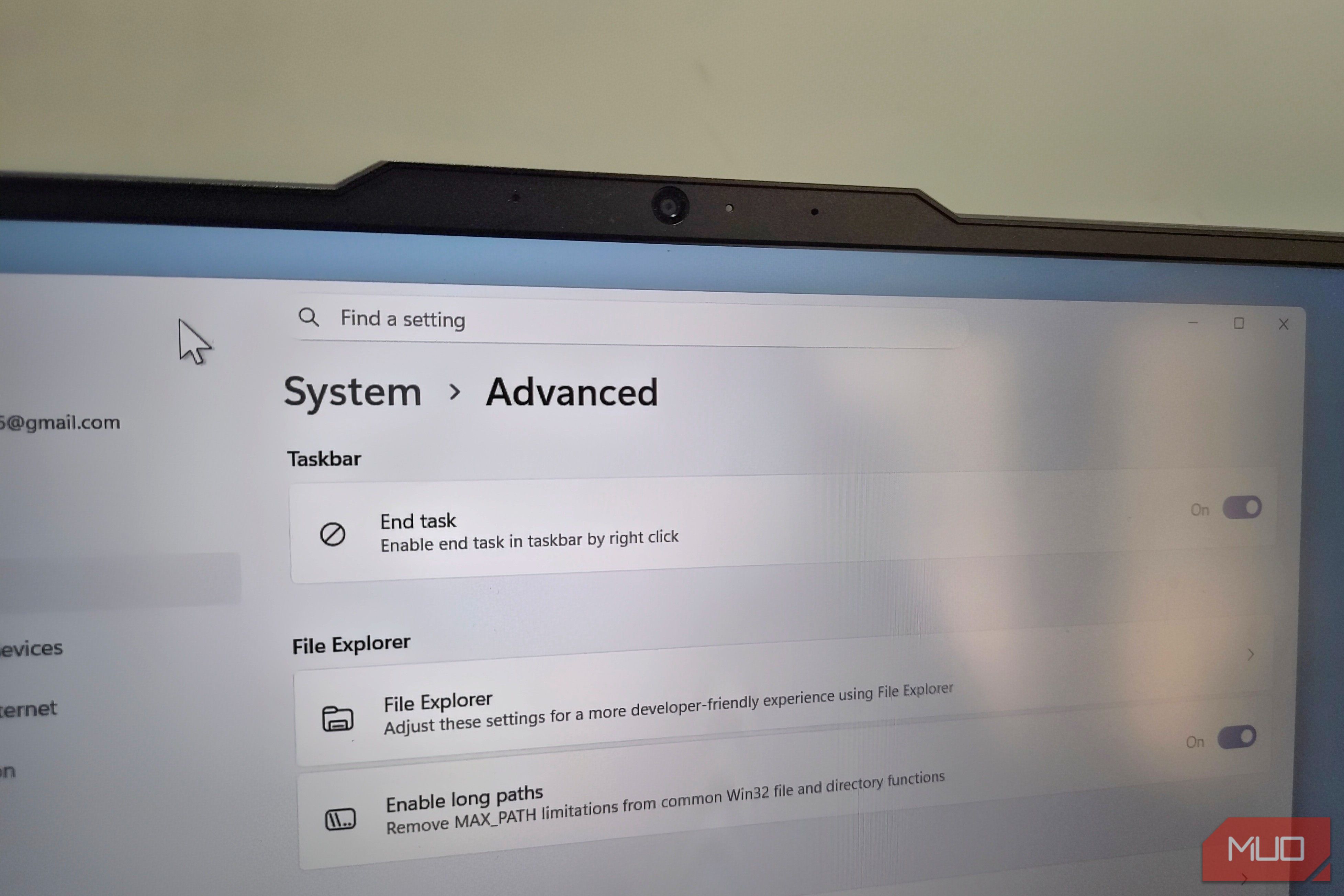
Windows 11’s Settings app has a page called “For developers” (now called “Advanced” on newer builds), and if you’ve never opened it, I don’t blame you. The name alone makes it sound like it’s only for IT folks. That’s true for the most part, but this menu also hides a handful of toggles that regular users can genuinely benefit from, whether that’s killing a frozen app in two clicks or getting rid of file path errors for good. Enable the “End task” option on taskbar Close frozen apps with a couple of clicks Let’s start with the option that made me explore the “For developers” or “Advanced” page in the first place. If you’ve used Windows long enough, you’ve almost certainly had an app freeze or stutter out of nowhere for no good reason. When that happens, the usual fix is to open Task Manager and kill the process manually. It works, but you still have to scroll through a long list of processes and figure out which one actually matches the app that’s stopped responding. Windows 11 has a feature that can save you trouble. Head to Settings > Advanced and turn on End task. This brings Task Manager’s End Task option to your taskbar. Any time an app freezes and won’t close, you can simply right-click its taskbar icon and choose End task. This obviously isn’t something you’d need every day, but when you do, you’ll be able to force-close the app quickly. You shouldn’t use it as an alternative for closing apps, of course. Ending a task directly can cause you to lose your unsaved files, so make sure to use it only when needed. Change the default terminal app Stop Windows from opening the wrong app Windows 11 ships with two different terminal experiences: the classic console host and the newer Windows Terminal app. Depending on how you launch a terminal window, you might end up in either one. Chances are, though, you’ve got a preference, whether that’s the old, familiar console or the newer app. The “For developers” settings page lets you specify that. Use the drop-down menu next to Terminal and choose Windows Console Host or Windows Terminal. I personally prefer Windows Terminal because it’s newer and more customizable. It supports tabs, multiple profiles, GPU-accelerated rendering, and it just feels far more modern than the legacy console window Windows has used for decades. Enable “sudo” command Finally, Windows has it too Yes, Windows 11 now has sudo, the command anyone who’s used Linux is probably already familiar with. For those who haven’t, sudo lets you run commands with elevated permissions without having to launch the terminal as an administrator first. It’s also interpreted as “switch user and do,” or simply “superuser do,” depending on who you ask. This is disabled by default, so you’ll need to head over to Settings > System > For developers and turn on Enable sudo. Once it’s on, you can specify how sudo actually runs. “In a new window” opens elevated commands in a separate console, similar to how UAC prompts have always worked. “Input disabled” runs the command in the same window but blocks any input until it finishes, which is how sudo behaves on Linux. Finally, the “Inline” option lets you run commands in the existing window with input enabled. After this, using sudo is as easy as it gets. You simply need to prepend the sudo command to any command you need to as administrator, and it’ll work. Make File Explorer show file extensions and hidden files See every file for what it really is By default, Windows hides file extensions, which isn’t exactly ideal because it means you have to rely on the details pane or hover your mouse over a file to check its file type. The “For developer” menu includes a File Explorer section that lets you change that. Enable Show file extensions toggle, and it’ll show you extensions for every file. From the same menu, you’ll see the Show hidden and system files toggle. This isn’t as important, but it can help you spot those system files like hiberfil.sys and pagefile.sys when you want to free up storage. Enable long paths Long folder names, no more problems Windows has had a 260-character limit on file paths baked in since basically forever. The “For developers” page has a toggle that lets you get rid of it. Turn on “Enable Win32 long paths,” and Windows will allow file paths that stretch well beyond that old 260-character ceiling. Realistically, this is something usually only developers need, since long project directory structures are most likely to run into this limit, especially with deeply nested node_modules folders. But if you’ve ever hit this error while installing a game or just dealing with years of nested subfolders piling up, enabling this toggle is a no-brainer.