Summary
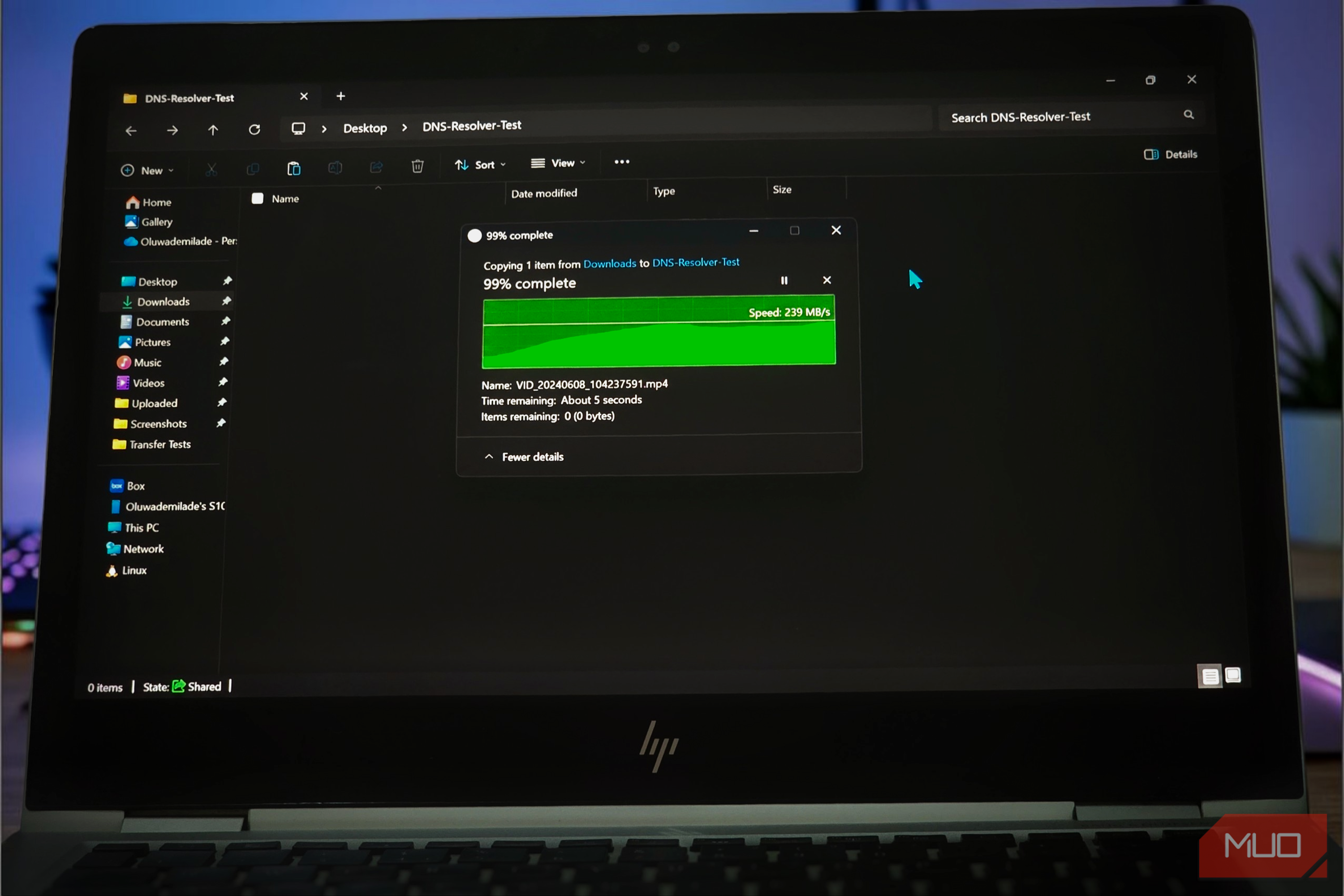
You’ve probably watched Windows copy a big folder at a decent clip, only for the progress bar to hit 99% and then just sit there like it’s clocked out for the day. The transfer speed drops to zero, the time estimate is useless, and you’re left wondering whether to wait it out or cancel. I’ve always found that last stretch especially annoying when I’m moving large files to an external drive. But the progress bar doesn’t tell the whole story of what Windows is actually doing, and there’s a solid reason that final percent can take so long. Windows has a rather generous definition of 99% The bar tracks what’s been sent, not what’s finished In practice, 99% usually means the data has been sent but Windows isn’t done with the last file yet. The progress bar works by tracking the data Windows has moved to guess how long the job will take. It’s great for showing how much stuff has crossed the finish line, but terrible at predicting the time that’s left. Even if there is barely any data left to move, the whole process can hit a massive bottleneck at the very end. Windows might just be waiting on your thumb drive or external hard drive to finish saving the data, update its records, or juggle another background task. Setting up each file, along with things like timestamps and attributes, takes extra work on top of moving the actual contents. This is exactly why your transfer speed can flatline at “0 bytes/s” even though the window is still open. That zero only tells you File Explorer isn’t reporting any data being transferred at the moment. Your drive could still be busy with other work, so it doesn’t automatically mean Windows has frozen. Windows sometimes writes to memory first Windows can use spare RAM to temporarily hold file data before writing it to storage, a technique called write caching. This helps avoid making every operation wait for the drive to finish its work. Eventually, the cached data has to be written out, a process known as flushing. However, this depends on your drive’s settings. Windows normally uses a Quick removal policy for external USB drives, which disables this type of write caching. Switching to Better performance allows Windows to cache writes, but also makes safely ejecting the drive necessary. Still, a transfer sitting at 99% doesn’t automatically mean Windows is flushing cached data. The slowdown could have an entirely different cause, including the destination drive struggling to keep up. That last percentage can hit a nasty bottleneck Your destination drive might be running out of steam Moving a massive video file from your laptop’s high-speed SSD to a cheap USB thumb drive puts two totally different speed tiers in a room together. Your SSD can throw data way faster than a basic USB drive can catch it, forcing Windows to sit around and wait for the slower drive to catch up. Many SSDs also use a portion of their flash storage as a faster cache. Once that fills up during a long transfer, write speeds can drop sharply. Some USB thumb drives behave similarly, starting off fast before settling into much slower sustained speeds. Small files come with a great amount of paperwork Moving a single, massive 10GB movie file is a totally different ballgame than moving 10GB made up of thousands of photos and Word docs. Every single individual file forces Windows to do extra paperwork, like creating file-system entries and updating metadata, which adds extra work on top of transferring the actual data. In fact, Microsoft explicitly warns that dumping a massive pile of tiny files into a folder is a recipe for a painfully slow copy process. On top of that, your antivirus software can slow things down further by scanning files as they’re created or accessed. This slowdown gets even worse if you are moving files over a Wi-Fi network or a shared office drive, where your computer has to constantly check in with the other machine for every single file. If you are stuck dealing with a folder packed with thousands of tiny files, a pro tip is to zip them all up into one single archive file using a tool like NanaZip first. While you will still have to unzip them on the other end, cutting the transfer down to just one file can drastically speed up the actual move. Before you cancel, see whether Windows is still working Task Manager can tell you a lot Instead of immediately assuming File Explorer has completely frozen, your first move should be to check what your hard drive is actually doing. Windows 11 lets you peek under the hood to see if your computer is still working, and you don’t even need to download any extra software to do it.
- Open Task Manager by pressing Ctrl + Shift + Esc on your keyboard.
- Head to the Performance tab on the left menu, and click on the specific hard drive or USB drive that’s receiving the files.
- Watch the drive’s behavior for a minute or two, keeping a close eye on three stats: Active Time, Write Speed, and Average Response Time.
- Flip over to the Processes tab to check if some other rogue app is hogging your hard drive in the background. If Active Time stays near 100% while Write Speed barely moves, the drive is still busy despite the poor transfer speed. High response times can offer another clue that storage operations are taking longer than they should. On the flip side, a flat disk graph doesn’t prove File Explorer has crashed. It could be waiting on a response from the network or on some other task that doesn’t touch the disk. If the destination drive is still showing activity and the copy hasn’t reported an error, give it more time. If the transfer remains unchanged for an extended period with no obvious disk or network activity, canceling it through File Explorer is safer than disconnecting the drive. Keep the original files until you’ve confirmed the copies are complete. A recurring stall deserves an investigation If this slowdown keeps happening to you, try copying a smaller batch of files to a completely different drive. Make sure your drive isn’t running out of space, and if you’re using an external drive, double-check that the USB cable isn’t loose. If one specific drive always chokes up, you can download a free tool called GSmartControl to check your drive’s health, as long as the drive allows you to read its diagnostic data. For massive transfers, you can also bypass File Explorer entirely and use Robocopy, a powerful command-line copier included with Windows. Its /J option bypasses Windows’ normal file buffering, which Microsoft recommends for copying large files. It won’t eliminate the limitations of a slow or failing drive, but it can help with certain transfers. Whatever you do, never just yank out an external drive while a copy is running. Windows treats external storage differently depending on your settings, and some setups absolutely require you to eject the drive properly so it can finish saving data in the background. Even if the copy box disappears, clicking “Safely Remove Hardware” in your taskbar is always the smartest move. Finally, for your most important files, don’t delete the originals until you’ve double-clicked the new copies and made sure they actually open. A 100% complete progress bar looks nice, but it shouldn’t be the only thing you rely on to make sure your backups are safe. Windows could stand to be more forthcoming File Explorer could certainly do a better job of explaining what it’s waiting for. A progress bar stuck at 99% tells you very little, which is why checking what the drive is doing is usually more useful than watching that number. Sometimes the best thing you can do is leave Windows to finish its paperwork.