Summary
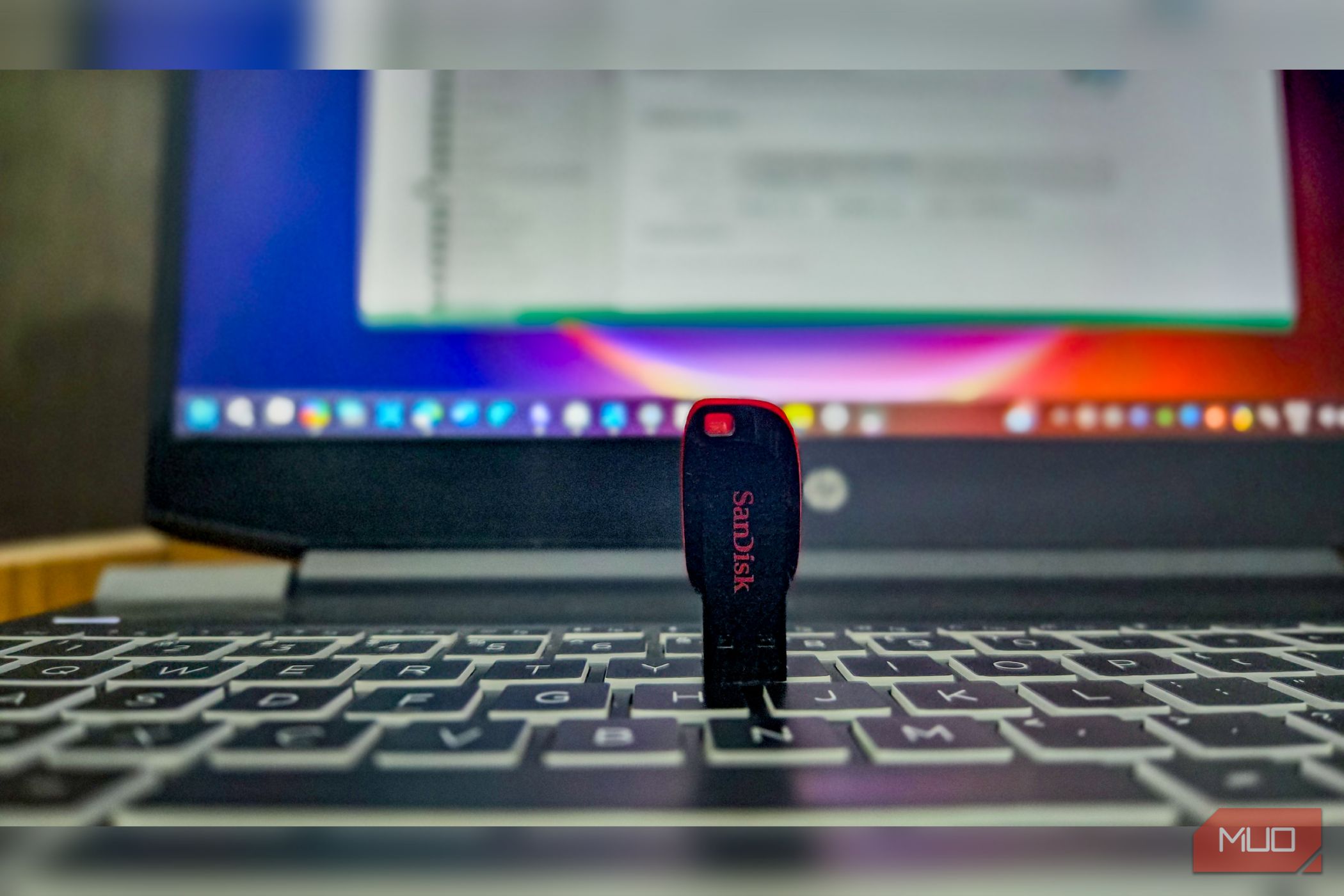
What happens when your PC stops booting? Everything you need to fix it is stuck behind a screen you can’t get past. The installer you need, your 2FA codes, recovery tools- all of it locked inside a machine that won’t start. But if you already have a USB drive built for the day when nothing else works, you can be sure that you can revive your PC and save your data. I keep a Ventoy USB drive with my Windows installers, a repair environment, and a Linux live system with an encrypted vault of recovery codes, just in case I lose access to my computer. It has saved my PC more than once, and I can’t recommend it enough for anyone with a PC. Building a Ventoy drive A single USB that boots multiple tools Since my USB recovery drive has more than one installer and ISO on it, Ventoy is what I use to create a multiboot USB drive. It makes having multiple tools on a single USB as easy as dragging and dropping files into a folder. When you boot from it, Ventoy shows a structured list of all the ISOs in a boot menu, and you pick the one you need. Before building a Ventoy drive, keep a USB flash drive with at least 16GB of storage ready (32GB is better if you want room for extras). Back up any important data on the drive, because Ventoy will format it during setup. Then, head to the Ventoy download page and grab the installer for your platform, extract the folder, and run Ventoy2Disk.exe as administrator. Connect your USB drive and select it from the Ventoy dialog. Double-check that you have the right drive selected, then click Install. The app creates two partitions on your USB drive: a small one for the bootloader, and a larger exFAT partition for your ISOs and files. Open File Explorer, and you’ll find the Ventoy drive listed among your storage drives, ready for ISOs. The Windows installer Your first line of defense for repair and reinstall My primary PC runs Windows, so a Windows installer ISO is the first thing I add to my Ventoy drive. Head to the Microsoft website and download the latest Windows 11 ISO. If you’re still on Windows 10, you’ll need to find a reliable source for that ISO instead, since Microsoft no longer offers a direct download for it. Once the ISO is downloaded, create a folder on the Ventoy drive, something like “Windows,” and drag the ISO into it. Ventoy picks it up automatically. A Windows installer does more than reinstall the OS. You can use its built-in recovery tools to run Startup Repair, restore from a restore point, or open Command Prompt to fix boot records manually. It even works when the PC’s local recovery partition is damaged or missing, which is exactly when you need it most. Hiren’s BootCD PE A full desktop environment when your PC won’t start If your PC is dead, the Windows installer can help you reinstall the OS, but that also means losing your data. Hiren’s BootCD PE takes care of the data side of things. It boots into a full Windows-like desktop environment, complete with a file explorer, so you can connect an external drive and copy your photos, documents, and everything else before you wipe anything. Beyond file recovery, Hiren’s bundles disk health checkers, partition tools, hardware diagnostics, and password reset utilities. That last one is useful when you’re locked out of a local Windows account and need to get back in. While a Linux live ISO can do some of these things too, Hiren’s BootCD PE runs a Windows-based environment. That means the interface feels familiar, the tools are designed for Windows-specific problems, and you won’t need to learn Linux commands to recover your files. For most Windows users, it’s a less intimidating experience. A live Linux ISO When Windows tools aren’t enough If you have a Linux PC, or Hiren’s BootCD PE didn’t do the job, a live Linux ISO can handle much of the same work. It boots directly from the USB drive and doesn’t depend on the broken Windows install at all. Since Linux reads NTFS out of the box, you can plug in an external drive, boot from the ISO, and copy files off a Windows drive without any extra setup. You can also use a live Linux session to clean up after a malware infection, troubleshoot a boot loop, or repair corrupted system files, all without touching the live ISO itself. Everything runs in memory, so the host drive stays untouched. So which distro should you pick? I keep a copy of Linux Mint on my drive because its desktop feels similar enough to Windows that you don’t have to think twice about navigating it. Ubuntu is a solid alternative, though it’s a bit heavier. And if you want something more capable for serious diagnostics, SystemRescue is a dedicated recovery distro with partition tools, network utilities, and filesystem repair built in. It has a more utilitarian interface and leans on the command line, so it’s better suited for users who are comfortable with a terminal. Encrypt your most sensitive files A VeraCrypt vault for recovery keys and codes If your primary drive is BitLocker-protected, you’ll need the BitLocker recovery key to unlock it before you can move any data using Hiren’s BootCD PE or a live Linux ISO. Having your recovery keys, 2FA codes, and passwords in an encrypted file on the same USB drive makes things significantly easier when you’re locked out. Now, a USB drive shouldn’t be the only place you store this kind of sensitive data. Flash drives aren’t built for long-term storage, and they can fail without warning. But as a secondary backup that’s always within reach, it works well. To protect these files, use a VeraCrypt container file that keeps your sensitive data secure behind a passphrase. You can’t encrypt the entire Ventoy drive since it still needs to be bootable, but a container file sits alongside your ISOs without interfering with anything. To use it, open VeraCrypt, create a new encrypted file container, and keep it small; a few hundred megabytes is plenty. Format it as exFAT for cross-platform compatibility and set a strong passphrase. Inside the container, store a password-protected Bitwarden export (this works with any Bitwarden account; if you choose an account-protected export instead, it can only be imported into the account that created it). Add your 2FA recovery codes for your email accounts: Microsoft, Google, Apple, and anything else you can’t afford to lose. If you have BitLocker enabled, move a copy of the recovery key in here as well. Other things worth including are your network device passwords and software license keys, though most licenses these days are tied to an email. Move all these files into the VeraCrypt container, then copy the container to your Ventoy USB drive. VeraCrypt comes bundled with Hiren’s BootCD PE, so you can mount your encrypted vault without installing anything extra when you’re booting from the rescue environment. One USB drive to save your PC from any situation With a drive like this ready, you can boot into a repair environment when Windows won’t start, move your data off a dying drive before it’s gone, and have all your recovery keys and codes in one encrypted place that isn’t locked behind the screen you can’t get past. That said, the encryption is only as strong as your passphrase, so pick the strongest one you can think of, but also one you’ll remember when the moment comes. A passphrase you have to reset defeats the purpose of keeping it on a rescue drive.