Summary
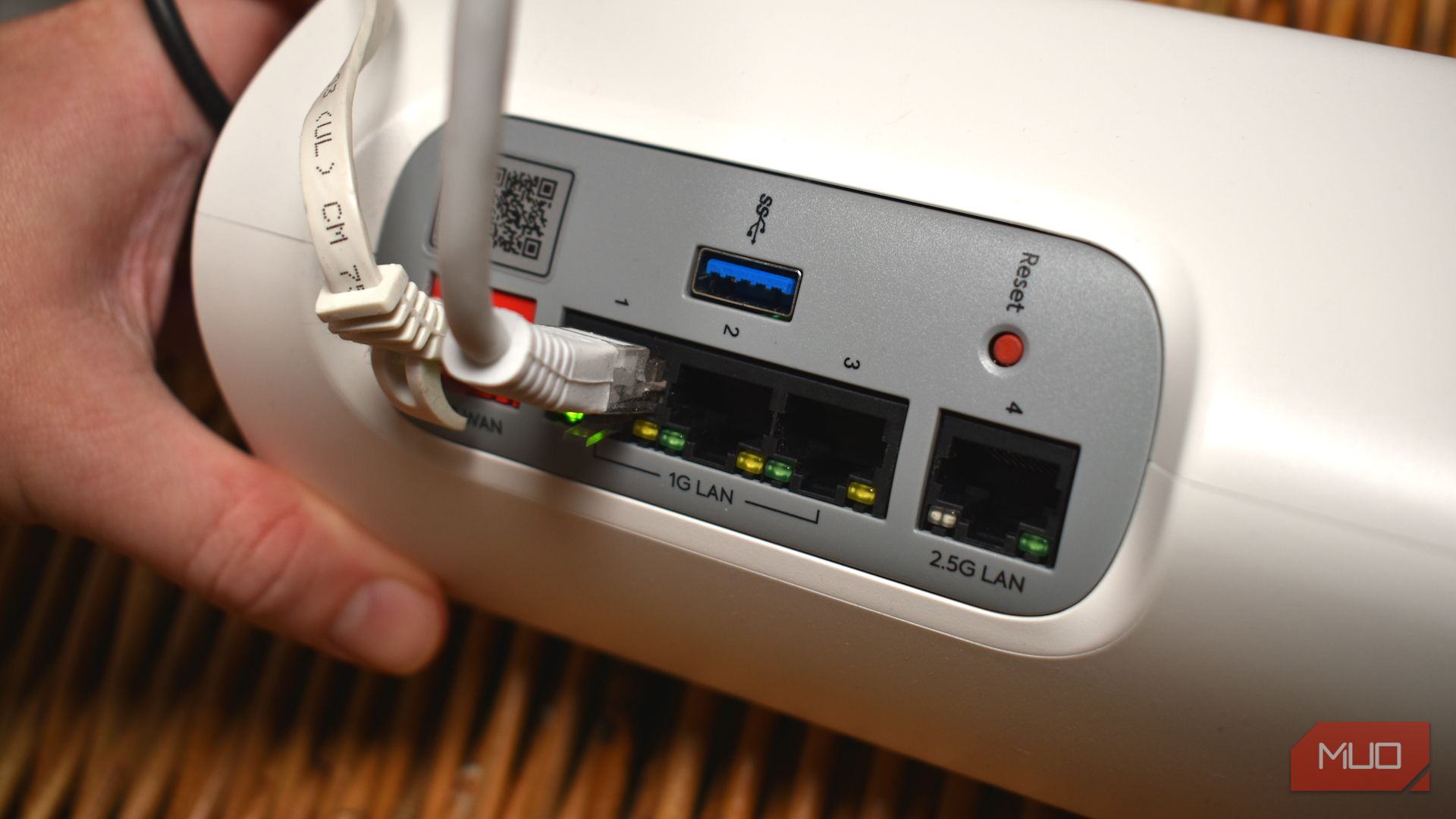
Most folks only look at the lights on the back of their PC or router when the internet stops working. Fair enough. If they’re on, something’s plugged in, and when the internet’s working, everything seems good. But those little LEDs next to the Ethernet port often carry a second piece of information: the speed your devices agreed on. On a lot of hardware, green means gigabit and amber means something slower. That makes the color a quick way to spot a flaky cable or dodgy connection without opening a single menu or trying to remember your router IP address. Sounds simple, right? That’s until you realize that some routers do it backward. Green means gigabit On most devices, that is Green is what you want. A green LED light above your Ethernet port means you’re using a gigabit connection (or faster), and shows that your router has successfully negotiated a fast connection. Depending on the router, an amber light typically means the connection is using 10Mbps or 100Mbps. Some routers may use a red light to show slower connection speeds, but most of the time, a red light means there is no active internet connection, a link failure, or otherwise. One quick pointer before launching into what those lights mean: we’re talking about the lights above the ports on your router. Not the blinking light on the front of the router that says “everything is okay” or “your internet is broken.” These are specifically the two small LEDs built into the Ethernet socket. One light shows link data, while the other shows current internet activity. You end up with a single color when everything is working just fine, and you’ve probably watched your router light’s steady blinking in the past. Now, another pointer: not all routers have two LEDs to deliver separate information. Cheaper models may skimp and only feature one, and when that happens, they typically just show the data link speed. You may even find, as I did while writing this article, that your router doesn’t have them at all. My TP-Link Deco BE65 looks lovely, but has a single green LED on the front of the device to show it’s connected, without a single light on the rear. Some hardware ignores the color scheme Multi-gigabit connections also get different colors That system is all very well and good, so long as the manufacturers stick to it. But given Ethernet port lights aren’t governed by a specific standard, manufacturers can do what they want with the LED controller; technically, the LED doesn’t even have to relate to the connection at all, though that would be an extremely odd design decision. However, some devices and hardware swap the system up. The Intel I210-T1 adapter lights the speed LED green at 100Mbps, amber at 1Gbps, and leaves it dark at 10Mbps. It’s basically the complete opposite of what you’d expect with most consumer hardware. And that’s the key point: this adapter is for server configurations and not something you’re likely to encounter in the wild. At least, you won’t accidentally pick one up on Amazon while shopping for a new modem. Interestingly, multi-gigabit ports also show different colors, again depending on the manufacturer, age of the hardware, and connection speed range. For example, the ASUS ROG Strix Z790-F Gaming WiFi II’s 2.5Gb port’s speed LED is green at 2.5Gbps, orange at 1Gbps, and is confusingly off entirely at 100Mbps (rather than showing a red light for a poor connection). Then you have other hardware with completely different lighting schemes. Netgear’s GS308 switch has one single-color LED per port that shows link and activity, with no speed indication. Some units even shipped with “Green=1000M, Yellow=100M” printed on the front panel, which Netgear later confirmed was a printing error. Whereas the Netgear Nighthawk will show blue when 2.5Gbps speeds are negotiated, and white when only using a 1 gigabit connection, with amber showing for 100Mbps. Furthermore, travel routers and other portable modems are likely to skip the additional lighting. Run a quick Ethernet port lighting check It might show why your connection is slower than you’re expecting The first and easiest way to check what your router’s Ethernet lights mean is the manual. I know, how dull. But it turns out that manual has all the answers. A quick internet search for “[your router name and model] ethernet port lights” will reveal the information you need. Outside of that, the router light might show that you’re using the wrong Ethernet cable for your connection. If you know you have, say, a 1Gbps connection incoming, yet you’re only getting 100Mbps on your wired device, checking the lighting may show where the issue lies: an older Ethernet cable that doesn’t support that speed. I actually ran into this issue after upgrading my internet, with a slight twist. My router Ethernet port connection to a powerline adapter showed green, and the adapter itself was blinking away happily. I’d upgraded the Ethernet cable after upgrading my router, but still had slow internet. Of course, I’d forgotten to upgrade the powerline adapter, meaning that despite the router blinking green, the middleman was running at much slower speeds and limiting my connection. In that, if one component doesn’t match the rest, everything will run at that speed. It becomes a bottleneck across your home network, so it’s worth checking.