Summary
Bitwarden and I had a pretty solid thing going. It kept my passwords organized and saved me from typing them into every login form. It even has some solid security settings that are fun to mess around with. But every time I signed up to test a new app, I still had to hand over the same email address, often to a service I’d forget about by the weekend. I wanted a better way to handle that part of my online life. That’s when Proton Pass caught my eye, since it takes care of both my email address and my password in one place. Getting out of Bitwarden doesn’t require a moving van Proton has a straightforward route for your existing logins I’ve saved up years of logins in Bitwarden, so moving everything over to a new password manager didn’t sound like much fun. Fortunately, Proton makes the switch pretty easy.
- In Bitwarden, head to Settings > Vault options > Export, pick the .json format, and confirm the export with your master password.
- Open the Proton Pass extension; on the setup page, click Import your passwords. Select Bitwarden as the provider, select your JSON file, and click Import to finish.
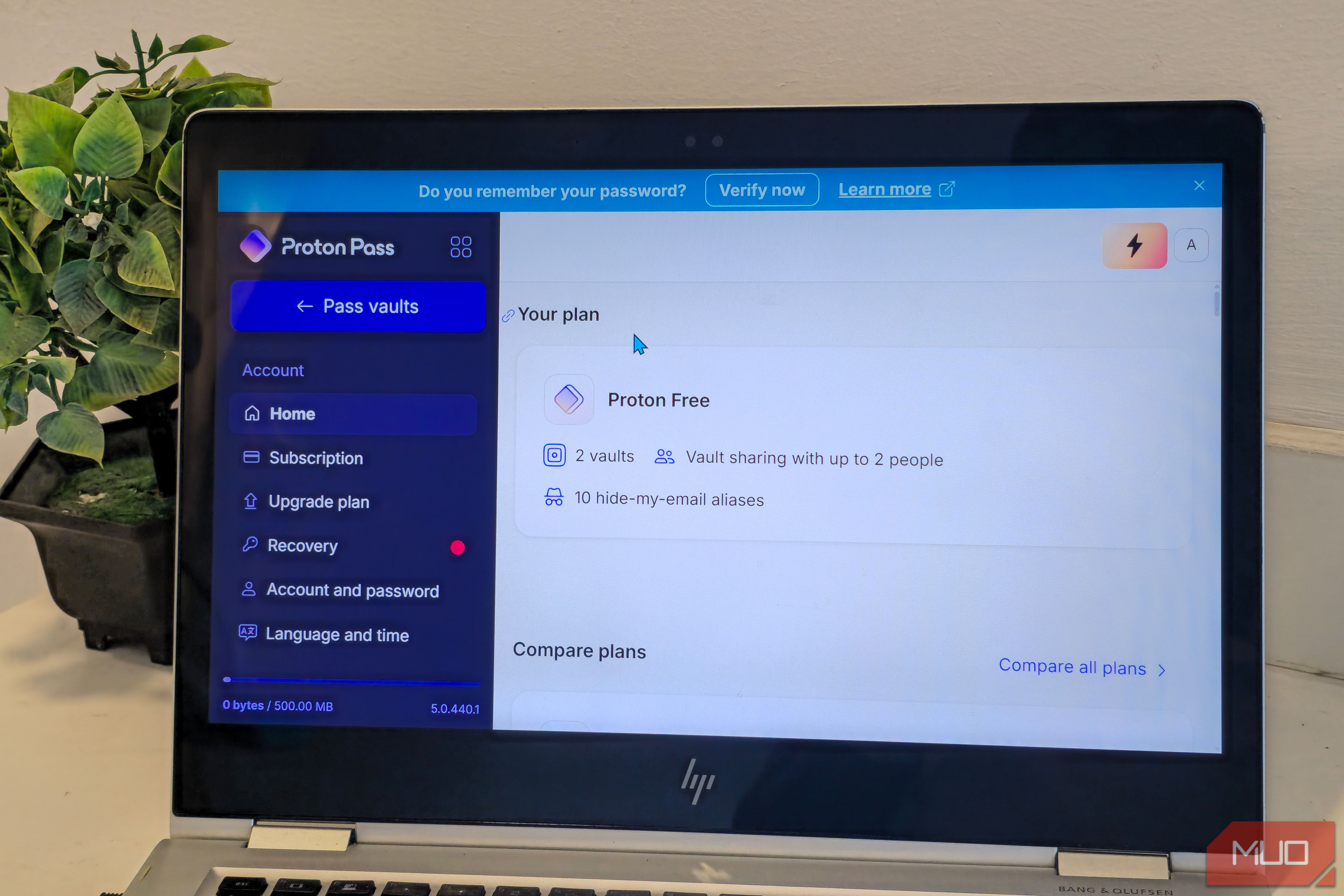
- Spot-check a handful of imported logins and notes against the originals before you turn off Bitwarden’s autofill. My import went through without a hitch, with Proton Pass reporting that all 188 items had made it across. The passwords and notes I checked were intact; however, Proton doesn’t preserve your old folder structure. You can reorganize your entries afterward, but creating folders requires a paid plan. The exported JSON file isn’t encrypted, so it’s best to delete it afterward and empty your Recycle Bin. Make sure it doesn’t accidentally end up in a cloud-synced folder like OneDrive or Google Drive, either. It’s also smart to check passkeys and any unusual entries possible thanks to newer transfer standards.Once the import was complete, I could search through my old logins and autofill them just as I had with Bitwarden. Proton also lets me create secure notes, payment cards, and new logins from the extension, so I didn’t lose the everyday features I’d grown used to. It really makes it much easier to stop saving passwords in your web browser. On Android, install Proton Pass, sign in, and go to Profile > Autofill to enable it as your password manager. On an iPhone, you’ll need to select Proton Pass under Settings > General > AutoFill & Passwords. Once that’s done, it can suggest your saved logins in apps and websites. My email address can finally stop working overtime Hide-my-email aliases make account signups much neater Proton Pass’s hide-my-email feature is what convinced me to switch, because it gives me an easy way to stop sharing my real email address with random websites. I tried it on iLoveIMG’s registration page, where the extension offered me two choices. I could use my regular address or pick Hide my email, which already had a randomly generated address ready to go. I didn’t even have to open the extension to find it. It works pretty much the same way on Android. Tap the email box, open Proton Pass, hit the plus button, and select Hide my email right from the username field. Any emails sent to that alias get forwarded straight to your real inbox, so you’ll still get your confirmation codes and links. The website never sees your real address. If that company starts flooding you with promo emails a few months down the road, you can just switch off that alias in Proton Pass to block everything from them. Just make sure you don’t turn off an alias you still need for password resets. Now, Bitwarden can make email aliases too, through integrations with SimpleLogin, Addy.io, Firefox Relay and other providers. You usually have to set up that outside service and grab its API key first. What makes Proton Pass so nice is that alias creation and management are already baked right into the password manager. It saves you a little hassle every time you make a new account, and that really adds up. The free plan is generous, with a few sharp edges Pay for the extras you’ll actually use Proton Pass Free gives you unlimited logins across unlimited devices, passkeys that let you sign in without typing passwords, alerts for weak or reused passwords, and 10 email aliases. It’ll also handle two-factor authentication codes for up to three items, according to Proton’s plan breakdown. That makes the free tier a smart place to start, especially since free security software can already cover a surprising amount. Upgrading to Pass Plus costs 4.99 if you pay monthly. That gets you unlimited aliases and two-factor codes, plus dark-web monitoring, emergency access, secure sharing, and custom domains for your aliases. Keeping your verification codes right next to your passwords saves you from constantly jumping over to a separate authenticator app. Even so, I’d still keep the two-factor codes for my most important accounts in a separate app. Someone who compromises your password vault could otherwise gain access to both your passwords and verification codes. There’s some serious security backing up all that convenience, too. Proton Pass is open source, protects your saved info with end-to-end encryption, and passed an independent security audit in 2026. Of course, Bitwarden is also open source and independently audited, and it even lets you self-host if you like having total control over your own server. I definitely wouldn’t say Bitwarden is a bad password manager by any stretch. I’m keeping the extra address If your main goal is a solid password vault that you can host yourself, it’s hard to beat Bitwarden. But my everyday annoyance is all those websites asking for an email address they’ll hang onto forever. Proton Pass has a much easier fix for that, and that’s why it’s holding onto my logins now.