Summary
Over the last year, I’ve reviewed several Lenovo PCs for MakeUseOf. For the most part, I ignored the various Copilot AI features that were built in because I haven’t found any that make my life better or that are superior to tools that I already use from the other AI providers.
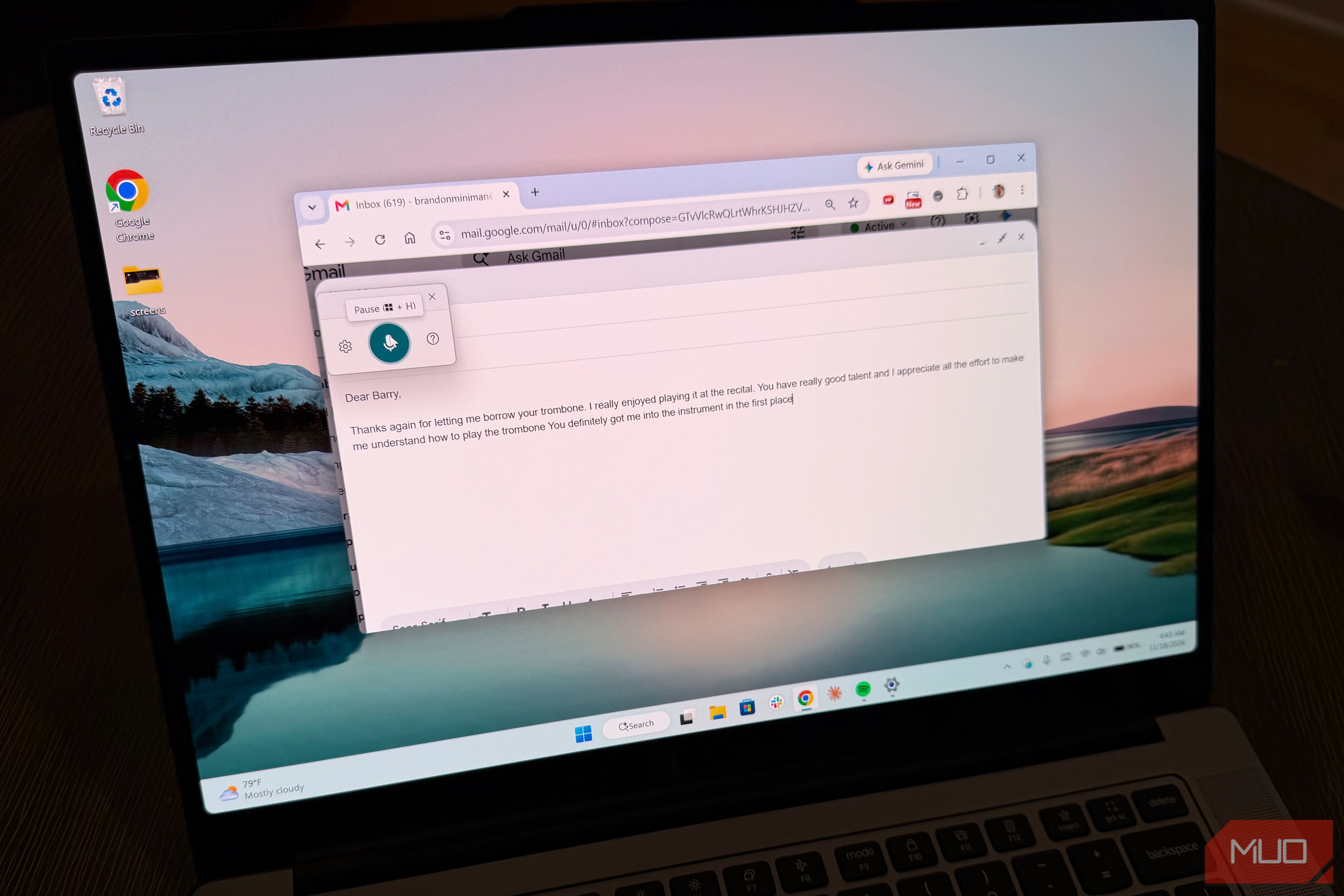
That is, until I found a feature called Fluid dictation, which combines an on-device Small Language Model (SLM) with the power of a dedicated Neural Processing Unit (NPU) that can literally do trillions of calculations per second. The net result of which is insanely fast on-device dictation that has made it so much faster for me to dictate emails and messages and I’m not going back.
Here’s what you’ll need to use Fluid dictation and how to best use it on your Windows PC.
Windows Voice Typing is actually really good
Especially if you have a Copilot+ PC
It’s easy to dismiss all the various inclusions of Copilot in Windows, and in fact Microsoft is guilty of being one of the contributors to “AI slop” and as a result, they are reducing the number of AI inclusions in their products right now.
However, if you’re looking for a reason to buy a Windows laptop that has Copilot+, there’s a compelling one: laptops with this designation feature their own dedicated on-device SLM that is powered locally by an NPU that can do an insane 40+ TOPS. What this means is that Windows PCs with Copilot+ have a local voice recognition engine that offers incredibly fast and accurate voice to text functionality.
Finally, a reason to look for the Copilot+ badge on PCs
If your PC has this Copilot+ logo, you probably ignored it like I did.
But you shouldn’t ignore it. On a Copilot+ PC, the local SLM can actually analyze your vocal inflection in real time to accurately insert punctuation and understand sentence structure. This is compared to other voice recognition systems which use servers in the cloud to do something similar, but with much worse latency.
Another obvious benefit to voice recognition happening on-device is that it works without an internet connection (which is helpful since most laptops still don’t have their own cellular internet).
Try these settings for the best voice typing in Windows
Enable voice launcher, then pick between fluid dictation and automatic punctuation
To get started with voice dictation in Windows 11, just press Windows Key + H. After doing this, you can press the menu to turn on Voice typing launcher, which will tell Windows to bring up the voice type floating bar any time you click on a text box. Once you do that, there are a few settings to consider that you can access with the gear icon.
Most email clients, whether the Outlook app or Gmail on the web, have their own voice recognition buttons or systems built in, and they are quite good, but they’re all cloud-based, which makes them slightly slower than a local solution like Fluid dictation found on Copilot+ PCs. They also don’t listen to the cadence and expression in your voice to automatically structure and punctuate what you say. They’re fine, but they’re just not as fast and sophisticated as what Microsoft gives you locally if you have the right hardware.
Fluid dictation is the powerful voice recognition that uses the SLM on your PC (which might need to download via Windows Update once you toggle it on). Using it is very natural — you can basically just ramble and not worry about any stutters or “uhms” or “uhs”, and your PC will do a superb job at transcribing your natural speech (very rapidly thanks to the NPU). One caution in using Fluid dictation: it works best with a dedicated mic or headphones, as it’s extremely sensitive and will try to transcribe everything it hears, including voices from a TV in another room or ambient conversations in your location. Meaning: don’t use this at a coffee shop unless you have headphones on.
Automatic punctuation is the more basic dictation mode Windows has offered for years with punctuation added based on your pauses. It doesn’t ignore the filler “uhs” but instead actually writes them, and in my experience, feels slower and less polished. It’s most similar to thge no-frills classic dictation you get on Android or iOS.
Some limitations
You have to pick between Fluid dictation and automatic punctuation
Both Fluid dictation and Automatic punctuation cannot be turned on at the same time since the former uses the local SLM and the latter uses the cloud. That makes sense once you realize Fluid dictation already handles punctuation itself — so the two would be doing the same job.
Which do I prefer? I’ve never seen a dictation system as fast as Fluid dictation, and I love how I can have a stream of consciousness, often pacing around my office and just talking aloud to dictate an email. I will say that Fluid dictation does require some editing after the fact, as it sometimes gets punctuation and sentence structure wrong. But the speed makes up for it, as it leverages the powerful NPU that is included on Copilot+ PCs.
 Lenovo Yoga 9i
- Operating System
- Windows 11 Home
- CPU
- Intel Core i7 11th Gen i7-1195G7 The Lenovo Yoga 9i’s sleek, compact design and versatile 2-in-1 functionality make it perfect for students on the go. It has Copilot+ for advanced on-device language processing.