Summary
Windows clipboard history keeps tossing out the exact snippet I need. When I’m researching an article, I’ll copy dozens of links, paragraphs, and screenshots, only to find something useful has already vanished from the list. The Win + V shortcut has saved me a ton of trips back to the browser, but its memory runs on a pretty strict curfew. Windows only holds onto 25 clipboard entries, and anything you haven’t pinned gets wiped when you restart your PC. Since I spend most of my day bouncing stuff between Chrome and a publishing CMS, I figured I’d give CoPanda a shot. Giving my clipboard a longer attention span CoPanda takes minutes to set up and stays out of the way I’m a big fan of underrated open-source Windows apps that fix annoying little problems, and CoPanda fits right in. It’s free, requires no account, and keeps your clipboard history stored on your own computer. You can grab it from the Microsoft Store or download the Windows installer from GitHub.
- Install CoPanda and open it from the Start menu.
- Walk through the quick welcome tour, which shows you the shortcut and the system tray icon.
- Press Ctrl + Alt + V to pull up your history, then hit Esc to close it.
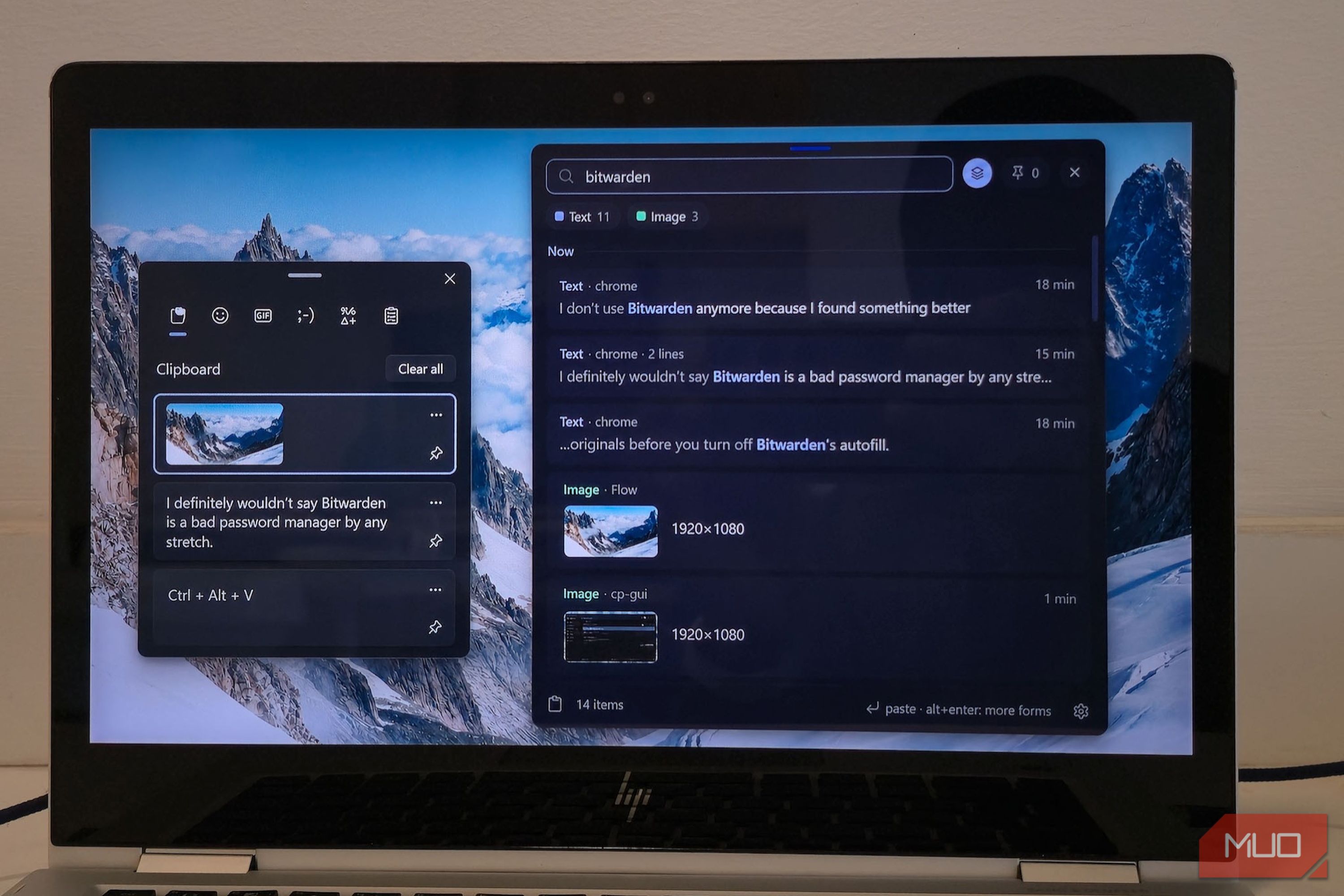
- Head to Settings > General and turn on Start at login if you want it ready to go every time Windows boots up. Your regular Ctrl + V shortcut still works, and Windows’ own Win + V menu sticks around too, along with its emoji picker. CoPanda gives me a much better junk drawer to dig through. The panel pops up right on top of whatever app I’m using, with a search bar at the top and everything I’ve copied lined up from newest to oldest. I could instantly see the text I’d copied from Chrome, where it came from, and when I copied it. After copying a bunch more stuff, my history was up to 41 items, including eight images. That blew right past Windows’ 25-item limit, and I didn’t have to do any cleanup to make room. Finding yesterday’s needle in today’s haystack Search and filters make old clippings useful again The real payoff came when I searched for Bitwarden after copying several sentences from my recent article about switching to Proton Pass. CoPanda found 14 matching items, including 11 text snippets and three images, and highlighted the word right inside each preview. I didn’t have to remember what order I’d copied things in or dig back through my old browser tabs. The panel recognizes text, links, code, images, files, and folders, and it comes with filters to narrow down a crowded history. Typing image shows only pictures, and you can even switch those into a thumbnail grid. When you’re juggling screenshots from ShareX alongside chunks of research text, being able to separate the two saves a whole lot of squinting. I even opened one of my older screenshots straight from its history card. I tried out the little organizing perks too. You can name an item by hitting F2 or Ctrl + E, and pressing Ctrl + P pins anything you use all the time. Pinned items stick around even after you clear out your regular history. I can definitely see that coming in handy for a link you share constantly or a chunk of go-to text that would normally get buried under everything else you copy. CoPanda also uses the OCR built into Windows to make the words inside copied images searchable. So if you copied a screenshot of an error message, you can search for that error text later without reopening the image. It’s a smart add-on to the search bar, especially when you can’t remember which screenshot has the info you need. My old clips are easier to reuse and harder to lose Clean pasting and flexible retention round CoPanda out A clipboard manager also needs to drop your copied stuff back into your work without making a big production out of it. Just pick an item and hit Enter to paste it straight into whatever app you were using. Your regular arrow keys let you scroll through your history, and double-clicking a card pastes it, too. If you’re doing a lot of writing like me, Shift + Enter pastes your selected item as plain text. You can also press Alt + Shift + V to paste your latest clipping without even opening the panel. That saves you from the classic headache of bringing weird font sizes and messy links into a clean document. For other formats, Alt + Enter opens additional options for the selected item, including Markdown when supported. Under Settings > History, my setup was automatically set to keep items for 30 days, with a 10GB storage cap. You can tweak that to keep your clips for a shorter or longer time, or even hold onto your history forever. CoPanda can automatically remove older unpinned clips, or you can clear your history manually whenever it gets too cluttered. Everything stays right on your computer in your Windows AppData folder, and CoPanda doesn’t need an internet connection to manage your clipboard. It won’t sync across your other computers, unfortunately. The app lets you export and import your history as a backup; keep in mind those backup files aren’t encrypted, so keep them somewhere safe. Passwords and other sensitive info copied from apps that don’t flag them as secret can also end up sitting in your history. My clipboard can finally keep up with my tabs I still use Ctrl + C and Ctrl + V the exact same way I always have. The improvement is knowing an older paragraph or screenshot won’t disappear just because I copied twenty more. I’ve already got way too many browser tabs to juggle without my clipboard getting selective amnesia on top of it.