Summary
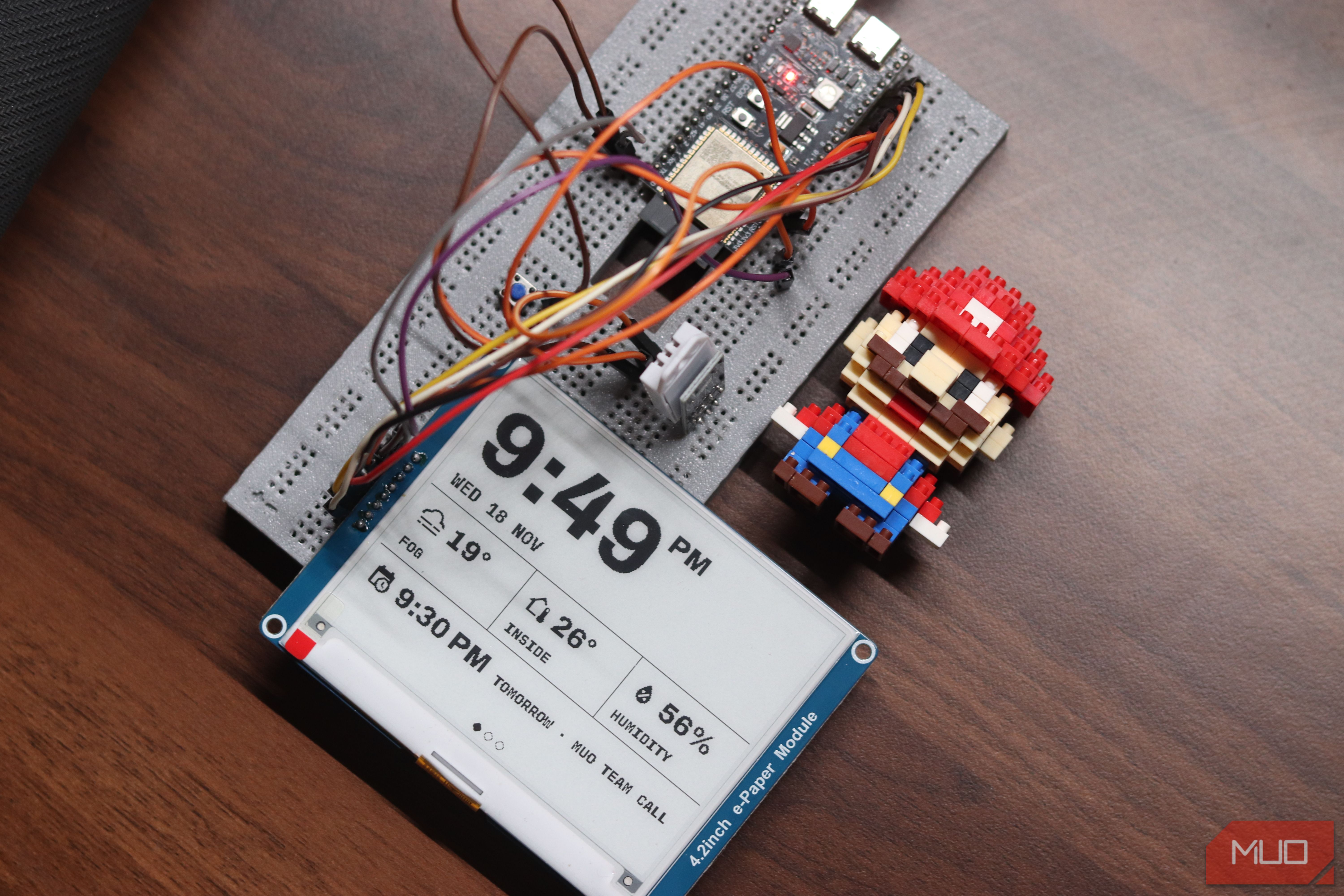
I sit at a desk surrounded by screens, but my favorite isn’t the largest or the sharpest. It’s a small 4.2-inch e-paper display. It can’t play a video, it doesn’t have a touchscreen, and it takes its time when I ask it to show something new. But it’s always there with the right data. I can glance over to see when my next meeting starts, whether a 3D print is almost finished, or how much Claude usage I have left. I built this to answer the little questions that kept pulling me away from work, and it does the job surprisingly well. A 4.2-inch e-paper display beat every screen on my desk It’s slow, black and white, and exactly as smart as I need As mentioned before, the display is a simple 4.2-inch Waveshare e-paper panel wired to an ESP32-S3. There’s also a DHT22 temperature sensor and a button added on for switching between pages. It replaces my 2.8-inch backlit touchscreen that I was using as a smart home controller. That panel could also control lights and switch scenes, but since I wanted this display to be purely informational, I removed the need for interaction as much as possible. The e-paper module just shows me what I need to see, when I need it. The home page shows the time, weather, indoor temperature, and my next Google Calendar appointment. Then there’s a Claude Code page that shows my five-hour usage, weekly usage, and context used in the current chat. Finally, there’s a 3D printer page that shows progress, estimated finish time, and bed temperature for my Bambu Lab A1 Mini and Elegoo Centauri Carbon 2 Combo. When a printer is idle, I can see when its last job finished. A finished, stopped, or failed print gets a full-screen alert in white on black, as does a bed that’s cooled to my specified temperature in Home Assistant. Claude Code shows up only when I’m actually using it Hooks, a status line, and a sensor that vanishes on restart When I start a Claude Code session, send a message, or get fresh usage or context numbers, the display automatically switches to the Claude page. There’s a little mascot at the top with a timestamp that shows when the usage was last updated. Below that are my five-hour and weekly usage, their reset times, and the active model’s estimated context use. A session ending sends the display back to the home clock page. Closing Claude Desktop is different, though, as the app can keep the running sessions in the system tray, so the display goes to the home page anyway after 10 minutes without Claude activity. On the desktop side, a Python script runs through Claude Code’s hooks and, in terminal sessions, its status line. It checks Anthropic’s usage service at most once every three minutes. Those numbers are account-wide, so they include Claude Desktop, while the context estimate comes from the individual session’s transcript. Home Assistant holds both in a sensor. If it restarts, that sensor disappears until the script sends another update, which makes the timestamp more than just a decorative detail. One button is all the interface this thing gets Cycle pages, dismiss alerts, and let your flatmates spam the panel Since the e-ink display doesn’t support touch input, I needed to add a physical button to cycle between pages and dismiss notifications. In my attempt to minimize interaction as much as possible, I designed the panel so it would automatically switch to the Claude page if Claude Code was running and active on my laptop, or to the 3D printing page whenever a 3D print starts for easy monitoring. The button allows me to cycle between pages freely in case I want to see something else. The panel also gets a notification every time a print is finished, stopped, or fails, but these notifications dismiss themselves after 30 seconds, so I don’t have to interact with the panel if I don’t want to. However, I have a built-in messaging system powered by Home Assistant that allows my flatmates to send me messages that show up on the panel. The button doubles up as a dismiss button for all of these notifications simply by holding it for about half a second. E-paper is lovely until it randomly freezes A cold power cycle, a reseated ribbon cable, and a bug I haven’t caught E-paper displays might be easy on the eyes and batteries, but they can be a hassle to work with. Especially if you’re coming off of a color LCD, which refreshes faster, can show colors and animations, and has touch input so you never have to bother with physical buttons. Getting the image on the panel initially took a cold power cycle and a reseated ribbon cable. It still randomly freezes up for no apparent reason, so that’s one bug I have to chase down before finalizing everything in an enclosure. Which is the next part of this build. The ESP32 touchscreen was one device with a controller built in, so I didn’t have to worry about running jumper cables and connecting sensors. The next step is to design PCBs that let me set everything up inside an enclosure. I also intend to replace the DHT22 with something like an AHT20, which should give more consistent temperature and humidity readings. The screen that lets me ignore my other screens A clock that happens to know what I’m doing When I started this project, I thought I was building a tiny second monitor, but the device I ended up with feels more like a clock that happens to know what I’m doing. The time and my calendar still take up most of the home page, and each page is kept simple on purpose. Most glances should take less time than reading this sentence, while giving me exactly the information I need. And when a message arrives, or a printer bed cools, the screen can make that hard to miss, especially with its RGB LED pulsing different colors for different notifications. My main monitor is still where I do my work; I just don’t have to share it to keep checking the numbers that matter.