Summary
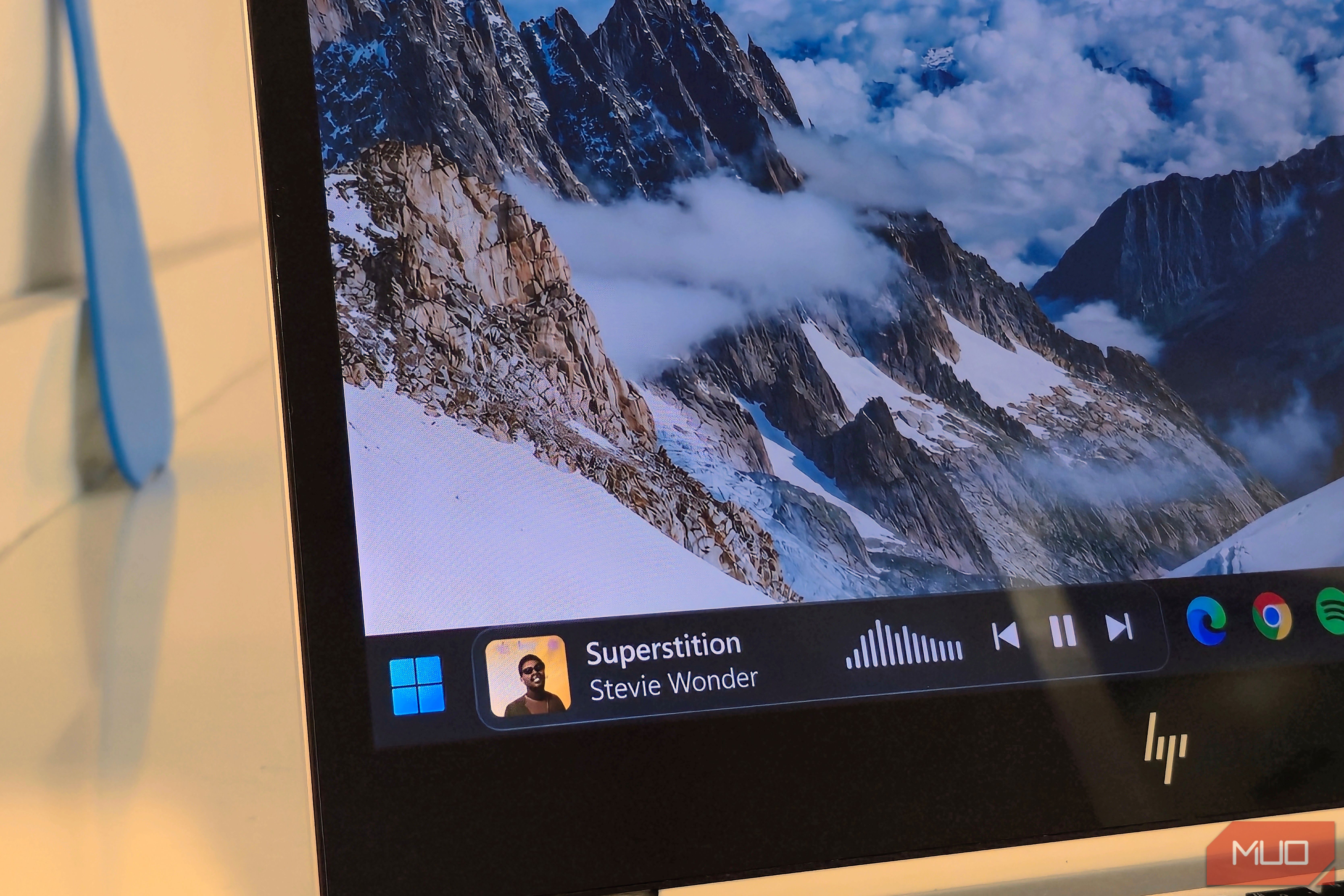
I’m usually a bunch of browser tabs deep into an article when a song starts driving me nuts. Finding the player means digging through all my open windows, and my music doesn’t always come from Spotify. Sometimes it’s YouTube Music, or a video I’ve got open in Chrome. I’d much rather keep the song info right where I can see it. That’s why I love the NowPlaying Widget. It puts the artwork, track details, and playback controls right on my Windows 11 taskbar, and honestly, that’s a great spot for them. I gave my taskbar a second occupation Getting started takes less fuss than finding a decent playlist NowPlaying Widget is a free app you can grab right from the Microsoft Store. It pulls the media info that compatible apps already share with Windows, so you don’t have to connect a Spotify account or mess around with browser extensions. If you’re into customizing your Windows 11 taskbar, you’ll really appreciate having another way to put that space to good use. Setting it up only took me a minute:
- Install NowPlaying Widget from the Microsoft Store and open it.
- Head into its Taskbar settings, turn the widget on, and pick where you want it to show up. I stuck mine next to the notification area.
- Tweak the width and look to match your setup, and leave Start with Windows turned on so it pops up automatically every time you restart your PC. Once I got Spotify going, a slim strip popped up with the album art, track details, and a little animated visualizer. The see-through background blended right in with my dark taskbar, and it honestly looks totally natural next to all the usual Windows icons. It also supports multiple monitors, compact taskbars, and vertical taskbars positioned along either side of the screen. Furthermore, the widget automatically hides whenever you open something in fullscreen, so it won’t ruin your movie or get in the way while you’re gaming. My playlist has commitment issues, and the widget keeps up One set of controls for Spotify, YouTube, and browser videos I started with Spotify, then switched over to YouTube Music, where Stevie Wonder’s Superstition popped up with its album art and artist info all there. A regular YouTube concert video showed up too. Even a trailer playing on IMDb in Chrome counted as a source. By default, the widget follows whichever player started playing most recently. If you right-click it, a Source menu opens up with a list of your active players, so I can bounce between Spotify, YouTube Music, YouTube, and Chrome without hunting down the right window. You can also prioritize your favorite apps or block certain sources, which keeps a random background video from hijacking your taskbar while you’re in the middle of an album. When you hover your mouse over the widget, the song info swaps out for the controls you actually need. The previous, play/pause, and next buttons are all right there next to a progress bar. Dragging that bar to skip ahead worked on every player I tried. Being able to skip past a never-ending intro without pulling up the video tab is pretty sweet. The volume control is another nice touch. Scrolling over the widget adjusts the playing app’s volume without changing the master volume, and there’s a clickable slider for finer adjustments. If you’re listening through Chrome, this affects the browser’s volume rather than just one tab. NowPlaying depends on the media information that apps share with Windows, so some programs won’t appear at all. If a player doesn’t show up in Windows’ media controls, don’t expect the widget to recognize it either. Playback features can also vary depending on the source. There’s plenty to tinker with, if your taskbar has room There’s plenty of room to make it your own The Customize window gives you way more options than you’d expect from such a tiny widget. You can change the fonts, colors, rounded corners, album cover style, text fields, and how the visualizer acts. You can even set the visualizer to bounce along with your actual audio or just stick to a calmer animation. If you’re the type of person who loves tinkering with Windows 11 using tools like Winaero Tweaker, you could easily spend a while getting the look just right. I stuck with the see-through background and a medium width, though if your taskbar is already pretty packed, you might prefer the compact layout. Your pinned apps need some breathing room, too. NowPlaying also offers a movable floating widget for the desktop and a separate card for the Windows 11 Widgets board. I’ve seen what dedicated desktop widget apps can do, so having those alternatives built into the same utility is a welcome bonus. For streamers, there’s an optional OBS browser-source overlay that can display the current track during a broadcast. I haven’t used those extras much, but they’re useful alternatives if you’d rather keep your taskbar free. There’s also a built-in listening history. The app can save a local log of the songs you’ve played, sorted by day, and right-clicking lets you copy a song title and artist without opening your music player. According to the developer, that history stays on your computer and can be disabled. Personally, I’d leave it on just to catch those great tracks I hear while working and instantly forget about. This one’s earned its place My taskbar’s already crammed with a bunch of apps, so giving up even more space takes some convincing. NowPlaying pulled it off, though. It stays in view, it keeps up with whichever player I’m using, and it lets me stay focused on what I’m working on. If I’m going to glance at my taskbar fifty times a day anyway, it might as well tell me what’s playing.