Summary
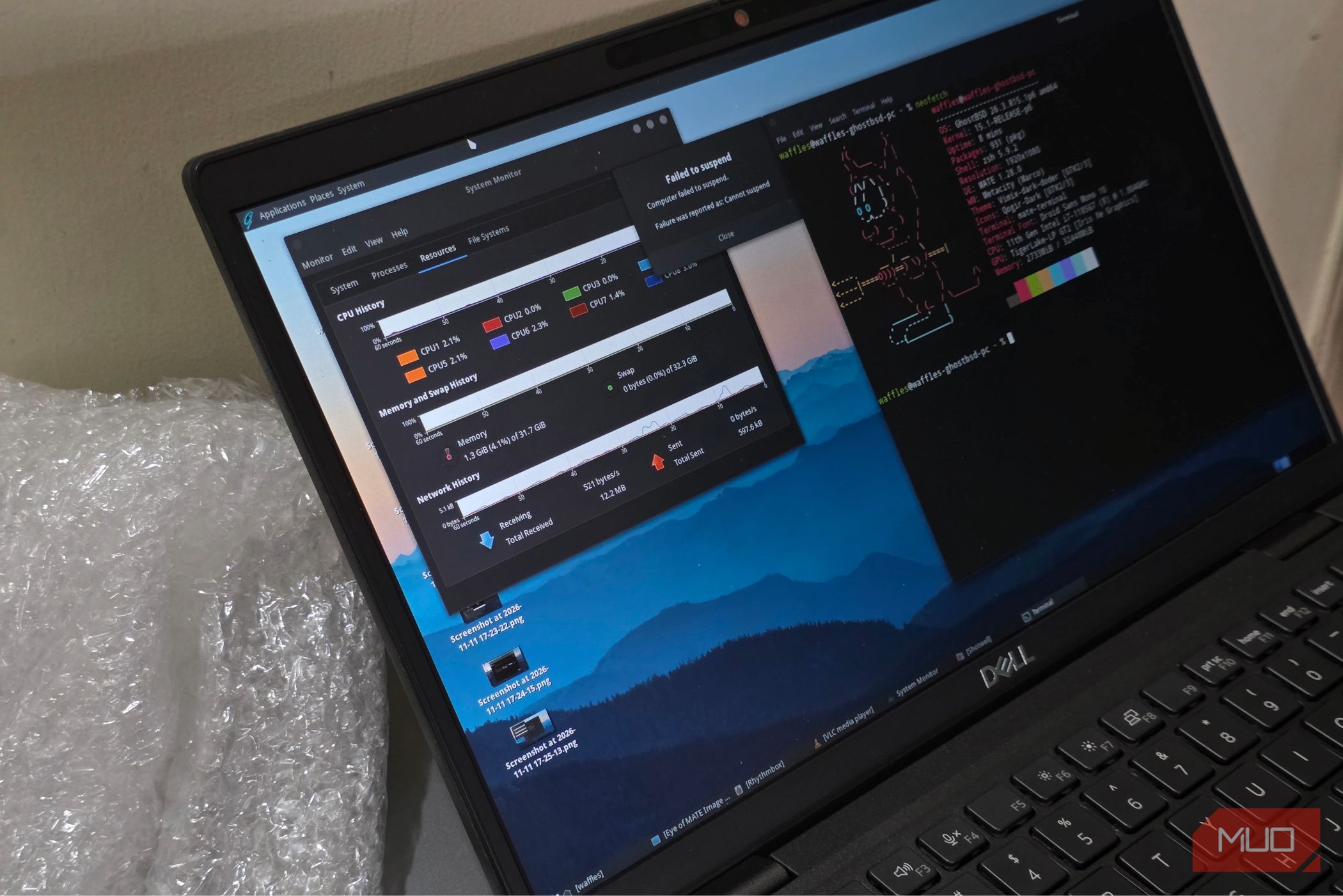
FreeBSD is not an easy operating system to dip your toes into. There’s barely anything configured out of the box for you, and that includes basic stuff like Wi-Fi. This makes it supremely difficult to recommend it to most people, at least as a desktop replacement. Enter GhostBSD, a FreeBSD-based operating system built on top of the MATE desktop. It’s meant to be a lightweight desktop that is entirely functional and easy to use — and I’d say it (mostly) nails both aspects. Installing GhostBSD on real hardware A relatively modest Dell Latitude 7320 laptop For the hardware of choice, I used a Dell Latitude 7320 laptop. It’s the perfect middle ground for FreeBSD. More specifically, it’s hardware that’s old enough to have a decent level of support. Newer hardware might run into compatibility issues with FreeBSD, and so I reluctantly dropped the idea of using my gaming laptop for the task. Grabbing the GhostBSD ISO was also quite easy. All I needed to do was visit the official website, and hit the Direct Download option for its most up-to-date disk image. Once the image was downloaded, I just copied it over to my Ventoy USB drive and plugged it into the Dell. GhostBSD booted without any issues from the Ventoy boot menu, and I was instantly greeted with a graphical installer. The installation process was pretty straightforward, without a lot of options, surprisingly enough. And it only took over a minute to complete. One unfortunate quirk I noticed during the installation process was that the laptop absolutely refused to connect to the internet for some reason. Neither Ethernet nor Wi-Fi worked, and I spent a frustrating few minutes trying to figure things out. I gave up midway, and chose to install without any updates, which worked. One reboot later, and I was presented with the MATE desktop, along with a few setup prompts. The final setup wasn’t too bad, and all I really needed to do was set a username and password — which brought me to the desktop. Interestingly, I was able to connect to Wi-Fi from the drop-down network manager menu from this point on. Which also meant it was time to run a system update, initiated from the built-in MATE terminal. Exploring the MATE desktop And installing a few essential packages The MATE desktop and its pre-installed packages are plenty fine for the casual user, but you’ll eventually want to move beyond the defaults. I started by running a full system update to kick things off. sudo pkg update sudo pkg upgrade -y After the repositories were synced and updated, the installation didn’t take all that long to complete. I also installed the neofetch and fish packages as extra add-ons. Another reboot later, it was finally time to explore the MATE desktop and take GhostBSD for a spin. Taking GhostBSD out for a spin Web browsing and desktop use GhostBSD comes equipped with the full desktop version of Firefox. For all intents and purposes, it is the same as the one you’d find on Windows or even Linux. As such, basic features like extension support just work, and a web browser is usually enough to suffice for most day-to-day office work. Outside of browsing, there’s the MATE desktop itself. It’s quite basic, but functional and has everything you’d ever need, but it still lacks some of the more exotic features offered by something like KDE Plasma. We have the basic suite of apps, including a document reader and image viewer. To be blunt, I don’t consider MATE’s apps to be all that feature-rich or useful. In fact, there are a ton of things missing that I’d otherwise expect from a full desktop experience. But the whole setup works, and configuring FreeBSD the traditional way is nothing short of a nightmare and a real time sink. Not like you’d want a graphical installation for most FreeBSD sessions anyway. GhostBSD is a fantastic way to use a pre-configured BSD desktop, and while some things need a bit of work, the end-user experience is quite polished. Some things just don’t work out of the box That said, GhostBSD is not an entirely perfect experience. The most glaring omission was the lack of suspend support entirely — which meant I could never really put my laptop to sleep once I closed down the lid. Combine that with some rather limited power profile options, and the result is some rather disappointingly low battery life. GhostBSD is still based on FreeBSD, and you’ll have to learn to familiarize yourself with the OS. Not to mention the numerous tweaks one would need to apply on a per-hardware basis. Still, GhostBSD has no right being this good, and I have nothing but positives to speak about after using it for around a week.