Summary
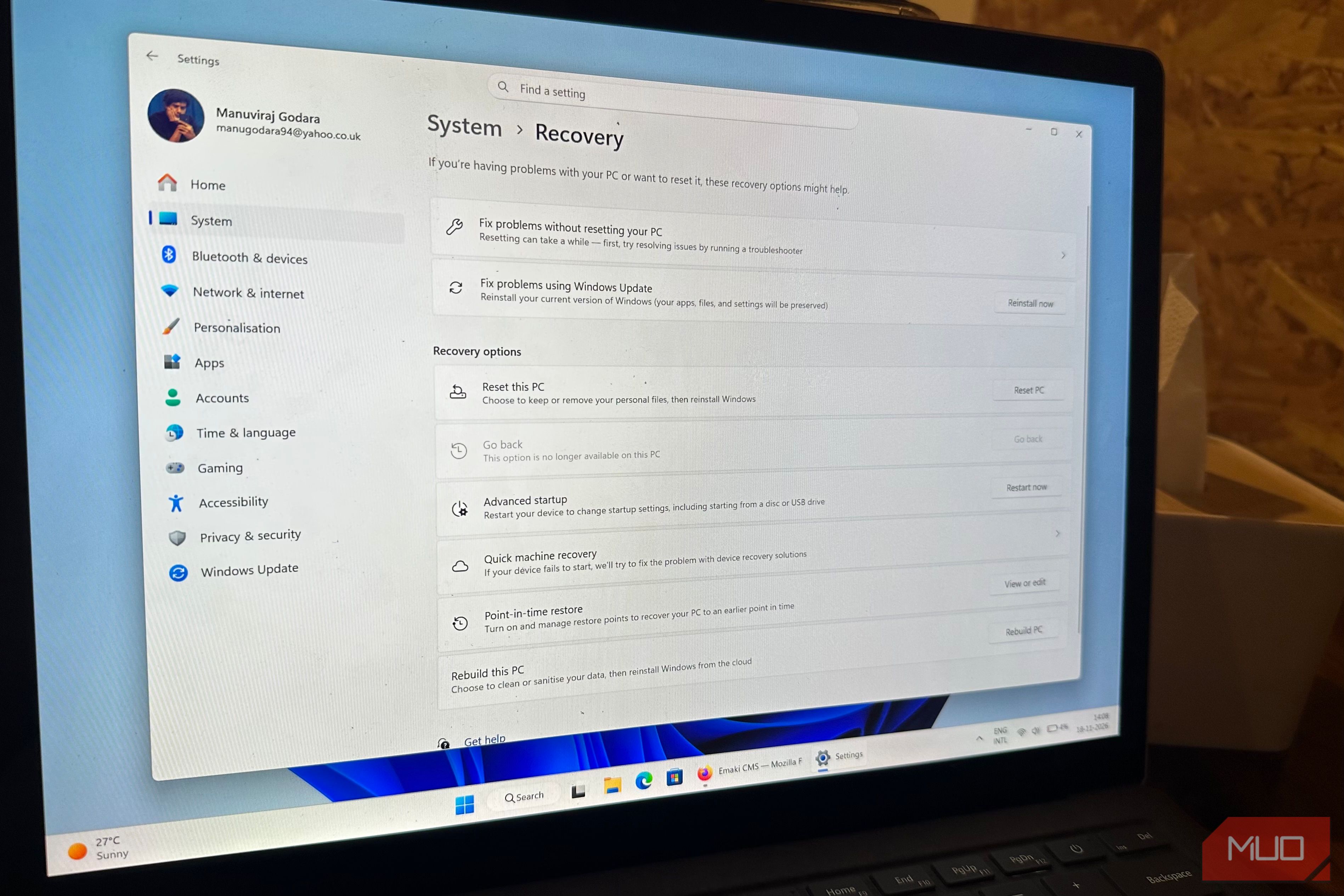
I meticulously manage the storage space on my Windows laptop, and not because I’m a very organized person. Far from it. It’s just that I still use the default 256 GB internal SSD drive that came with my laptop. So when, a few months ago, I noticed the storage space on my laptop’s C: drive decrease by 5-odd gigabytes, you bet it got my spidey senses tingling. I hadn’t downloaded anything new, nor installed any big apps. After some digging around, I found the culprit: a new Windows feature that came with the optional June 2026 (KB5095093) update. The feature is called Point-in-time restore. Even though it was using up precious storage space on my laptop’s tiny SSD, I still decided to keep it on. Depending on your SSD’s storage capacity, it may be taking up substantially more space than the 5 GBs it was using on my laptop. And no, it’s not simply a re-skin of System Restore. Point-in-time restore is turned on by default And it’s taking up at least 2 GB of your disk space If your Windows drive (typically C:) has a volume size of 200 GB or more, the Point-in-time restore feature is automatically enabled after the June 2026 optional update (KB5095093). If not, you can still switch the feature on manually. By default, the feature takes up 2% of your Windows drive’s storage space at the minimum. However, there’s a ceiling too: the feature will not use more than 50 GB of disk space at any given time. Microsoft says point-in-time restore has a lower storage impact than System Restore because it uses reserved storage too. You can see and modify these values by navigating to Settings > System > Recovery. Click the View or edit button next to Point-in-time restore under Recovery options. Adjust the Max usage slider to change how much disk space the Point-in-time restore feature will use. According to Microsoft, some or all of this space may already be covered by Windows’ reserved storage, which reduces the impact. On my laptop, free space still dropped by about 5 GB. By default, restore points are created every 24 hours, and each restore point is retained for 72 hours. You can’t change the frequency and retention settings if you’re on the Home or Pro editions of Windows. Only Enterprise users can modify them. Since Point-in-time restore uses the Volume Shadow Copy Service (VSS), restore points may be deleted earlier than 72 hours if the VSS pool runs out of storage space. How Point-in-time restore works And how it differs from System Restore Point-in-time restore works by creating a Volume Shadow Copy Service (VSS) snapshot of your Windows drive. It does this in the background, without the need for a manual trigger. Microsoft says it focused on reliability when designing Point-in-time restore, and it restores your OS, settings, installed apps, and the local files stored on the Windows drive. It won’t restore any files stored on other volumes on your PC. You can only restore a Point-in-time restore snapshot using the Windows Recovery Environment (WinRE). Windows automatically boots into WinRE after multiple failed boot attempts, but you can manually boot into it by going to Settings > Recovery > Advanced startup. Once in WinRE, click Troubleshoot > Point-in-time restore. You can then select the restore point of your choice. Keep in mind, you’ll need your BitLocker encryption keys if the feature was enabled. Additionally, the restore only works if your device has free space equal to or greater than the total size of all restore points. There are some limitations that Point-in-time restore has. For one, restore points are not compatible across Windows editions. So, if a snapshot was taken on Windows 11 Home, it won’t work if you upgrade to Windows 11 Pro. Additionally, you can’t trigger a restore point creation manually. It only occurs at the set frequency, making it useless if you want to create a quick restore point right before making a major change to your PC. You still need a backup tool Point-in-time restore isn’t a replacement for a backup tool, even though it can restore personal files. To begin with, only the files stored in the Windows volume are restored, making it useless for the remaining partitions on your drive. It won’t help you in cases of disaster recovery where the OS can’t boot into WinRE, as the snapshots can’t be stored off-site or mounted. A backup feature like Backup & Restore (from Windows 7) or a third-party backup tool is still required in such cases.