Summary
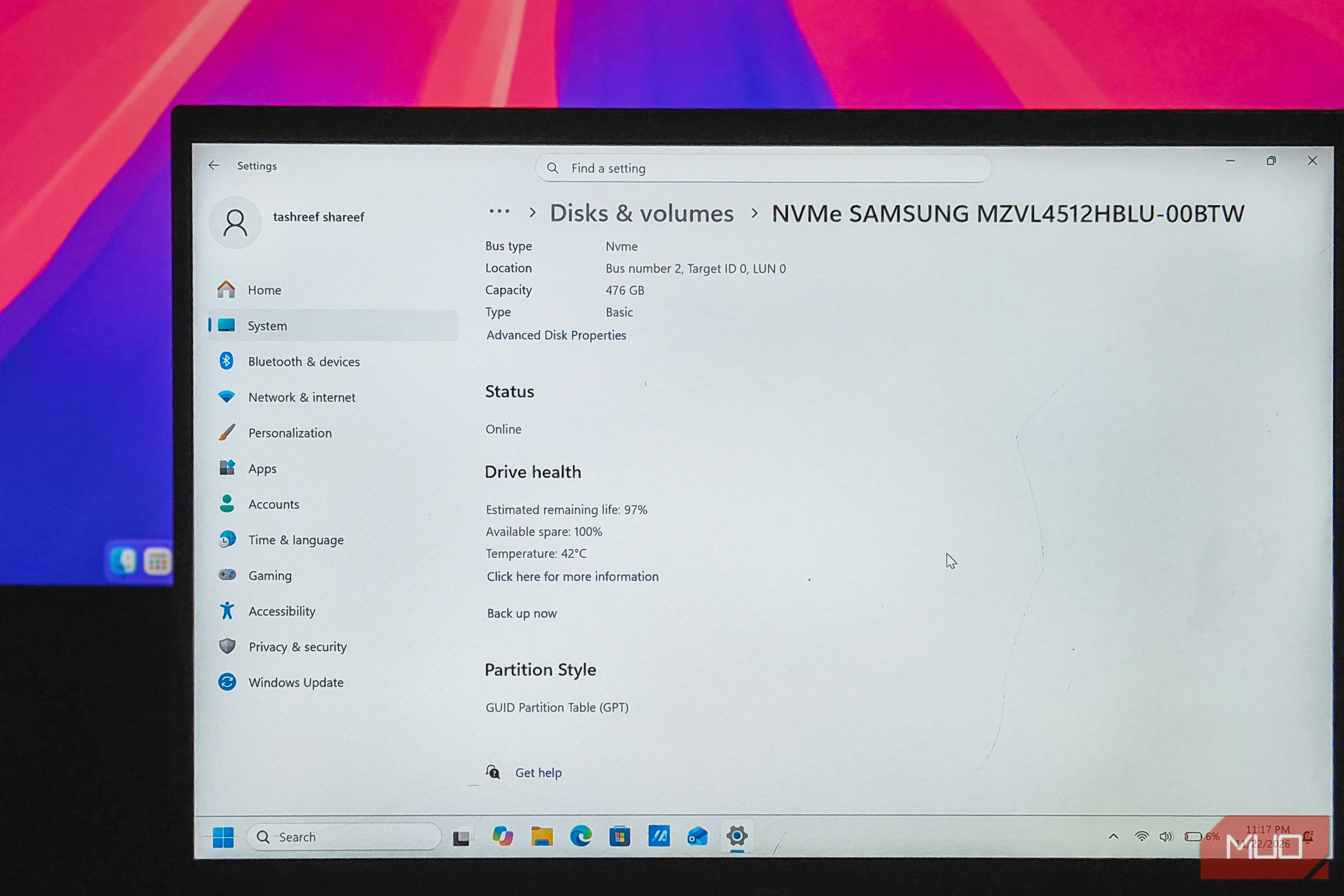
Solid-state drives are more reliable than HDDs because they don’t have any moving parts, which means your SSD is more likely to survive an accidental drop than a hard drive. What it doesn’t mean is that your SSD will last forever. You can use a third-party tool to see if your SSD is failing, but Windows has a built-in tool buried deep in its settings that can show your SSD’s health without installing anything extra. When I checked mine, though, I was surprised to find the drive had aged faster than I expected. Windows tracks your SSD’s health But only NVMe drives A lesser-known but handy feature in Windows 11 is Drive health, a readout that shows how your SSD is performing at a glance. You can find it by opening Settings > System > Storage > Advanced storage settings > Disks & volumes. Select your SSD, click Properties, and scroll down to the Drive health section. What you will see are three metrics: Estimated remaining life, Available spare, and Temperature. Together, they give you a quick snapshot of how your drive is holding up. There is a catch, though. This feature only works with NVMe SSDs. If you have an older SATA SSD or a traditional hard drive, Windows won’t show any health data here. For those drives, you will need a dedicated tool like CrystalDiskInfo to pull the full S.M.A.R.T. (Self-Monitoring, Analysis, and Reporting Technology) data, which includes drive attributes, error logs, and much more than what Windows offers. Even for NVMe drives, what you see here is not a complete diagnosis, but it does give you the most important numbers without leaving the Settings app. Making sense of the drive health report on Windows What the three metrics actually tell you To understand how your SSD is performing, you need to make sense of what each metric means. Estimated remaining life shows how much of the drive’s write endurance has been used up. This data comes from the NVMe S.M.A.R.T. fields and reflects how much of the flash memory’s program and erase cycles are gone, which is tied to the drive’s TBW (terabytes written) rating. My Samsung 970 EVO Plus showed 70% life remaining, meaning about 30% of its endurance was used. Since this is a 250GB model rated at 150 TBW, that works out to roughly 45 terabytes written over six to seven years. That might sound alarming, but TBW is not a hard limit. Drives often continue working well past their rated endurance. Still, once you are past the halfway mark, it is a good time to start paying attention and make sure you have a backup plan. Available spare is arguably the most important number. It shows the percentage of hidden reserve flash cells the drive keeps on hand to replace cells that go bad. My drive showed 100%, which means none of the reserve has been tapped and all cells are still working. This is the metric that catches a failing drive early. If a drive is heading toward failure, this number will start dropping long before it stops working entirely. Windows will also flag the drive when available spare falls below 10%. Temperature rounds out the report. Most NVMe drives operate safely between 0-70°C and start throttling as they get hotter. My drive sat at 61°C, which is within the accepted range since the drive was under load and has no heatsink. Heat is not a major wear factor on its own, but sustained high temperatures can speed up long-term wear and increase errors over time. The drive is healthy, but there’s a risk Age matters more than wear Based on the numbers alone, my drive is in good shape. The wear is moderate, the spare cells are untouched, and the temperature is within range. At the current write pace of roughly 16 gigabytes per day, the drive could theoretically last another 15 or more years before hitting its TBW limit. That said, wear is not the real danger with an ageing SSD. The more realistic risk is a sudden controller or firmware failure, where the drive vanishes from Windows one day with no gradual warning. This can happen at any wear level, whether the drive is 1% worn or 90% worn. Early signs include random freezes, programs hanging while saving, blue screens, or the drive disappearing after a restart. My drive is also well past its warranty period, which means if something does go wrong, there is no safety net. And unlike a hard drive that clicks and whirs before it dies, an SSD failure is often silent and sudden. One day it works, the next day it does not. That does not mean you should panic. It means you should prepare. Run CrystalDiskInfo to check the full S.M.A.R.T. data, specifically looking for media and data integrity errors (which should be zero) and the unsafe shutdowns counter (a very high number is a warning sign). If those look clean, the drive is likely fine for now. A quick health check can save you from a bad surprise The Windows drive health report is not the deepest diagnostic tool, but that is not its job. It is meant to give you a quick, no-install snapshot of how your SSD is doing, and for most people, that is enough to know when to start worrying. All the major SSD manufacturers like Samsung, Crucial, Kingston, and Western Digital offer their own proprietary tools that go deeper, with detailed S.M.A.R.T. data, firmware update options, and performance benchmarks. Samsung Magician, for example, can update your drive’s firmware and run full diagnostic scans. If you own a Samsung SSD, it is worth installing just for the firmware updates alone, as these fixes can address known bugs and improve reliability. But even if you never install a single extra tool, the built-in Windows health check is worth visiting every few months as it might just catch a problem early enough for you to back up your data before something goes wrong.