Summary
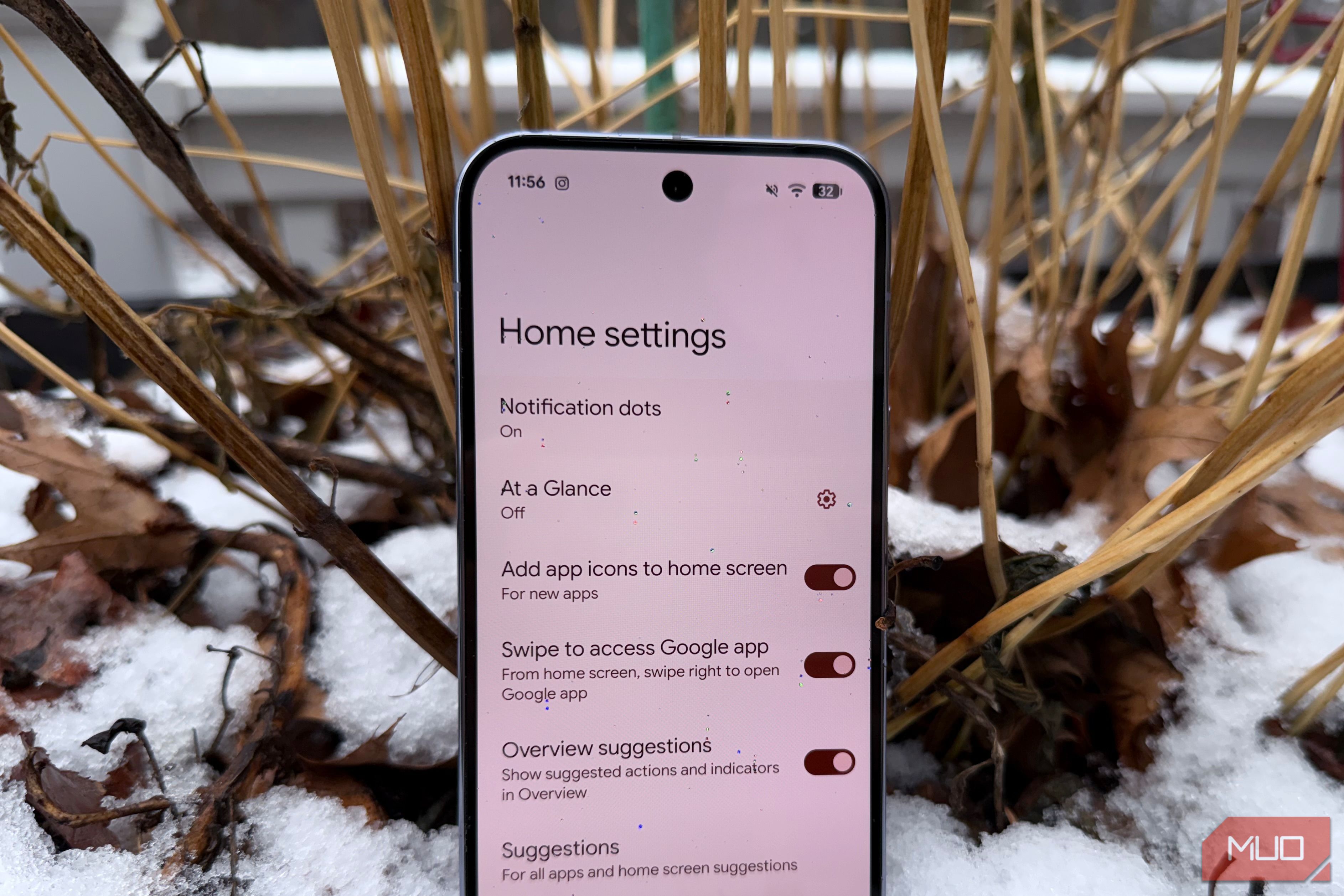
Pixel Launcher may be one of the cleanest-looking Android launchers, but it still has a few rough edges. Some of its default behavior, dots cluttering your app icons and a search bar glued to the bottom, actually gets in the way more than it helps. Thankfully, it includes enough options so you can tweak things however you like and make your Pixel actually fun to use. Get rid of notification dots No, they’re not useful at all I don’t know about you, but I find those notification dots on app icons to be pretty meaningless. Most of the time, it’s just me intentionally leaving some alerts unread, and those tiny dots kind of ruin the overall vibe. You might glance at the home screen or the app drawer and see six or seven dots begging for attention. And they’re honestly redundant for apps like Gmail or WhatsApp, which almost always have something new. So the first thing I do is long press anywhere on the screen, choose Home settings > Notification dots, and turn off Notification dot on app icon. Turn off At a Glance widget It’s better to remove it than ignore it At a Glance widget sits right at the top of your home screen and promises to show useful things like weather, appointments, bedtime alerts, and suggestions from health apps. All of this sounds promising, but I’ve never really found myself glancing at any of this. The good thing is that Pixel Launcher now lets you remove this. All you have to do is long press the widget and turn off Show on home screen to remove it only from the home screen, or Use At a Glance to disable it on the lock screen and AOD too. My other main reason for doing this is that it frees up that prime home screen space for widgets I actually use. Make app drawer searches quicker One less tap before every search Pixel Launcher’s main highlight is the search. Beyond opening apps, it also lets you search for contacts, do web searches, find system settings, and even set up alarms. By default, though, Pixel Launcher doesn’t automatically open the keyboard any time you open the app drawer. That means you have to tap the search bar at the top first to get started. As someone who mostly opens the app drawer to use the search tool, I see this as an extra step. The good news is that you can set up the Pixel to open the keyboard automatically when you open the app drawer. Head to Home settings > Apps list settings > Pixel search settings and turn on Always show keyboard. It makes searching feel instant, and honestly, it should’ve been the default all along. Keep irrelevant apps out of search Stop search from showing you junk Pixel Launcher can search for a lot of stuff, but that also means you’ll be seeing all kinds of results when you type in something. If there are specific results you don’t want to see at all, you can disable those. Go to Home settings > Apps list settings > Pixel search settings > Control search results. Here, you’ll see toggles for disabling results from Pixel Tips, Google Wallet, Clock, and Play Store. You can also stop Pixel Launcher from showing your history and activity-based suggestions from here. Your preferences are obviously going to vary from mine, but this is something you should absolutely do if you use the search tool often. Change the icon and app grid Your home screen can look way cleaner Out of the box, Pixel Launcher sticks with the default app icons, which look decent but not great. I personally prefer changing the app icon style to minimal and hiding the app names for a cleaner look. To do this, long press anywhere on the home screen and choose Wallpaper and style. Go to Icons and set the Style to Minimal. Then, go to Names and turn off Show app names. You can also mess with the app icon shapes from here if you want. Go back to the Wallpaper and style menu and choose Layout. By default, this is set to Medium, but setting this to Small lets you fit five apps in a row, which is great because you can see more apps at a glance. If that feels too cramped, you can also set the app grid to Large or XL from here. Get rid of Google Search widget A third-party app can help Pixel Launcher offers enough settings to customize things, but if there’s one thing it still lacks, it’s the option to remove the Google Search widget from the home screen. It’s parked at the bottom, whether you like it or not. Heck, you can’t even move it to the top if you want. Thankfully, there’s a third-party app called Essentials that lets you remove it without replacing your default launcher, of course. Install the app, go to Widgets, and turn on the Replace searchbar option. This does require running an ADB command, but it’s a one-time thing.