Summary
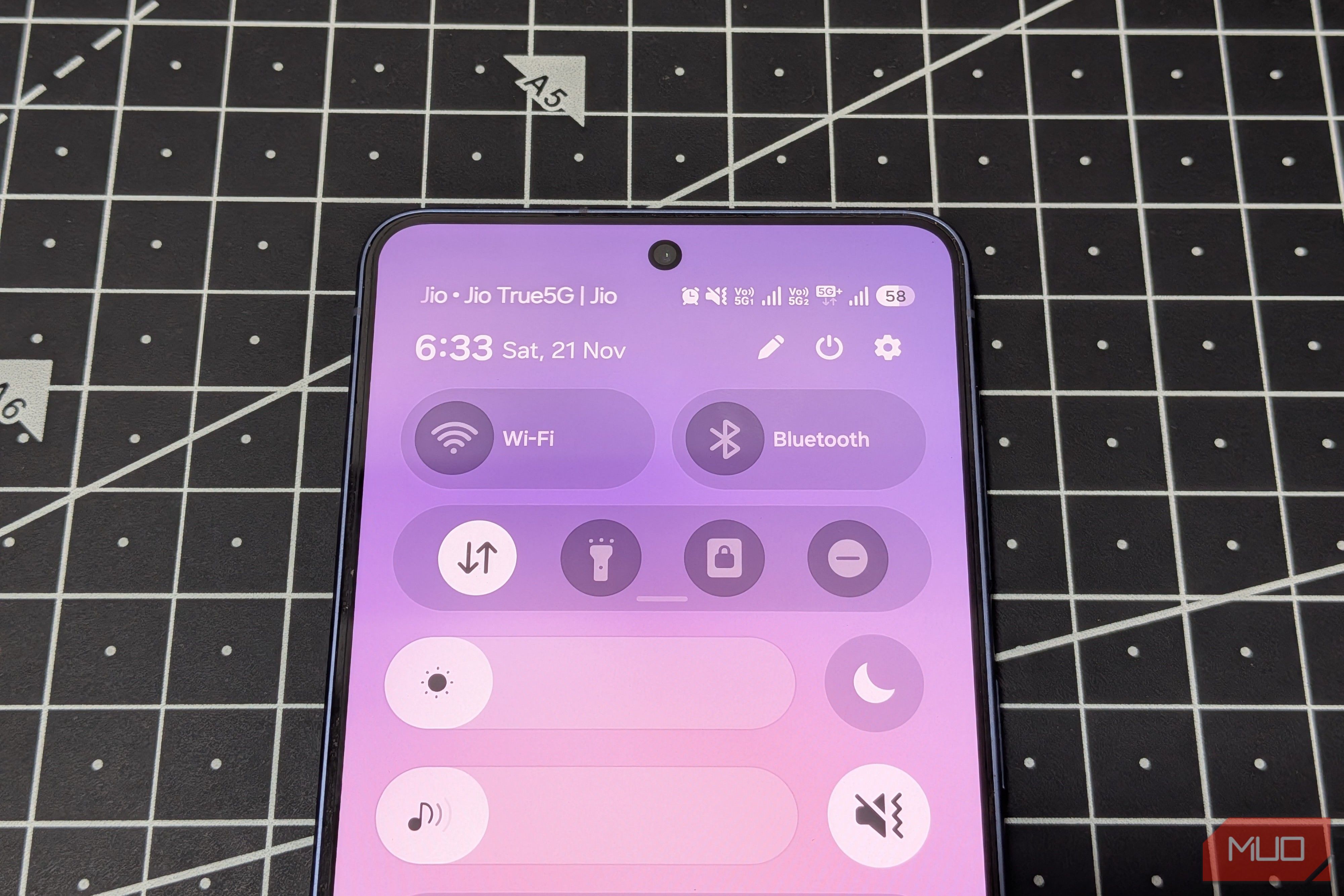
Turning off Wi-Fi and Bluetooth is something you typically do to save battery life. It makes sense too. There’s no point in your phone scanning for networks and devices you’re not going to use. But your Android phone doesn’t actually stop scanning just because you flipped those toggles off from Quick Settings or the Settings menu. By default, Android also uses this same scanning for location services, and the cost is your battery life. Android relies on Wi-Fi and Bluetooth scanning for location services Turning them off doesn’t really turn them off Even when you don’t need Wi-Fi and Bluetooth, your Android phone still uses them for location services. Yes, Android doesn’t rely on GPS alone to track your location. It also scans for nearby Wi-Fi networks, Bluetooth devices, cell towers, and other sensors like the accelerometer and gyroscope to figure out where you are. So even when you’ve turned off Wi-Fi because you’re away from home or the office, your phone is still looking for nearby networks. It isn’t searching for internet access here, obviously. It’s measuring how far those access points are to roughly pin down your location. Companies like Google maintain massive crowdsourced databases mapping the MAC addresses of Wi-Fi routers to real-world locations. When your phone detects a nearby router, it cross-references that signal against the database to determine where you are. It’s the same deal with Bluetooth. Your phone constantly looks for BLE beacons in stores, transit stations, and other similar places. These beacons send out signals with their unique ID, and when your phone catches one, it figures out your approximate location based on signal strength and that same kind of database lookup. This Wi-Fi and Bluetooth scanning is what helps your Android phone nail your location in crowded places, like inside a mall or underground station. These are places where GPS alone can struggle to locate you. The big deal in all of this is that constant scanning costs battery life. Your phone is scanning for networks and devices nonstop, even while it’s sitting in your pocket doing nothing, regardless of whether you actually need that location data at that moment. So you might have switched off Wi-Fi and Bluetooth specifically to save battery, they’re never really off. Disabling Wi-Fi and Bluetooth scanning is easy You’re in charge here The good thing in all of this is that you can always opt out. If you don’t want your phone wasting battery scanning for Wi-Fi networks and Bluetooth devices, you can disable it. Head to Settings > Location > Location services and turn off the Wi-Fi scanning and Bluetooth scanning toggles. Once you’ve disabled these two, simply keep an eye on your battery life and you should notice some improvement. It’s hard to gauge exactly how much battery you’ll save by disabling these features, because Android’s battery usage menu doesn’t separately break out how much these two are costing you. Still, it’s worth trying. More importantly, there’s no major downside to doing this. You’ll still be able to use most apps that need your location, like Google Maps, Uber, and pretty much anything that needs your location to work. This also doesn’t affect your Wi-Fi connections, internet speeds, Bluetooth headphones, or smartwatches, if that’s what you’re worried about. The only real downside is when you’re trying to use location services indoors or underground. In those spots, your Android phone might need some extra time to lock onto your location, or it could fail to pin you down accurately at all. Certain Bluetooth trackers, like the ones from Pebblebee, also recommend keeping Bluetooth and Wi-Fi scanning enabled for better location accuracy. The best way to find out if this is worth it is just to try it yourself for a few days. If the battery savings don’t outweigh the hit to location accuracy, you can always flip scanning back on, no harm done either way. There’s one more feature that uses Wi-Fi and Bluetooth when they’re off This one’s best left alone, though Your Android phone also uses Wi-Fi and Bluetooth scanning for one more thing besides location. Nearby device scanning is a feature that helps your phone detect nearby devices like earbuds, smartwatches, trackers, and printers. And yes, this happens even when you’ve switched Wi-Fi and Bluetooth off. You can find the nearby device scanning toggle under Settings > Connections > More connection settings. But this is one feature you might actually want to leave on, because it powers genuinely useful stuff like Fast Pair, which automatically detects your earbuds the moment you open the case. It’s also what makes Quick Share work smoothly, letting your phone spot nearby devices to send files to without you having to manually search for them every time.