Summary
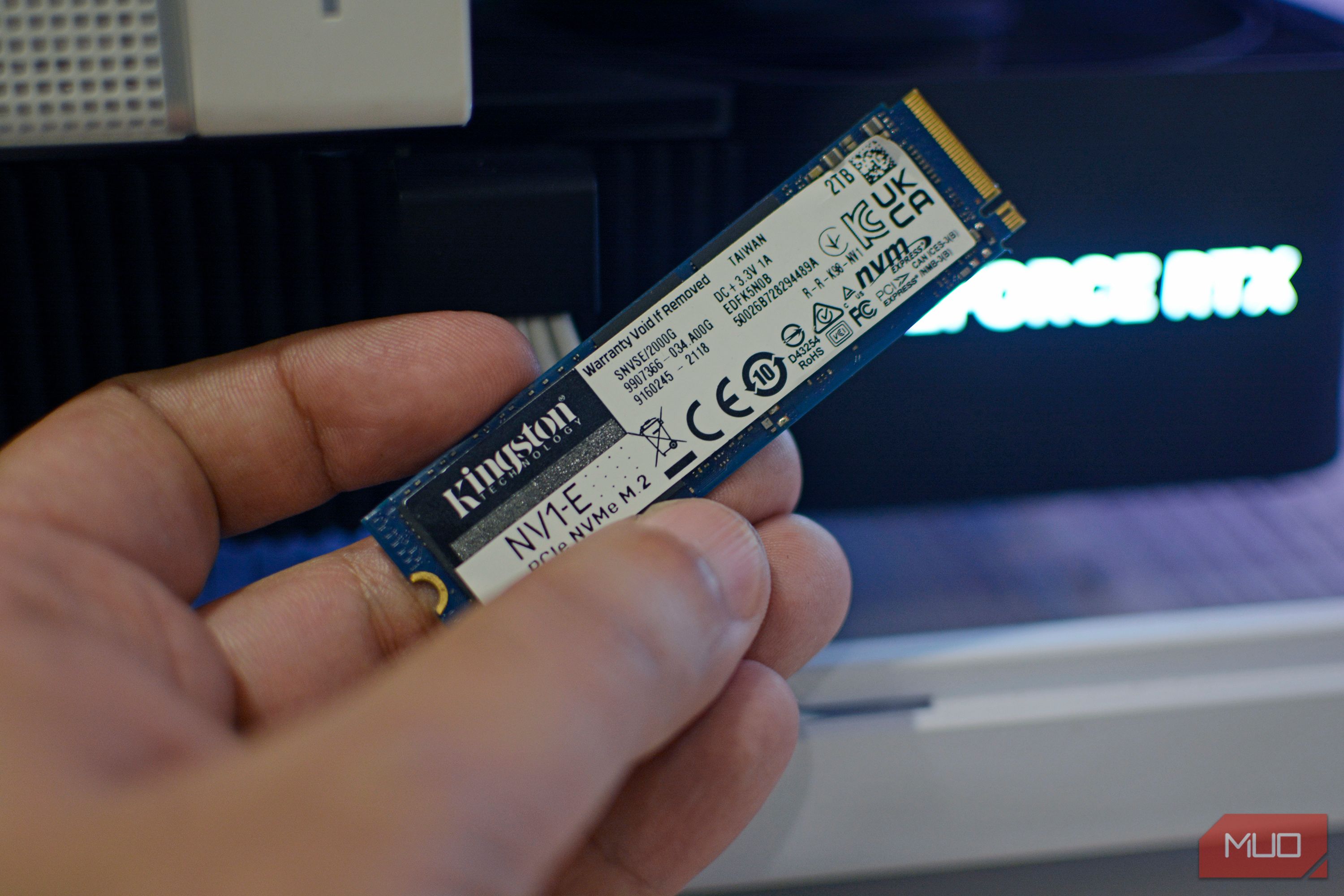
My brand new Samsung NVMe SSD felt super fast a few years ago, especially compared to my old HDDs. Over time, though, things started to take a fraction longer. File Explorer loaded slowly, the PC booted a little slower, and day-to-day work felt a little less smooth than it did a year ago. I ran a quick health check using the built-in Windows tool, and it reported the drive to be in good condition, with at least a decade of life left in it. Turns out, the drop in performance came from a lack of maintenance and one habit I had ignored for far too long. The TRIM job that’s not running Windows quietly stopped optimizing your SSD When you delete a file, Windows marks the space as free, but the SSD doesn’t know that. As far as the drive is concerned, those blocks still hold data it needs to protect. That’s where TRIM comes in. Windows sends a TRIM command to tell the SSD which blocks are no longer needed, and the drive’s controller erases them in the background to keep a supply of clean blocks ready. This matters because flash memory can’t write over old data the way a hard drive can. A block has to be fully erased before it can be written to again. Without TRIM, the drive has to read, erase, and rewrite blocks in the middle of your work, and write speeds drop. Windows handles TRIM automatically through a weekly “Optimize Drives” scheduled task, but it can quietly stop running after a Windows update or driver change without a hint. A quick fix is to run the TRIM command manually to see if it improves the SSD performance. To check, open an elevated terminal and run defrag /O C: (replace C with your drive letter). That’s the letter O, not zero. The /O switch tells Windows to pick the right optimization for the drive type, so use TRIM for an SSD, not a traditional defrag. Then search for Defragment and Optimize Drives in the Start menu, find your SSD, and make sure Scheduled optimization is set to On. Add a heatsink Heat silently throttles your SSD’s speed On Windows, go to Settings > System > Storage > Advanced storage settings > Disks & volumes and click Properties for your NVMe SSD. Under Drive health, check the temperature. Most NVMe SSDs start throttling somewhere between 70°C and 80°C, deliberately slowing themselves down to prevent heat damage. It doesn’t take long to get there. A typical Gen 3x4 NVMe drive, the kind found in PCs sold between 2017 and 2021, can hit 70°C in about three minutes of sustained load at room temperature. During large file transfers, game installs, or video renders, your drive may never run at its rated speed. Heat also gives trapped electrons in the memory cells enough energy to escape, raising bit error rates and wearing the cells out faster. Temperature swings between writing and reading can also shift voltage thresholds enough to produce failed bits, something researchers call the “cross-temperature effect.” You can fix it two ways. First, make sure your laptop or PC has proper ventilation. Second, if your PC supports it, a 15 M.2 heatsink is often enough to keep the drive under its throttle threshold. If your motherboard came with an M.2 shield or heatsink plate, make sure it’s installed with the thermal pad making proper contact. On a desktop, repositioning case fans to improve airflow over the M.2 slot helps too. Laptops are trickier, but even a thin thermal pad between the SSD and the chassis can help. Firmware updates can bring performance fixes Your SSD has an operating system, and it might need a patch Unlike your OS updates, SSD firmware updates are never taken seriously. Most likely because firmware can be a double-edged sword: the outcome can be a performance bump with a bug fix, or the drive might take a hit because a new bug was introduced. Your SSD isn’t just a block of storage, though. It’s a small embedded computer, and its firmware runs the controller, decides where data gets written across the NAND cells, and handles background work like wear leveling, garbage collection, and error correction. Drives often ship with bugs or inefficiencies that manufacturers only discover later. Past firmware bugs have caused drives to crash after a set number of operating hours or silently degrade over time. Updates can also improve how the drive handles TRIM and garbage collection, lower latency under heavy multitasking, and patch security holes on drives with hardware encryption. Open your SSD manufacturer’s storage management tool, including Samsung Magician, WD Dashboard, Crucial Storage Executive, Kingston SSD Manager, and so on, to see if an update is available, but don’t update it yet. If the drive is stable and fast, leave the firmware alone. But if you’re troubleshooting slowdowns and the basics haven’t helped, install the update before assuming the hardware is the problem. Your SSD needs some breathing room A full drive is a slow drive, and smaller SSDs feel the pain most My puny 250 GB Samsung NVMe drive never has enough space to spare, so I’m constantly deleting files. But filling it to the brim not only requires consistent cleanup, but it can also directly hurt your SSD’s performance. Most consumer SSDs use TLC (triple-level cell) flash, which stores three bits per cell. TLC is slow to write to directly, so the controller sets aside a chunk of empty cells and runs them in SLC mode (one bit per cell). This SLC cache is what gives your drive its advertised peak write speeds during short bursts. If you want to understand the finer details, here’s a good explainer on how solid-state drives work. The catch is that this cache is built from your free space. As the drive fills up, the cache shrinks. Samsung calls their version TurboWrite, and it relies on borrowing free NAND to create a dynamic write buffer. When the drive is nearly full, that buffer has nowhere to expand. Large file copies or game installs that would normally sustain 3,500 MB/s can hit a wall and drop to 1,500-1,700 MB/s once the cache runs out. This is worse on smaller drives like my 250 GB model. Some manufacturers, Samsung included, reserve about 10% of raw NAND capacity for wear leveling and garbage collection. That’s baked in, but the dynamic cache still needs your free space to function, and keeping 15-20% free on a 250 GB drive means giving up 37-50 GB, which stings more than on a 1 TB drive. The slowdown typically hits when a drive reaches 85-95% capacity. SSDs with a DRAM cache handle the pressure better than budget DRAM-less drives, and QLC (four bits per cell) drives suffer more than TLC because their base write speed without the SLC cache is even slower. The 80% rule isn’t exact science, but keep at least 15-20% free and you’ll avoid the worst of it. A few tweaks to make your SSDs perform like new On a smaller capacity drive, keeping it from filling up is a bigger challenge, but it’s also the most critical one. A full SSD not only slows down file transfers, but also affects app installations and even Windows updates. If you can’t upgrade right away, do a deep cleanup by removing junk files and old temp data, uninstall apps you installed once and forgot about, and clear out downloads you’ve already used. With basic maintenance, your SSD can easily last a decade or more, depending on your usage.