Summary
By default, your Android phone’s location is set to the highest possible accuracy, which makes sense. Google doesn’t want your phone struggling while you’re navigating with Google Maps or booking an Uber.
But the thing is, your apps don’t need that level of accuracy, at least not all the time. So I recently switched the location mode to “Device only” on my Galaxy S26, and I’m glad I did, because it did wonders for my phone’s battery life.
Android relies on more than just the GPS to detect location
It’s more complex than you think
Enabling location services on your phone may be as simple as tapping a Quick Setting tile, but Android actually uses a whole cocktail of signals to figure out where you are. GPS is just one of them. Your phone is constantly scanning for nearby Wi-Fi networks, pinging Bluetooth devices, checking which cell towers you’re connected to, and even pulling data from its accelerometer and gyroscope sensors to improve accuracy. The sensor part may sound odd, but it helps track movements between GPS fixes, so your blue dot doesn’t jump around any time you’re walking under a bridge or inside a parking lot.
It’s an impressive system, but the tradeoff is pretty obvious too. All of these location signals require your phone to do extra work behind the scenes. That means Wi-Fi scanning keeps your phone’s Wi-Fi radio active even when you’re using mobile data. Bluetooth scanning does the same thing. And your phone is doing all of this while also talking to cell towers and waking up the GPS radio when necessary. As you can imagine, the more apps you have actively requesting location, the more battery your phone burns.
Switching location services to “Device only” mode was easy
Two taps on newer Android, three on older
Once I realized how much was happening in the background just to detect my location, I wanted to see what would actually happen if I cut it back. Of course, turning off location entirely wasn’t practical since a lot of apps need it to work properly and show relevant data. So I did the next best thing: I reduced how much work my phone does to detect my location. Specifically, I stopped it from using Wi-Fi, Bluetooth, and nearby cell tower scanning for location.
To do this, head to Settings > Location > Location services and turn off Wi-Fi scanning and Bluetooth scanning toggles. Then, tap on Location Accuracy and turn it off as well. This is slightly different on older phones. On Android 11 and older, go to Settings > Location > Location mode and choose Device only. Once you do this, your phone can only use GPS and sensors like the accelerometer and gyroscope to detect location.
I gained battery life, but not without a compromise
The accuracy hit is real, but manageable
I spent a week with my phone’s location in “Device only” mode, and the battery consistently lasted longer between charges — somewhere in the 10-15% range. Of course, this number can vary a lot. It all comes down to how you use your phone, how many apps have location access, and most importantly, how frequently they’re actually checking it.
The important thing here is that the battery savings come with trade-offs. When you set the location mode to “Device only,” your phone can only use GPS and onboard sensors, so the accuracy takes a hit. And this can be a problem when you’re indoors, like at a shopping mall or in a parking garage. It can cause the location dot to drift or appear slightly away from where you actually are. This is especially noticeable when you’re using navigation or ride-hailing apps, where accuracy matters.
For most other apps and use cases, though, the “Device only” location works just fine. Personally, I don’t use Google Maps or Uber all that often, so there’s little point in letting my phone burn the battery for pinpoint accuracy around the clock. A rough location estimate is good enough for most of my apps. And on the rare occasions I do need full accuracy, I simply open the settings menu and re-enable the location accuracy. Yes, it’s a tiny hassle, but I feel it’s worth it for the extra battery life.
 Samsung Galaxy S26
- SoC
- Snapdragon 8 Elite Gen 5
- Display
- 6.3-inch Dynamic AMOLED 2x
- RAM
- 12 GB
- Storage
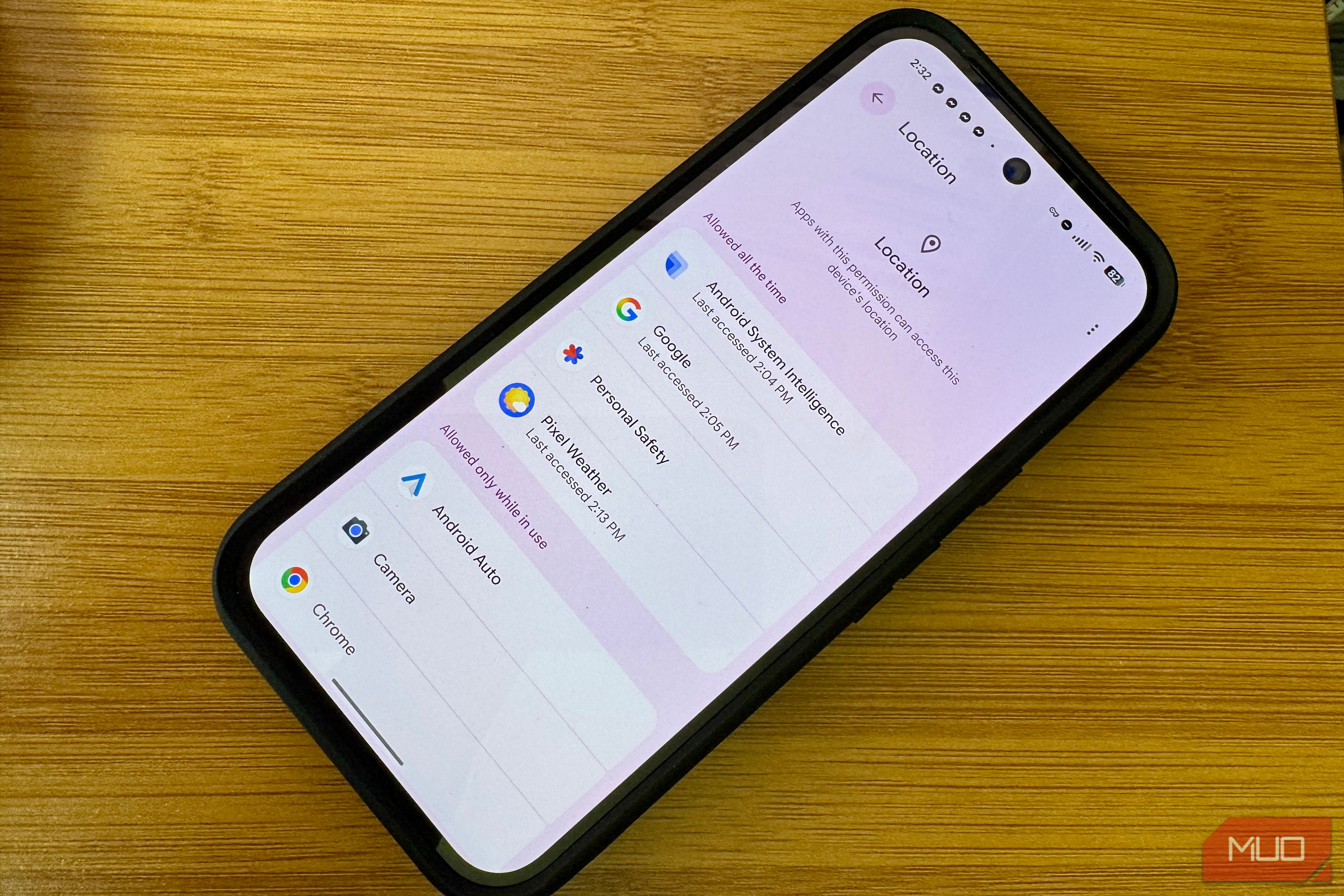
- 256 or 512 GB “Device only” location mode isn’t your only option Of course, setting the phone’s location to “Device only” mode isn’t practical for everyone. If you’re in that camp, there are still other ways to cut down the battery drain caused by location services. The most obvious one is to simply audit which apps can access location services in the first place. The fewer apps that have that permission, the less work your phone has to do. Go through the list and disable location access for apps that don’t actually need it. And for those that do, set the location access to “While using the app” so they’re not constantly checking your location in the background. There’s also the precise location toggle, which you can disable. Most apps don’t need it — they just ask for it because they can.