Summary
I’ve been using a new Android 17 feature for a few weeks now (one of many new Android 17 features), and it’s quietly changed how I use my phone every single day — to the point where the old way I switch and check apps feels archaic. It’s called App Bubbles, and once it clicked, I stopped doing the thing every phone owner does a hundred times a day without thinking: bouncing in and out of apps just to check one thing. If you’ve got a recent Pixel, you can turn this on right now.
App Bubbles are coming to Android
The floating shortcut that follows you everywhere
Most people manage frequent apps with homescreen folders or the app drawer, or perhaps you know that you can use the notification shade to launch apps.
And bubbles aren’t new — Google brought them to chat back in 2020, and the idea was good enough that it stuck. Extending it to full apps is the natural next step. With the Android 17 update you get this exciting new feature.
Set it up quickly
Glance, reference and dismiss without losing your place
Settings up app bubbles is easy. Just tap and hold any app on the homescreen or in your app tray, and tap the “Bubble” button. Do that four times to set up your four app bubbles which you can then reposition anywhere on the screen edge for easy access.
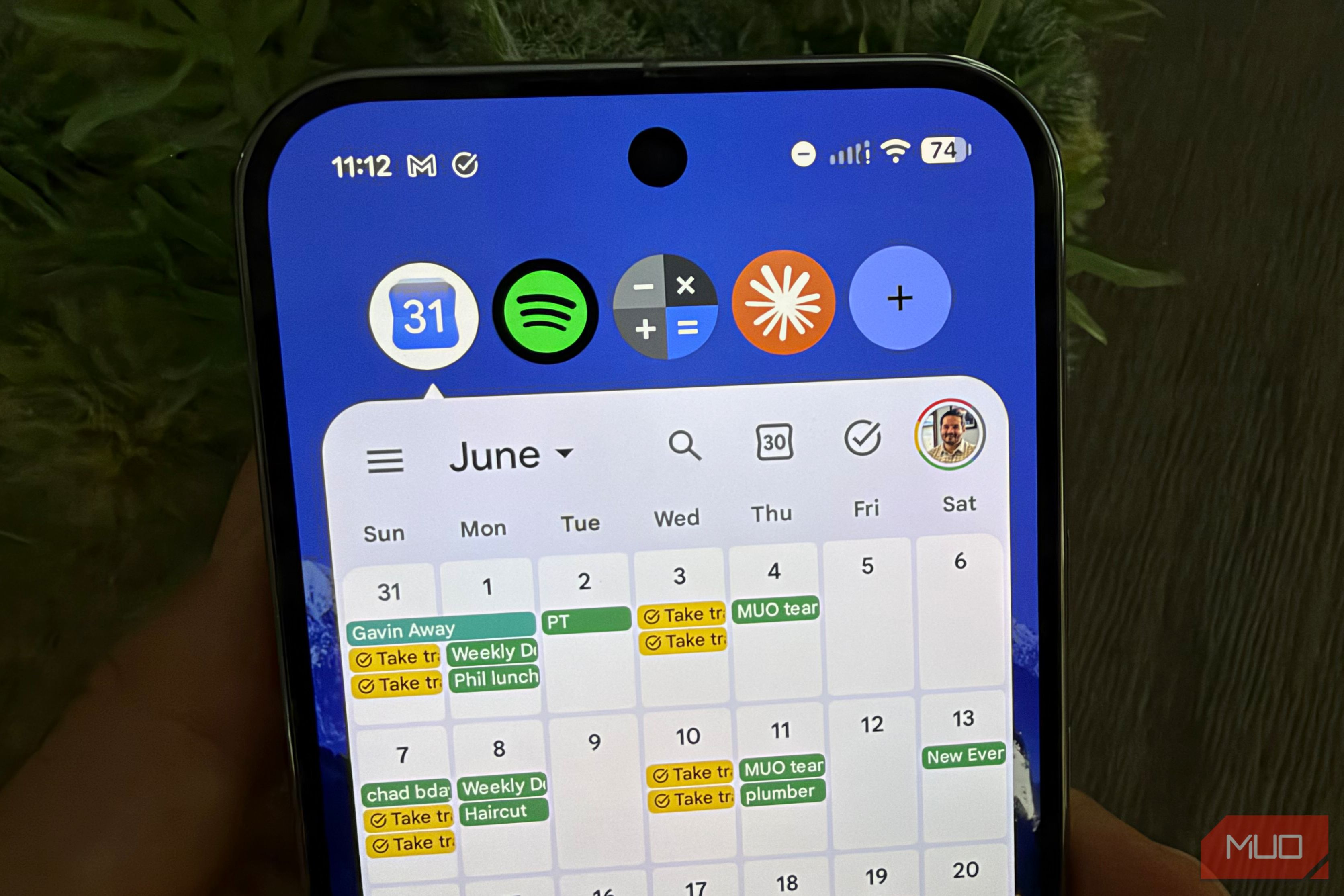
Again, what’s great about App Bubbles is that you can reference information without losing your place. Like if you’re texting someone who is asking for a lunch date, instead of doing the 3–4 taps required to pull up your calendar, you can do just one tap if you have your calendar loaded as an App Bubble like I do.
The key reason why App Bubbles are so useful is that it eliminates all the time you spend switching apps just to reference a key piece of information or to return to your homescreen. App Bubbles keeps key information at your fingertips no matter what you’re doing.
My four bubbles
And why each earns the spot (plus a protip)
I specifically picked four apps to be in my App Bubbles for very specific reasons: I wanted apps I reference often (Google Calendar and Claude), plus one tool (calculator), and lastly my preferred media app (Spotify). These four apps I happen to frequently check. Setting them as App Bubbles is a huge time saver.
And a protip: since App Bubbles do not survive a reboot, you can save time by putting your App Bubble apps into a dedicated folder on your homescreen. Then, after a reboot, you can quickly spin up your four App Bubbles by going to this folder and making each app a bubble.
App Bubbles have genuinely changed my daily phone habits — but they’re not perfect, and there are two limitations worth knowing before you get attached.
Since App Bubbles do not survive a reboot, you can save time by putting your App Bubble apps into a dedicated folder.
Some limitations
Pixel-only for now, and bubbles do not survive a reboot
As mentioned, App Bubbles are a Pixel-only feature for now, but should come to other Android 17-eligible devices later this year.
There are a couple of limitations to using App Bubbles. First, as mentioned above, bubbles must be set up each time you reboot your phone.
A second downside: unlike Samsung’s Edge Panel, which lets you keep many more shortcuts within easy reach, App Bubbles limits you to just four. For me, that doesn’t leave enough slots for a mix of personal and work shortcuts, let alone tools like calculator, so you have to be selective on which bubbles you pick.
Although App Bubbles comes first to the Pixel, it’s baked into Android 17 source code, leaving it up to Samsung, Nothing, and others to decide if and how to implement App Bubbles, which they may or may not do. But if you have a Google Pixel, all the way back to the Pixel 6 from 2021, all you have to do is download the Android system update (Settings > System > Software Updates) to get Android 17 and begin using App Bubbles.
While the limitations of App Bubbles are real, they’re a huge quality of life improvement for the many scenarios where you need to have quick access to information buried within an app on your phone, and you don’t want to go through all the taps required to switch tasks. I think Google has taken a real step forward here that makes classic app-switching seem old hat.
 Google Pixel 10a
- SoC
- Google Tensor G4
- Display
- 6.3-inch Actua pOLED display, 1080 x 2424 resolution, 60-120Hz, 3000 nits peak brightness