Summary
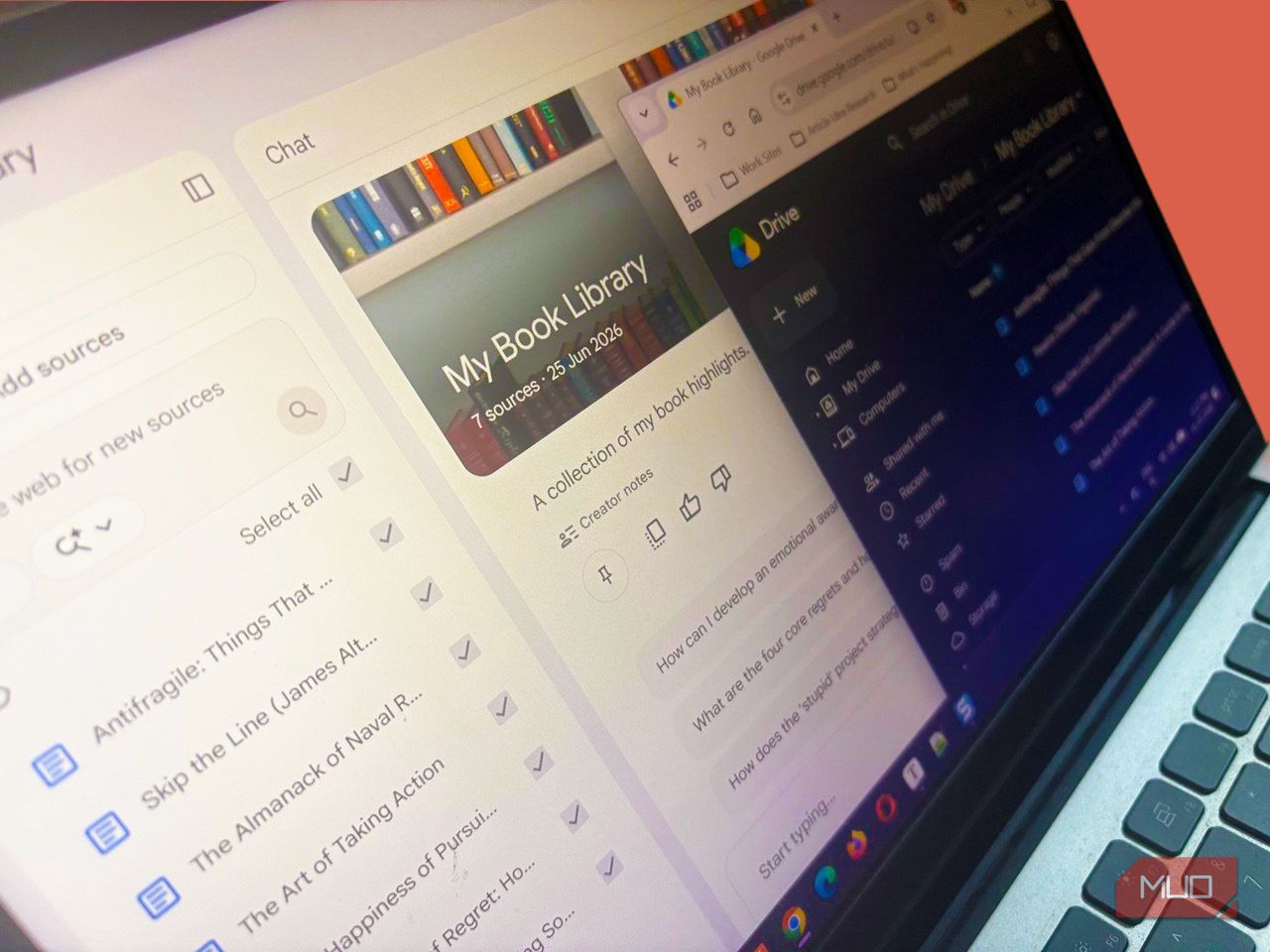
My Drive used to be a research black hole. I’d always found using native Windows folders for research better than constantly uploading and downloading from Google Drive. NotebookLM changed that. Thanks to its ability to find insights from my own curated sources, it has turned Google Drive into an evolving knowledge base. There was just one problem. Until recently, NotebookLM had no way of knowing you changed anything in a Google Drive source file. To fix it, you had to delete the old source, re-import the updated file, and pray your custom notes didn’t break in the process. Google Drive was a time capsule Every import became instantly outdated Any Google Drive file imported as a source became a frozen snapshot the second it landed. Open a Google Doc to fix a glaring typo or add a new line of research, and NotebookLM had no idea you changed anything. To fix it, you had to delete the old source, reimport the updated file, and pray that your custom notes didn’t instantly become outdated in the process (they usually did). Re-uploading one file isn’t a big deal. But it becomes a chore when you have to deal with several of them. The lack of an always-on handshake sort of defeats the purpose of using the NotebookLM-Drive combo as a second brain. A few times, I lost track of which version was current and had to keep checking the version in Google Docs. Occasionally, I even kept different copies of the same document in the Drive folder by mistake. Static snapshots work for finished PDFs, and you still (obviously) will need to re-upload a PDF. But a document or a spreadsheet with your research is never finished. Sync turns on by itself But you can manually sync too There’s no toggle for this in NotebookLM’s configuration settings. Google built Drive sync to run automatically for supported file types. I guess the seamless integration is the whole point for two apps meant to work as a front end and a back end. You can force a sync by opening an individual file in NotebookLM’s source viewer and clicking the Click to sync with Google Drive button. Also, use this button when you update a Google Doc and want an instant answer to your prompt. The moment you add a supported Google Drive file (Docs, Slides, or Sheets) to a notebook, NotebookLM establishes a live connection. In the background, the app auto-syncs with your Drive every few minutes. If you update a data point, rewrite an introduction, or add a slide, NotebookLM silently ingests the new context. Though NotebookLM checks for freshness, it has no timestamp to indicate a source’s age. The best you can do is check the Drive folder and the document’s Date modified entry. NotebookLM is Google’s AI-powered research notebook that reads what you upload and helps you transform it into structured summaries, explanations, and visuals. Taming the research folder chaos Sync is made for the lazy organizer in all of us Managing a messy Google Drive folder was always a task. With auto-sync, you no longer need to spend hours organizing your Drive files before using them. You can mass-import your disorganized folder or selected files into NotebookLM and simply let the AI act as your personal hunter-gatherer. Give NotebookLM the right prompt, and it can search and synthesize across the chaos, saving you from having to click through dozens of messy files to find one specific note. For instance, you can use this master NotebookLM prompt to see a bird’s-eye view of all your sources in a Drive folder (see screenshot). NotebookLM is still as good as the sources it gets, so you have to take care of the quality of the files in it. It helps to name files properly, but even without pristine filenames, NotebookLM can do its job. NotebookLM also won’t do the cleaning up for you. You have to delete the files yourself. Now, the moment you trash a file in Google Drive, NotebookLM instantly purges it from your notebook. Do your housekeeping in Drive, and let the AI brain automatically declutter itself in NotebookLM. Sheets get the biggest win Fast-changing cells update in real time Spreadsheets benefit the most from this change. A single cell in a shared budget or tracker can change five times a day, and NotebookLM now reflects the latest numbers instead of whatever you uploaded the last time. NotebookLM can pull data from multiple tabs within a single Google Sheet (up to its 100k token limit). I haven’t tested this myself, but I don’t think you’ll need to build complex formulas to understand your shifting data. You can simply prompt NotebookLM to summarize the trends in your live sheet as your team inputs new rows. I’ll admit I underestimated this one, as most of my work is with Google Docs. But I see the immense value of an instant sync when you are working with data. Sheets are usually the messiest, fastest-moving files in any workflow, so accuracy here matters more than for a document or a slide. Shared folders end the re-upload chore Collaborators update sources — you just ask Drop your sources into a shared Drive folder, and collaborators can update those files directly. Nobody has to email you the latest version, and you don’t have to re-upload a thing or ping someone for a fresh copy. It turns a shared folder or document into a genuinely shared source without back-and-forth messaging. I guess messaging and the best ways to collaborate on Google Docs will still matter. I won’t always know the moment a teammate changes a file, so I can miss something important buried in the document. Comments left in the Google document are still part of a collaborative workflow. Even then, that’s a smaller risk than the old system, where outdated files sat unnoticed for weeks. Now the notebook can always operate on the absolute latest version of your shared project. If you lose access to a Drive file, you will lose access to it in NotebookLM. The file will still appear in your sources list, but it will be locked with a link prompting you to request access. The AI will no longer reference its contents in chats. Also, if you or a team member trashes a source file in Google Drive, NotebookLM automatically purges it from your notebook. Try syncing one messy research folder today You don’t need to change your workflow to see this benefit. Pick one folder with a shared sheet, a running doc, or a slide deck, and drop it into NotebookLM. Test the old files and updated ones with the same prompt and see the difference.