Summary
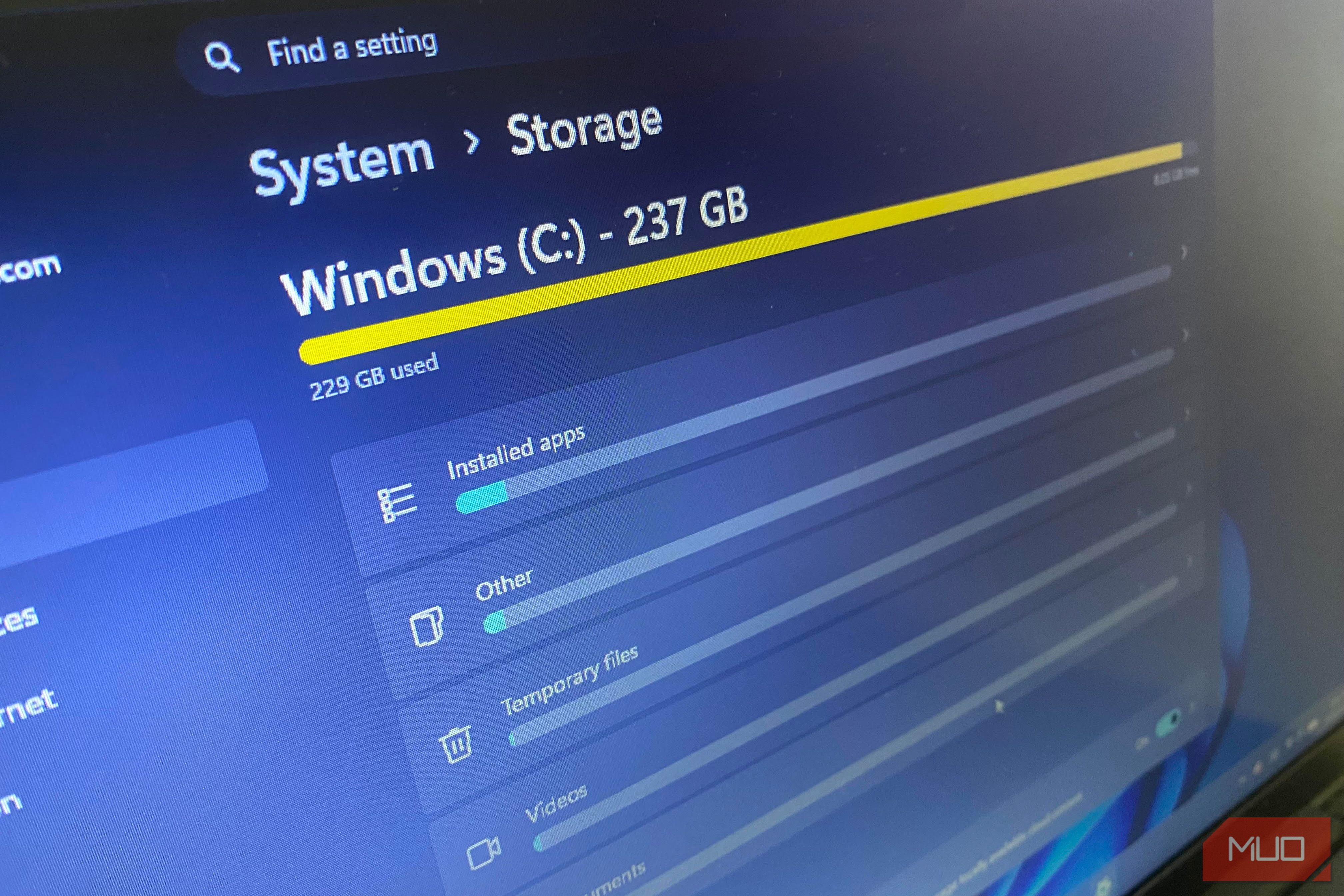
With SSD prices rising recently, upgrading storage isn’t a fix I’d be in a hurry to try. However, I still had to take action since my boot drive was dangerously full. I chose to find out how much storage I could reclaim using tools that were already available to me. From system bloat to tweaking how Windows handles local files, I was able to free up enough storage and put off buying a new SSD. You can replicate every step without buying software or risking important files, and spare yourself the expense of a hardware upgrade. Finding the low-hanging fruit in under two minutes WizTree pointed straight at files I’d genuinely forgotten existed I started as most people would: open File Explorer, right-click folders, wait for the size to calculate, observe how much storage they occupied, move to the next, rinse and repeat. But this was slow and showed me only the things I knew to look for. So I abandoned this approach and installed WizTree. The tool is free for personal use and saved me from the stress of reading individual folders one after another. It reads directly from the NTFS Master File Table, the index Windows uses to track disk contents. It took about three seconds to scan my almost-full 256GB SSD. The results it presented instantly gave me an idea of what was taking up the most space on my SSD. It was the Users folder. While this initially felt normal, when I expanded Users, I saw I had stored and forgotten an ISO folder somewhere within it. This was close to 20GB that did not need to be on this computer. My Downloads folder also stood at about 9GB. I had a habit of lumping all my downloads into this folder, but I never imagined it was that large. Also, most of the items were installers I no longer needed. In less than two minutes, WizTree had exposed about 29GB of storage that I could free up. Windows was hoarding more than I realized Old update components had been piling up in the background On traditional HDDs, it’s more obvious when something is eating up your space, since you’d watch a folder grow over weeks. Windows handles update files differently than ordinary user files. When Windows accumulates update files and older system components, it doesn’t always appear as a folder you would check on your own. After Windows updates a system file, it doesn’t discard the old version, so it’s possible to roll back the update if needed. Some of these old components are routinely cleaned up, but Windows is conservative about this process. After a year or two of updates, you typically end up with far more old versions than the computer needs. Instead of waiting for Windows to get around to cleaning up these leftovers, I ran this command to speed up the process: DISM /Online /Cleanup-Image /StartComponentCleanup This command targets the Component Store and, in this case, freed up an extra 5GB of storage. You should note that some cleanup.While this does not apply to my specific system, another thing to look out for is Windows.old. This folder is created after you perform an upgrade. It’s needed to roll back Windows, but it’s safe to remove after the 10-day rollback window has elapsed. So far, I have reclaimed about 34GB of storage. But the biggest win was more surprising than anything I had deleted so far. My biggest win didn’t involve deleting anything OneDrive’s online-only mode changed how I think about storage So far, I’d been reclaiming storage by removing something. This was a pattern I expected would continue. But this time, I did something different, which became the most significant single change I made. By default, many OneDrive files may still occupy local storage. This can take up actual gigabytes on a device. However, there is a feature called Files On-Demand that fixes this. To enable it, I right-clicked on my OneDrive folders and selected Free up space. This replaces files with placeholders (small stub files that represent the online file) that retain names, folder locations, and thumbnails. The files are downloaded to your device only when you double-click the placeholder. There is a similar mode if you use Google Drive or Dropbox instead. The only significant trade-off with this feature is that you’ll need an internet connection to access your files. After running the Files On-Demand feature on a folder containing old project files and photo exports, I reclaimed 15GB of storage on my SSD. In total, I had gotten back about 49GB of storage, and while this seemed as good as it could get, there was just one last thing to try. One hidden file gave me the last push Hibernation reclaimed several more gigabytes, but it isn’t for everyone This last one isn’t for everyone and may not always deliver the biggest space savings, but on a small SSD, every bit counts. There is a hiberfil.sys file in Windows that stores sessions, allowing hibernation to resume instantly. It can occupy several gigabytes depending on how Windows is configured and how much RAM your PC has. Deleting hiberfil.sys is easy; however, before you proceed, you should know that it also disables Fast Startup. If you never use Hibernate, disabling it with the command powercfg /h off removes the hiberfil.sys file automatically. Deleting hiberfil.sys gave me back about 6GB of storage. 55GB later, the urge to buy a new SSD is gone In total, I had reclaimed 55GB of storage. This wasn’t as much storage as a new SSD would have given me, but at least it meant I could postpone the purchase for a while. I hadn’t deleted anything I needed, which felt like an even bigger win. All it took was installing one third-party tool and looking in places I usually ignore.