Summary
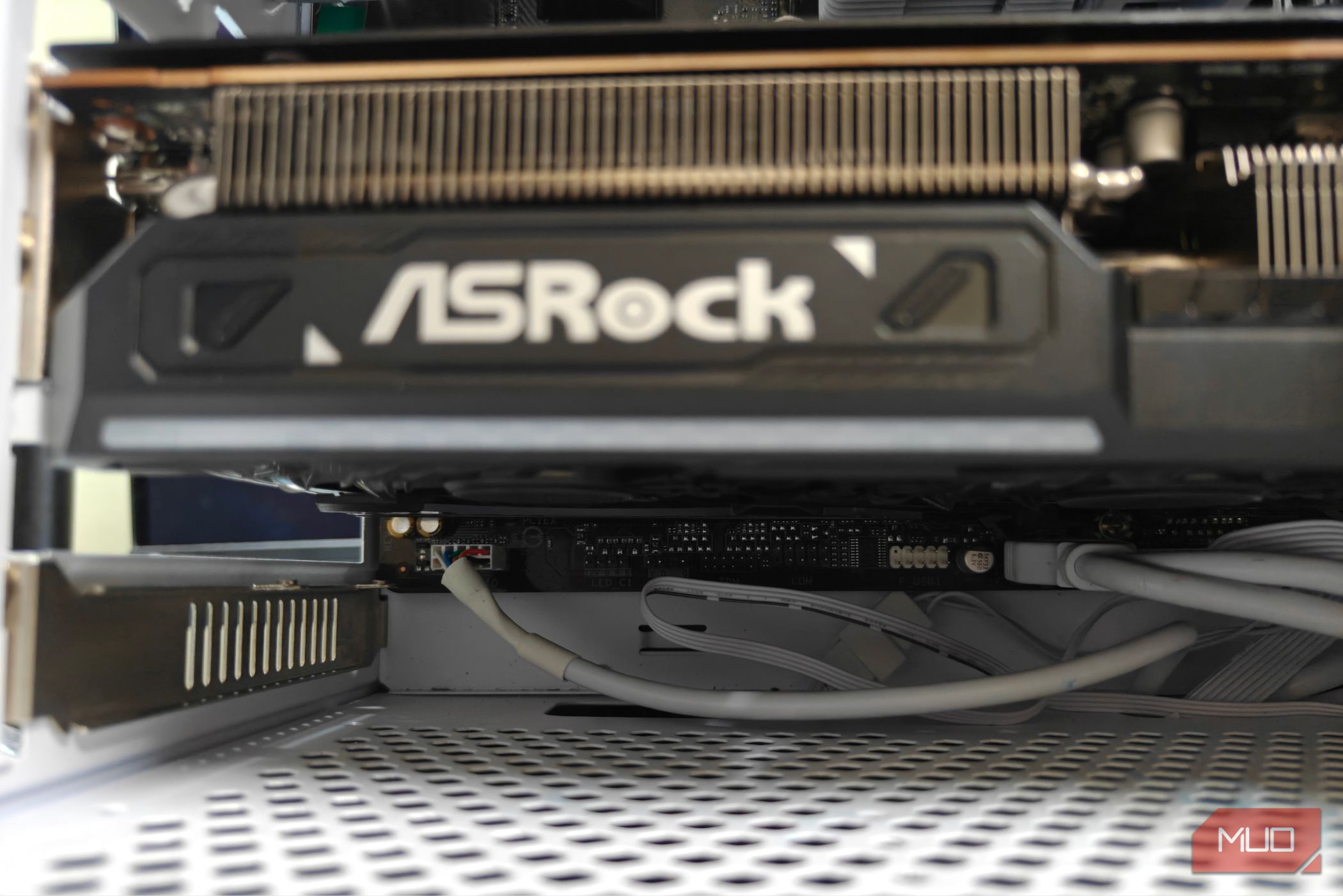
Building a PC requires careful attention to slot widths and clearance heights, which I found out the hard way when trying to get my AM4 build up and running. My RX 9070 was just too big a card, and the 2.5-slot form factor meant that it ate up all of my PCIe slots, which was very inconvenient. I needed to swap in two more expansion cards here, and I was desperately searching for solutions. Assuming you’re unwilling to swap out to a newer motherboard and/or case, you could always go down the more experimental route, as I did. There are multiple ways to deal with blocked PCIe slots, going from reasonable to slightly unhinged (quite literally). Using a PCIe riser cable An expensive but much more secure solution My first attempt at trying to solve the issue was by using a PCIe riser. These aren’t exactly inexpensive, and kits (which include both the riser cable and a mount) cost extra. Still, I’d always recommend buying a complete mounting kit unless you know exactly what you’re doing. As the name implies, these kits let you mount a graphics card vertically within a computer case. It has a few benefits — including entirely eliminating GPU sag and also happens to just look plain cool. A PCIe riser cable also has the unexpected advantage of freeing up a lot of room that would otherwise be occupied by the GPU itself, which means you can fit in a few more expansion cards of your choice. However, for me, a PCIe riser was more trouble than it was worth. For starters, I made a mistake and ordered the wrong one, which left the GPU stuck near the aftermarket CPU cooler. I had to get creative and dismantle some parts to get things working again. The GPU bracket, in particular, had to be entirely removed, with only the basic PCIe riser cable and structure remaining intact. This left enough room to slide in the GPU, which somehow turned out just fine. Using right-angle PCIe adapters and extenders A much less “invasive” solution Of course, not everyone wants to use a riser. It’s a bit of a messy solution that requires a certain degree of skill (and risk!) to operate. Thankfully, there are a few alternatives that aren’t all that dangerous by comparison. The solution for me then was to grab a right-angled PCIe extender. These are relatively cheap on sites like Amazon and AliExpress, making them a recommended pick, and I chose a PCIe x1 adapter for my Wi-Fi card. After the PCIe x1 right-angled adapter arrived, I was ready to begin. I started by disassembling the front panel and taking out the GPU. Underneath the first x16 slot was a PCIe x1 slot, which was a perfect fit for the M.2 Wi-Fi card I had on me. I proceeded by connecting one end to the PCIe x1 slot and the other end of the adapter/extension to the M.2 Wi-Fi card itself. With the Wi-Fi card in place, it was time to screw the GPU back in, which offered surprisingly little resistance. All that was needed to do was connect the M.2 Wi-Fi card and secure it in with a screw in one of the empty expansion trays. One reboot later, and the Wi-Fi card worked without issues, and the GPU didn’t seem to mind at all! This is perhaps the easiest and least dangerous method, even if it does need a bit of work. Getting a bit creative Not recommended for a more permanent solution, but effective nonetheless Things are seldom easy. For me, getting all three PCIe slots occupied was proving to be a nightmare. The GPU would take up all three slots when placed horizontally, while a vertical orientation would not fit in the puny m-ATX case. The solution was then to discard certain sections of the vertical GPU mount assembly to make it “slimmer”. I started by removing the hinges, followed by the extra metal grips that attached it to the sides of the panel. After carefully attaching the GPU riser, I ran into yet another issue — there was simply nothing for the GPU to hold onto. Even the slightest cable movement could dislodge the graphics card, and this was proving to be a major problem. The ultimate solution was to then apply a series of precisely cut, heavy-duty double-sided tape pieces. Not exactly a permanent or elegant solution, but it did seem to do the job just fine. With everything seemingly “secure” and attached, it was finally time to add the M.2 Wi-Fi card and the secondary PCIe-to-OCuLink expansion tray, both of which fit in beautifully. It was certainly much more worthwhile than trying to use a right-angled PCIe extension cable, even if it took much more effort. A motherboard and case design issue more manufacturers need to address The bigger picture here has to be how motherboards (and cases) are designed. It’s nothing short of frustrating that you’re pretty much expected to discard the use of your extra PCIe slots just to accommodate something as basic as a GPU. I bought this particular motherboard for its PCIe slot layout, and imagine my surprise when it turned out to be of no use. I, for one, would love to see better case designs from now on, and perhaps even slimmer GPUs to keep everything in place.