Summary
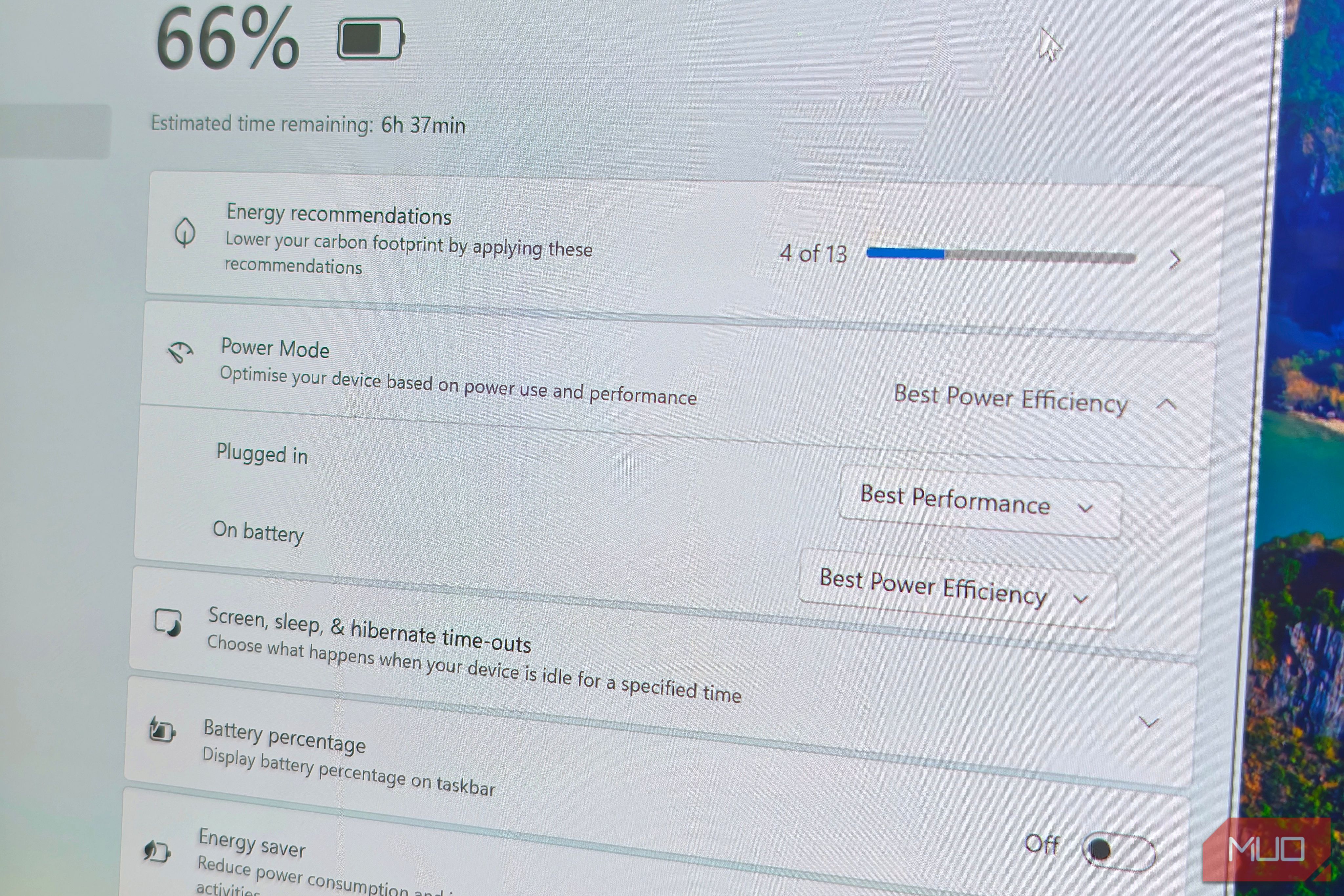
When I sit at home, I have my laptop plugged into the wall outlet. That should mean that my laptop is giving me full power at all times, and in many ways, it is. But Windows has three different Power Mode settings, and depending on their settings, you’ll struggle to get the performance your laptop can really give. One dropdown menu does way more for performance than you expect Being plugged in doesn’t mean maximum power Head to Settings > System > Power & Battery > Power Mode and you’ll find the power settings for your laptop. Microsoft has abstracted the more detailed options you find in the Control Panel into these easier-to-understand dropdown options, simply labeled Best Performance, Balanced, and Best Power Efficiency. Usefully, there are different dropdown menus for when you’re plugged into the wall outlet, and when you’re using the laptop’s battery. Logically, most of the time when you’re running on the laptop’s juice, you’ll want to use Best Power Efficiency; when you’re plugged in, cranking up the power with Best Performance makes sense. What Windows Power Mode settings actually do under the hood Cranking Windows 11 up to… 11? While the labels make changing your settings easy to understand, there are some substantial changes taking place behind the scenes.
- EPP (Energy Performance Preference): Windows has a 0-100 value that works with the processor to change performance output (Intel Speed Shift / HWP, or AMD’s CPPC equivalent). Lower EPP tells the chip to favor performance; higher EPP tells it to favor power savings. So, Best Performance pushes this near 0, while Best Power Efficiency pushes it higher, towards 100.
- Processor Performance Boost Mode: This setting governs the rate at which Windows asks the CPU to chase frequencies above its base clock. The options range from Disabled through Enabled, up to Aggressive and a couple of “Efficient” variants that still allow boosting but with a bias toward doing it cheaply. In the Processor Performance Boost Mode, Best Performance maps to the aggressive end, where Windows keeps requesting the chip’s ceiling frequency whenever there’s any headroom at all. Conversely, Best Power Efficiency maps to something more conservative, so the CPU stops reaching for frequencies it can’t sustain without overheating. I ran Cinebench 2026 and HWiNFO to really see what was going on Multi-core benchmarking to see the difference To really see the actual difference between the power modes, I took Cinebench 2026 for a spin. As one of the leading CPU benchmarking tools, it’s perfect for this sort of comparison. For reference, I’m testing on my Asus Zenbook S14 with an Intel Core Ultra 7 258V, plugged in for both runs, once on Best Performance and once on Best Power Efficiency. I only lost 1.3% performance in the process I also ran HWiNFO alongside the tests to track changes in clock speed, temperatures, thermal throttling, and so on, to give myself a clear picture of what really happens when you change power modes (or Windows keeps you locked into one, and you don’t realize!). The benchmarking results are in What surprised me most was how close the two tests ended up being.
- Best Performance scored 1711 points
- Best Power Efficiency scored 1689 points That’s only a 1.3% difference; definitely not a gulf in terms of what the Power Mode plans imply. However, the clock data from HWiNFO is where things get a little more spicy, and actually reveal that my laptop was struggling a bit. For example, the Best Performance mode let my CPU cores move from the idle floor of 400MHz to the full 4800MHz turbo ceiling, averaging 2458MHz, with the package briefly hitting 93°C and tripping the thermal throttling flag. Whereas the Best Power Efficiency mode never left the 2400–3000MHz range, averaged 2709MHz, sat at a flat 83°C the entire time, and never throttled once. In that, the key bit of data there is that the Best Power Efficiency mode actually ended up with a higher average clock speed because it wasn’t pushing up against my laptop’s thermal limits, and I only lost 1.3% performance in the process. Is it really worth switching Power Mode when you’re plugged in? Your mileage may vary As with all testing of this nature, I’m running a few tests on my laptop; I don’t have swathes of other data to compare it to, as much as I’d love that. It’s also worth noting that I’m in the middle of a heatwave in the Canary Islands, with local temperatures hitting 93-96F in an apartment without air-conditioning. Yes, it’s horrifically hot, and my laptop thinks so, too. What I’m getting at is that your laptop may well perform differently under each mode. My laptop doesn’t have much built-in cooling; a gaming laptop with huge fans and a vapor-chamber is likely to deliver different results. Running these quick tests on your own machine will give you a much clearer picture of the difference between the two modes at the ends of the scales. Either way, it’s worth two minutes to check Settings > System > Power & Battery > Power Mode and see what your plugged-in profile is actually set to. Don’t assume the wall socket is doing that job for you.