Summary
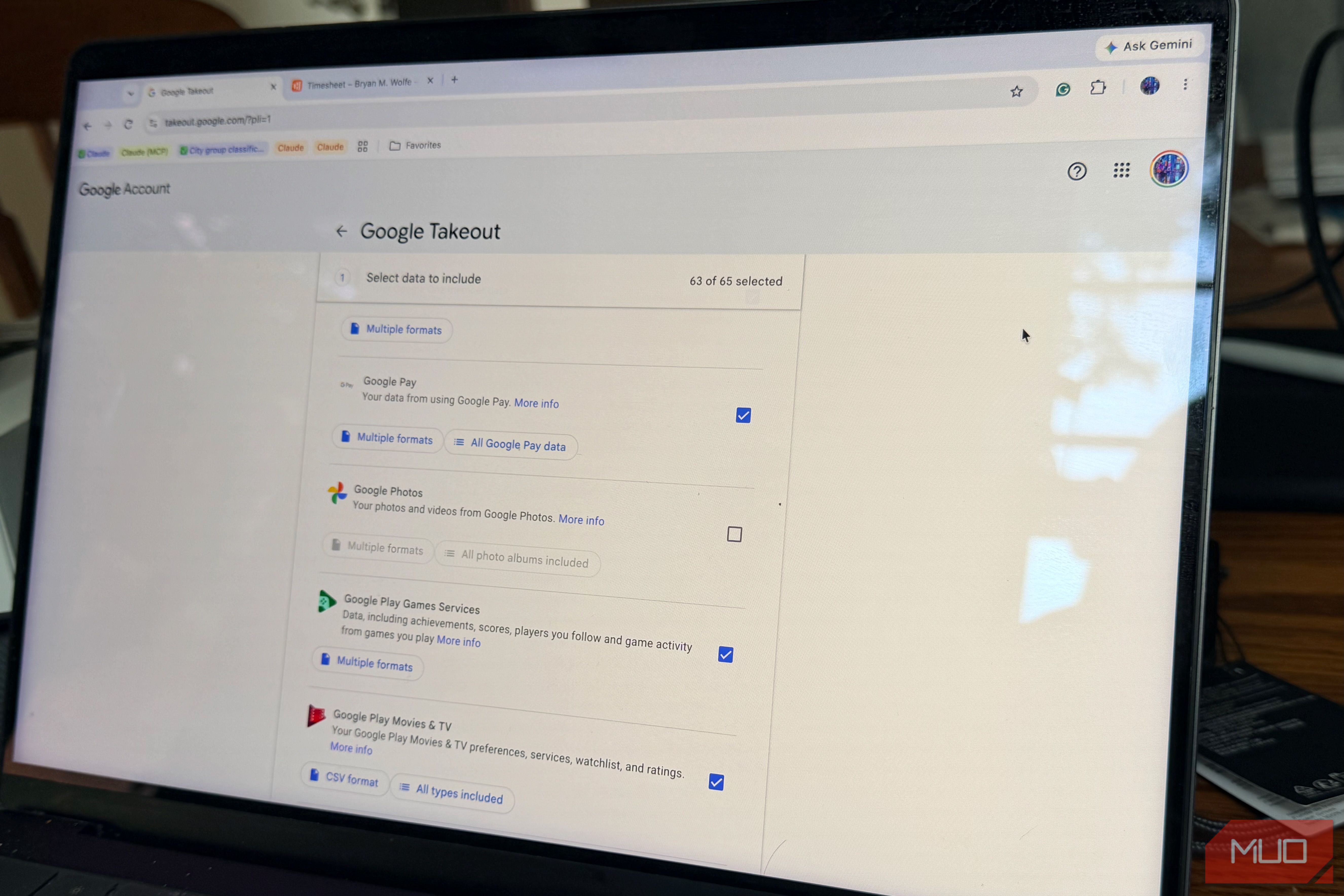
I knew Google had a lot on me. I didn’t expect it to show up as several gigabytes of raw files that basically amounted to a relational database of my own life. So that’s what I decided to do with it — I grabbed my full Google Takeout archive, dumped the JSON into a local SQLite database, and started running SQL queries against my own habits. The results were part-interesting, part-unsettling, and a good cue of what “data collection” actually looks like once you strip away the abstract privacy warnings. Here’s how I set it up, what I found, and how you can run the same experiment on your own account. How to download your Google data with Google Takeout Everything starts with one export request Everything starts at Google Takeout, the export tool buried in your account settings. It lists every product tied to your account — your massive Search history, YouTube, Maps Timeline, Gmail, Photos, Drive, Chrome, and dozens more — each with a checkbox. A handful of useful tips if you try this yourself:
- Deselect Photos and Drive first. Unless you actually need those as backups, uncheck them — they’re almost always the biggest chunk of storage by far, and leaving them in turns a quick export into a multi-hour unzip job.
- Choose JSON over HTML wherever Takeout gives you the choice. HTML exports are fine for skimming in a browser, but JSON is much easier to parse and query.
- Export in smaller batches. Google caps individual archive files at 2GB or 4GB (your choice) and splits larger exports into multiple zip files. Requesting a few products at a time keeps things manageable.
- Expect to wait. Google doesn’t generate the archive instantly. It can take anywhere from a couple of hours to a few days, depending on how much data you’re requesting. When it’s ready, Google sends a download link. Mine came out to just under 6GB, even with Photos excluded — mostly Search history, Location History (now called the somewhat creepy Timeline), and YouTube watch data. How to turn your Google Takeout files into a queryable database From scattered JSON files to SQL-ready tables Google Takeout doesn’t hand you a ready-to-query database. Instead, you get a giant directory of nested folders packed with JSON and HTML files — one for each Google service. Before you can run SQL queries against any of it, you have to move that raw data into an actual database. I used SQLite because it’s lightweight, requires no server setup, and works well with Python. The basic workflow looked like this:
- Unzip everything into one folder.
- Write a quick Python script that uses the standard json and sqlite3 modules to iterate through each product folder.
- Flatten the JSON into rows. Search history comes through as a list of objects — time, title, titleUrl, and so on. Location history has timestamps and coordinates instead. None of Google’s products share a schema, so you end up writing a separate little parser for each one.
- Insert everything into tables — one for search activity, one for location points, one for YouTube history, and so on — making sure each has a proper timestamp column so you can query across several time periods. If you don’t want to write code to query the finished database, a visual tool like DB Browser for SQLite works just as well. Alternative: Let Claude do the parsing If setting up SQLite or writing Python scripts sounds like too much friction, you can upload the raw JSON files directly to Claude (or a similar AI tool) and ask it to analyze them for you. Because Claude can read JSON files, write code in the background, and run analysis on the fly, you don’t have to touch SQL. That process looks like this:
- Upload the relevant JSON files (Search History, Location History, YouTube watch history) straight into the chat.
- Be specific with your prompts. Vague requests like “analyze this file” get vague answers. Ask something concrete — what time you search the most, or which five places show up most in your location history — and you’ll get a real answer back.
- Let it write the parsing code. For larger files, the AI will write a temporary script to parse the JSON and return the summary.
- Follow up in plain English. Once the file is processed, you can cross-reference data simply by asking, “Now compare those search times to my YouTube history.” The tradeoff here is privacy: you’re uploading your personal export to another third-party service. But if your goal is to inspect your data quickly without writing a pipeline, it saves a lot of time. What my Google search and location data actually show Running basic queries against my own habits Once everything was structured, I ran a few basic queries just to see what would turn up. Here are a few alternatives: First question: what time of day do I search the most? Grouping timestamps by hour showed a sharp spike between 11 p.m. and 1 a.m. I would not have guessed that late. When I pulled my search totals by year, they’d roughly doubled over five years. I don’t think that means I got more curious. It’s more that a browser bar has quietly become the first stop for almost everything — checking a recipe, looking up business hours, doing math I could do in my head if I felt like it. Where do I actually spend my time? Home, work, the gym, one specific coffee shop — that’s most of it. I got there by rounding the coordinates to two decimal places and counting how often each pair repeated, and there really wasn’t much else. What’s my most-repeated YouTube search? Running a GROUP BY on watch history titles showed a few channels I rewatch constantly, along with a high volume of ambient background video streams. None of this was surprising on its own. What appeared different was seeing it as exact numbers. Observing that you “stay up late searching things” is one thing; seeing that 68% of your searches over five years happened between 10 p.m. and 2 a.m. makes the habit very obvious. The most surprising thing I found in my Google data Just how precise location tracking really is What surprised me first was just how accurate the location data still was, because I’d assumed that turning tracking settings down over the past couple of years would leave me with rough neighborhood-level estimates. Instead, the raw GPS points were precise enough that repeated visits to the same building gave away which side of it — sometimes which specific room — I’d been sitting in. Joining tables is where it stopped being abstract. Once I lined up search timestamps with location coordinates, my searches suddenly had a place attached to them — a run of recipe searches, for instance, almost always traced back to the grocery store rather than my kitchen. On their own, search logs and GPS points don’t look like much. Put them side by side, though, and you get something close to a full day traced out. Why this Google privacy experiment is worth doing Turning abstract data collection into something you can see You don’t need a computer science background to get something out of this. Even opening a Takeout JSON file in a standard text editor and scrolling through your search or location history is revealing. But putting it into a searchable format makes the idea of “data collection” concrete. It’s also a practical privacy check. Seeing which services generate the most data makes it easier to decide which settings to change. Right after looking through my database, I went into my Google Account settings and:
- Set Location History (Timeline) to auto-delete after three months.
- Paused YouTube watch history.
- Cleaned up ad personalization categories, especially the ones tied to old search spikes. Why I turned some of my privacy settings back on The convenience-vs-privacy tradeoff I couldn’t ignore I ended up reversing some of those changes a few weeks later. The reality is that Google services work better when they have that context. Maps give better route alerts for my current routine. YouTube recommendations are noticeably more relevant when watch history is turned on. Searching for autocomplete is far more useful when it knows what I normally look for. That leaves me in a slightly hypocritical spot: I’ve seen exactly how detailed this data is, and I know how easily it constructs a profile of my daily routines. However, I still choose to leave most of it on because the ease is worth the trade-off to me. That might not be the right choice for everyone. Seeing your own data firsthand gives you a much clearer baseline for deciding whether to leave those settings on or start turning them off. How to do it yourself If you want to try it, all the tools are free:
- Google Takeout for the data export.
- Python (or any scripting language with JSON support) to parse the files.
- SQLite or DB Browser for SQLite to store and query the results. The process isn’t technically difficult. The most interesting part is simply seeing your own routine returned as the output of an SQL query.