Summary
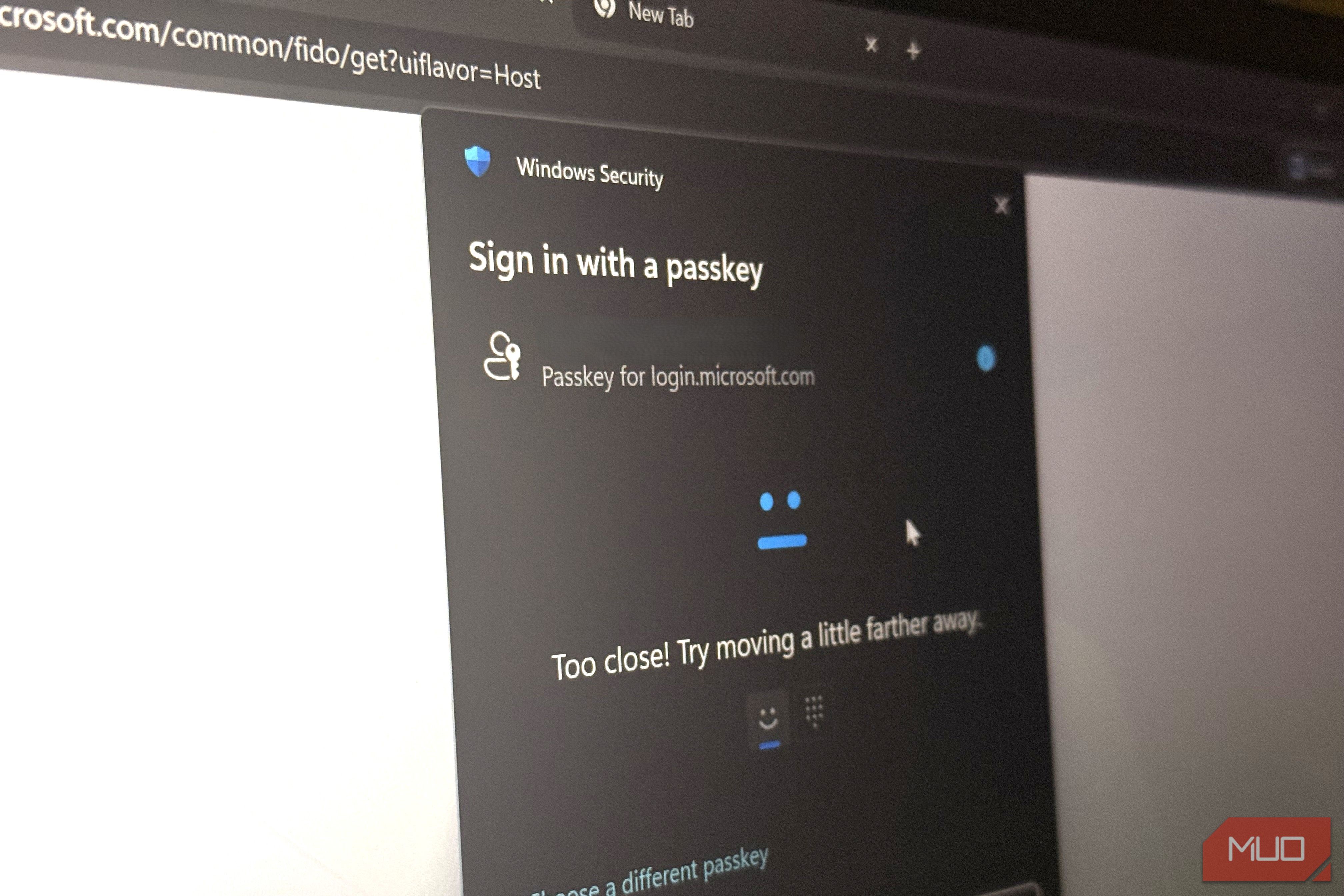
Several months ago, when I set up my first passkey, Windows Hello saved it even before I could finish thinking about it. The process was fluid, the kind of thing you don’t think deserves a second thought. However, I’ve seen several security experts caution against relying on it as your sole passkey, which made me curious. It turns out there’s nothing wrong with my face unlocking a device without typing or remembering anything. But the bigger issue is tying your passkey to a single platform, device, or ecosystem. Windows Hello isn’t the problem The trouble starts once it becomes your only one So far, I’ve loved Windows Hello. When it creates passkeys, it ties them to the device’s hardware, which keeps them protected by the same secure chip that protects your PIN. This is one of the most solid security implementations you’ll see. So the debate about Windows Hello isn’t about it being insecure. When Windows Hello asks you where to save a new passkey, your choice may feel like a small and inconsequential one, but you’re practically choosing what account to rely on if you lose access to everything else. Most people don’t think about this — until the day it matters. One login opens more doors than you’d guess It’s the recovery option you didn’t know you picked You can see everything your account is attached to when you open your Microsoft account settings. It’s not just Windows sign-in; there’s Outlook, OneDrive, your Microsoft 365 subscription, Store purchases, and synced settings across devices. These are several different doors connected to a single login. Interestingly, for most people, that Outlook address is also used as a recovery contact for bank accounts, Amazon account(s), social media accounts, and several other services unrelated to Microsoft, probably set up and forgotten several years ago. Losing access to a single Microsoft account potentially locks you out of those services if you have any issues with the account connected to that address. If you use the Microsoft Authenticator app, some passkeys can sync across devices. But this mechanism is different from a Windows Hello passkey, which remains local to the machine. Regardless of the version, the underlying account still holds the same weight—it’s a single point of failure. Multiple unrelated services go down when that one account breaks. Simply picking a better provider doesn’t fix it. What you need is a strategy that won’t collapse when one piece breaks. | Setup | Everyday convenience | Survives losing one device | Survives account recovery problems | Best for | |---|---|---|---|---| | One Windows Hello passkey | High | No | No | Low-risk, throwaway accounts | | Windows Hello + a second passkey | High | Yes | Somewhat | Most people | | Password manager + backup passkey | High | Yes | Yes | Anyone using multiple devices or OSes | | Hardware security key + backup | Moderate | Yes | Yes | Banking, email, anything you can’t afford to lose | Nobody clicks past the first passkey Which is a shame, because the second one removes the biggest risk You probably don’t know that, most of the time, you’re allowed to have more than one passkey for an individual account. You can add several passkeys in Gmail, and Microsoft allows registering multiple sign-in methods. You can use multiple security keys on GitHub and attach several passkeys on Amazon. However, once people create the first one and get fingerprint authentication working, they don’t go any further. This low-effort sequence helps prevent a single point of failure and total lockout:
Register a second passkey, preferably on a second device, in a password manager, or as a hardware key. - Keep the recovery codes on a separate device from the one they’re meant to protect. Storing them as a note on your phone won’t help if the phone is lost.
- Sign in from different devices to test the new setup.
- Remove an old passkey only after confirming the replacement works. This sequence is something you only have to do once and forget about. Afterward, you know you’re actually protected from a lockout. Windows Hello stays I only destroyed the single point of failure I’m not trying to discourage anyone from using Windows Hello. It’s a great option for day-to-day sign-ins because it’s fast and secure. More importantly, if there’s a convenient option, you shouldn’t intentionally seek out ways to make your life harder. However, you should consider adding additional elements around it, such as a second passkey independent of your Microsoft account. Your recovery email should be independently secured and not rely on the same account you’re trying to recover. It’s also a good idea to keep a hardware security key for accounts that you can’t afford to lose. The clue was in your settings the whole time The convenient choice isn’t automatically the wrong place to keep your passkey. However, that choice becomes problematic when it’s your only way back in. You can start by taking action now before you close this tab. Open an account you can’t afford to lose, then navigate to its security settings. If you have only one passkey registered, and it’s tied to just one device, that’s your clue to add one more right away.