Summary
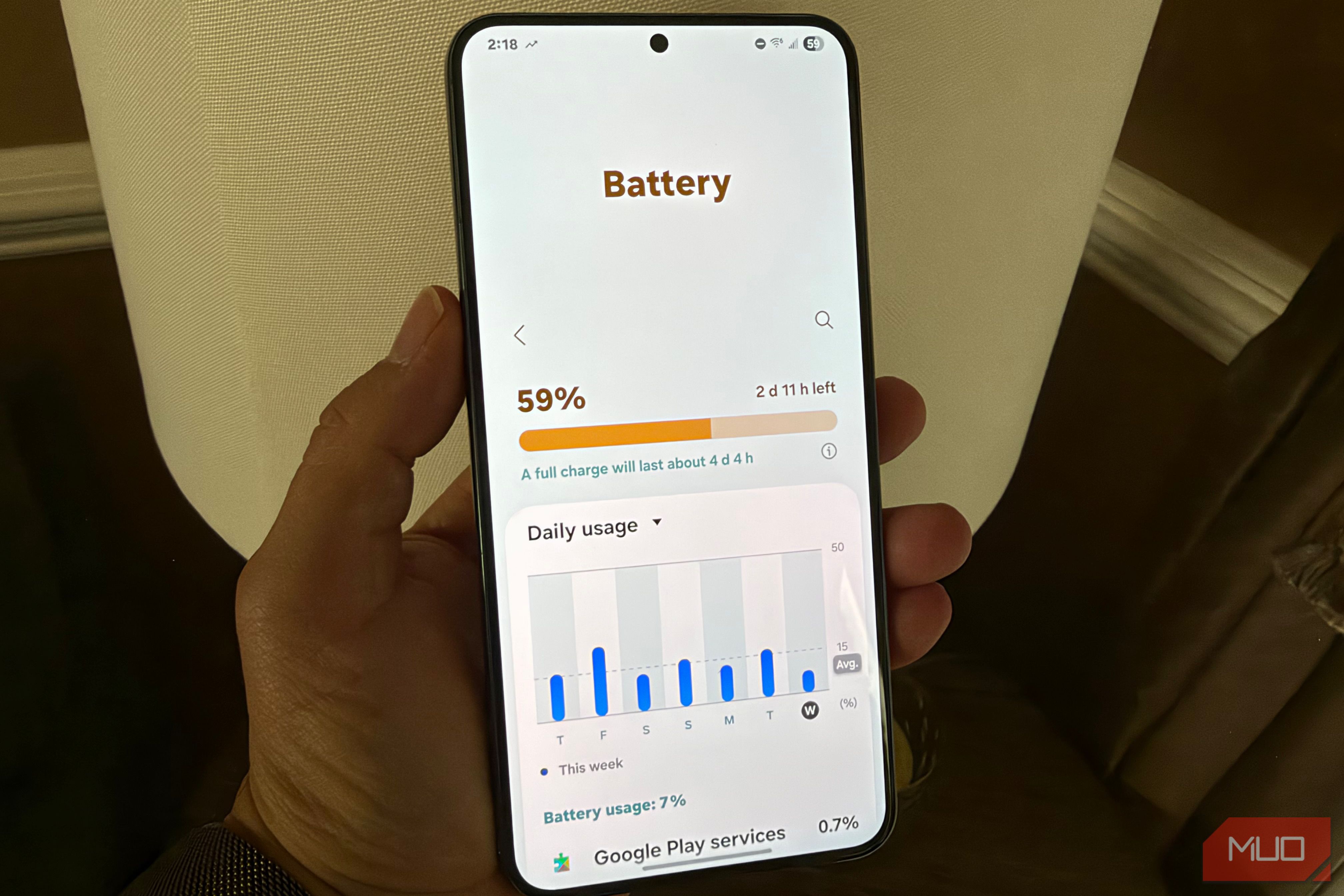
Samsung devices have a lot of really great features. From Edge Panels to the desktop-like DeX, Samsung offers the kitchen sink on their Galaxy devices. But some of these features come at the expense of battery life, especially one thing in particular that, in my estimation, based on my Galaxy S22+, kills 10-15% of your battery every day if you keep it on. Here’s a list of features and settings you should change to maximize the battery life on your Samsung, and some of these are not obvious.
Turn off AOD
You don’t need your screen to be always on
While it’s true that always on display (AOD) is set up to consume as little power as possible by refreshing slowly and using as many black pixels as possible (which, on OLED screens, do not draw power), the fact is that AOD uses power when you’re not using your phone.
Using AOD is totally unnecessary. Do you really want to kill 10-15% battery per day just to see the time and some notifications displayed at all times? No. This is by far the biggest battery culprit of passive battery drain in this list.
If you have a smartwatch, you already have the time and notifications on your wrist. If you want to see the time or the status of your notifications, you can just double-tap the screen to glance at your lock screen when you need to and momentarily view your lock screen (to enable double-tap-to-wake, go to Settings > Advanced features > Motions and gestures > Double tap to turn on screen > turn On). This way, you’re always just a couple of taps away from seeing the time and your notifications.
This next thing is monitoring how you use your phone all the time and is using battery.
Digital Wellbeing data access is monitoring your usage
Take away its permission
Digital Wellbeing is a helpful tool to help you keep an eye on your phone usage, and for many, it’s a helpful reality check. But you might not know that one of the components of Digital Wellbeing is continuously tracking and logging how you interact with your phone, including app usage and screen time, how often you unlock and pick up your phone, and monitoring of how often various apps send you notifications. This uses battery in the background.
If you don’t mind giving up a bit of battery, and you value the reporting that Digital Wellbeing offers, leave data access turned on for Digital Wellbeing.
But if you’re like me and already have a pretty good baseline and understanding of your phone usage, and you don’t need the monitoring or the weekly reports, turning off Digital Wellbeing data access can prevent this monitoring and save you battery. To do this, go to Settings > Digital Wellbeing and parental controls > three dots in upper right > Settings > Usage data access > Turn off.
The next thing you definitely don’t need to leave on, and it involves keeping your Bluetooth busy around the clock.
Nearby Device Scanning is looking for devices nearby
Keeping your Bluetooth busy
Nearby Device Scanning is a Samsung feature that sets your Bluetooth radio to frequently listen for nearby accessories for quicker connection. It makes it a bit faster to connect to Galaxy Buds, Watches and SmartTags, but at the expense of battery life because this feature keeps your Bluetooth scanning for nearby devices in the background. While this feature makes it slightly easier and faster to pair certain Bluetooth accessories (often letting you pair by just bringing the item close to your phone), it’s not necessary to keep on because you can just pair the accessory manually through Bluetooth settings.
To turn off Nearby Device Scanning, head to Settings > Connections > More connection settings > Nearby device scanning > Turn off.
This next feature you should turn off is another convenience feature that you can disable.
Lift to wake is keeping tabs
Let your accelerometer rest
Another place your phone is using battery power that you probably don’t need is with Lift to wake, which keeps your phone’s accelerometer and gyroscope in a “listening mode” to detect you lifting your phone up. As with AOD, Double tap to turn on screen is the low-power alternative.
To disable Lift to wake so that your phone’s motion sensors can go to sleep when you’re not using your phone, go to Settings > Advanced features > Motions and gestures > Lift to wake > turn Off.
Stop the quiet battery drain
Most of these changes (except for turning off AOD) don’t have a huge impact on battery individually. But taken together, these settings use a significant amount of battery in the background, and they’re not necessary to keep on. Turning off all the features, I was able to end the day with 15% more battery on my Galaxy S22+, and sometimes upwards of 20%. That’s a pretty significant battery bump.
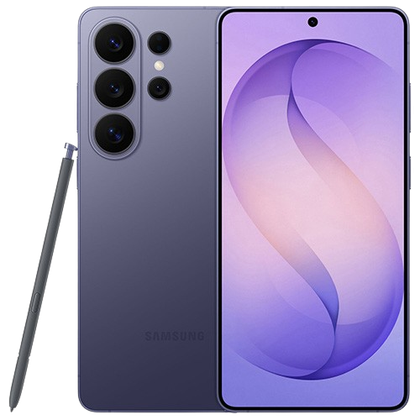 Samsung Galaxy S26 Ultra
- SoC
- Snapdragon 8 Elite Gen 5
- Display
- 6.9-inch Dynamic Super AMOLED 2X The Samsung Galaxy S26 Ultra isn’t a massive leap in specs compared to the previous generation Samsung Galaxy S25 Ultra, but it boasts improvements in every aspect. The major differentiators are two features that will appeal to power users and content creators, called Privacy Display and Horizontal Lock.