Summary
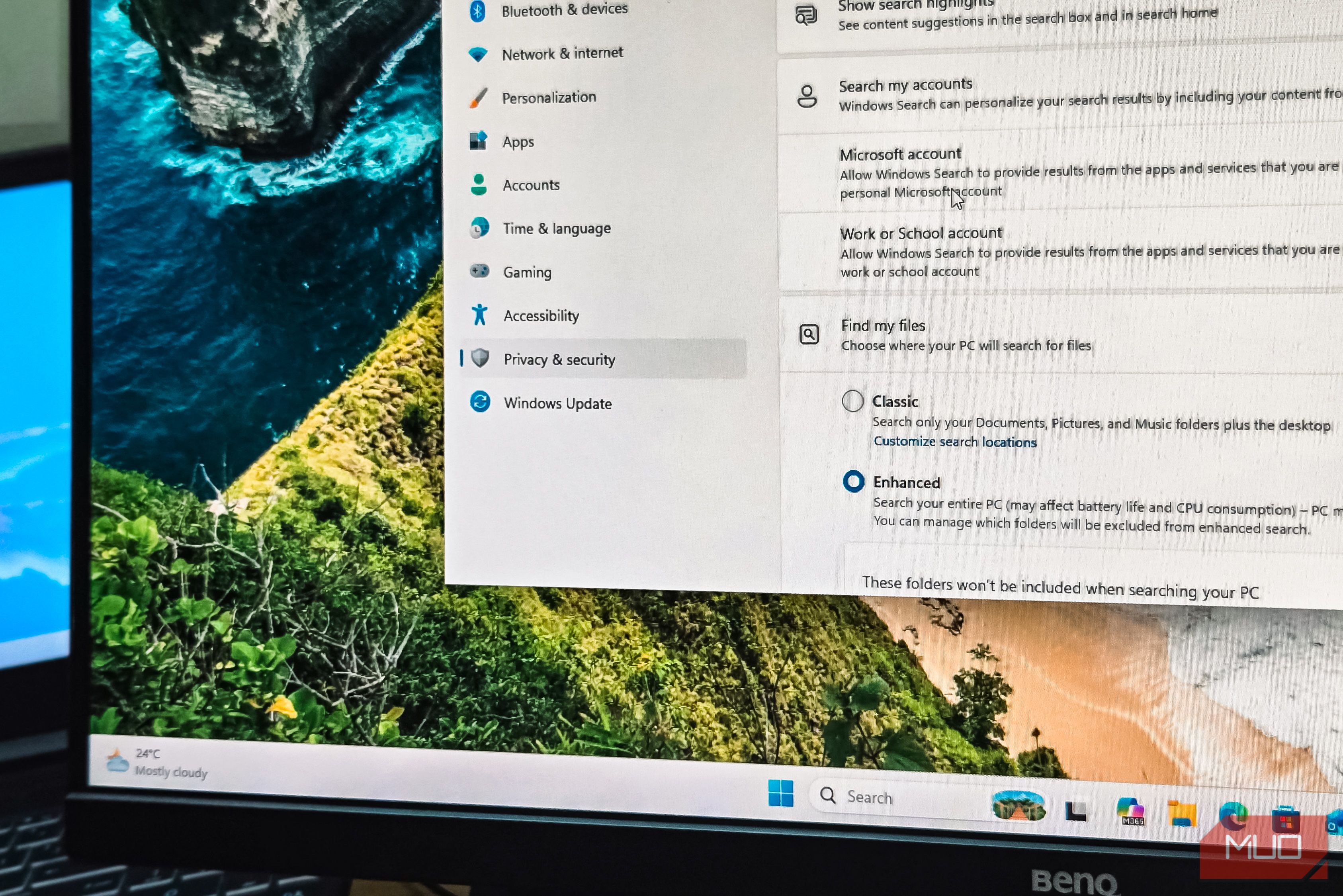
Windows Search has been terrible from the start, and I’ve mainly used third-party apps like Listary to improve the search experience. However, Microsoft seems to have finally listened to our woes and is planning to deliver a Windows search experience that finally works the way it should. What’s changed in your search pane A cleaner layout with fewer distractions The new search update is currently available only through the Windows Insider program on the Experimental channel, running Windows 11 26H2. It’s a controlled rollout, so not everyone on that channel will see the changes right away. But what’s there gives a clear picture of what’s coming to all Windows 11 PCs later this year. The first thing you notice is how much simpler the search home screen looks. The old search pane had a habit of pushing promoted content and ads right into your face before you even typed a word. Instead, you get a clean view of your recent searches, each labeled with how many days ago you ran them, and a simple option to clear the history. Also, results are now clearly labeled by source. You can tell at a glance whether something is an app, a setting, a local file, or a web result. Local results, meaning apps, files, and settings already on your PC, are now weighted higher and show up at the top as best matches. System tools like This PC and Recycle Bin, which used to be oddly hard to find through search, now surface without any fuss. Web results still appear when your query clearly calls for them, but they no longer lead with promotional products or sponsored placements. The most relevant answer shows up first instead. And for those who want local-only results, you can turn off Windows 11 features that ship on by default, including web results entirely, through Privacy & Security > Search settings. Search now learns the way you work Your habits shape what shows up first Windows Search is now recommending its “best match” results based on what you use most, not just what matches the name you typed. For example, if I type “share” in the search, it shows Quick Share first, instead of ShareX, because that’s what I open more frequently. The smarter matching extends beyond app names, too. Typing something like “notebook “now surfaces Obsidian if that’s the only note editing app on your system. Instead of requiring you to remember exact app names, Windows can reason about what your query is trying to accomplish. Settings work the same way. Typing “Bluetooth” pulls up the relevant settings page at the top, and some settings even offer actionable controls, like restarting or shutting down your PC, directly from the search results. Typo tolerance has also improved. Misspelled or partial search terms still surface the right app or file, which is a small change that makes a big difference if you type quickly. Can you try it yet? It’s promising, but still an Insider-only preview The short answer: only if you’re already enrolled in the Windows Insider program. These improvements are rolling out on the Experimental channel of Windows 11 26H2, which means you need a Microsoft account in the Insider program, a fully updated device, and the relevant feature flags enabled through Windows Update settings. If that sounds like a lot of hoops, that’s because it is. Microsoft recently simplified the Insider testing channels by cutting them from four to two, but the process still requires some commitment. That said, the logic behind the new “best match” results holds up well in testing. Local results are clearly treated as the priority, and the added control over things like toggling off Microsoft Store results or web results entirely means you can configure search to behave the way you want. In its default state, unless a query is obviously meant for a search engine, the system favors showing something already on your PC. That is a direct fix to the most common complaint people have had about Windows Search for years. A broader general availability rollout is expected sometime later in the year. For most people, the practical move is to wait for it to arrive through a regular Windows update rather than jumping into the Insider program just for this. Third-party app options still exist Listary and others remain worth keeping around To be fair, even with these improvements on the way, third-party search apps still offer things Windows Search doesn’t. Listary, the app I’ve been using for months, integrates directly into File Explorer with its Type-to-Search feature, letting you find files by just starting to type without clicking into a search box first. Its Quick Switch feature adds search to the open and save dialogs of any app, which is something Windows Search has never done. Until the 26H2 update rolls out to everyone, give Listary a shot if you are tired of the way Windows Search works. Listary’s free version covers all the core features without any nag screens, and if you’re someone who works with a lot of files across different folders, the File Explorer integration alone makes it worth the install. Search Everything by VoidTools is another solid option if you prefer a standalone search window with near-instant results, but the type-to-search feature is too good to try anything else. The new Windows Search update doesn’t make these apps irrelevant. It makes them less essential. And that’s a step in the right direction, because it means Microsoft is finally treating built-in search as something that should work well out of the box rather than something you’re expected to fix yourself. Windows Search is catching up, but it’s not there yet Microsoft has a long track record of shipping search features that sound good on paper and fall apart in daily use. So it’s worth being cautiously optimistic here rather than declaring the problem solved. The 26H2 changes are a genuine improvement: cleaner results, smarter ranking, fewer ads, and better local prioritization all point to a search experience that respects how you use your PC instead of pushing you toward Bing.