Summary
There are plenty of apps I need, but only occasionally. Take SpotHero, for example. I only open it when I’m driving to a concert or heading somewhere crowded where finding a parking space is a nightmare. The rest of the time, it just sits on my phone doing absolutely nothing. And that’s true for so many other apps, too. They’re not apps I use every day, but when I do need them, I really need them. That’s why deleting them never felt like the right solution, even though I desperately needed to free up storage on my phone. Archiving apps turned out to be the perfect middle ground, and honestly, it solved the problem much better than I expected. I cleaned up my phone without saying goodbye to anything I finally made peace with the apps I use twice a year After archiving nearly 20 apps on my Google Pixel 10 Pro, I reclaimed about 6GB of storage. That’s a surprisingly big difference, especially when you haven’t deleted a single photo, document, or other important file. What I like most is that archiving doesn’t wipe the app from your life. It removes most of the storage space the app uses while keeping your personal data, login information, and settings intact. So when you bring it back, you don’t have to sign in again or spend time setting everything up from scratch. It feels like the app was tucked away until you needed it again. That’s exactly how I approached it. I didn’t set myself a target like “I’ll archive 20 apps.” Instead, I scrolled through my app drawer and archived every app that fit perfectly into the unusable category. It’s an easy approach, and I’d recommend doing the same on any Android phone. The only catch is that restoring an archived app requires an internet connection, as your phone must download the missing app files again. So if you’re planning to use something like SpotHero before heading to a busy event, unarchive it while you’re still at home on Wi-Fi or have a reliable connection. It’s a tiny inconvenience, but one that’s easy to avoid once you know about it. Let’s give your phone some breathing room, too A handful of taps is all it takes to free up space If you’d like to try this yourself, the process only takes a couple of minutes.
- Open Settings on your Android phone.
- Tap Apps.
- Open “See all apps” (or “All apps,” depending on your phone).
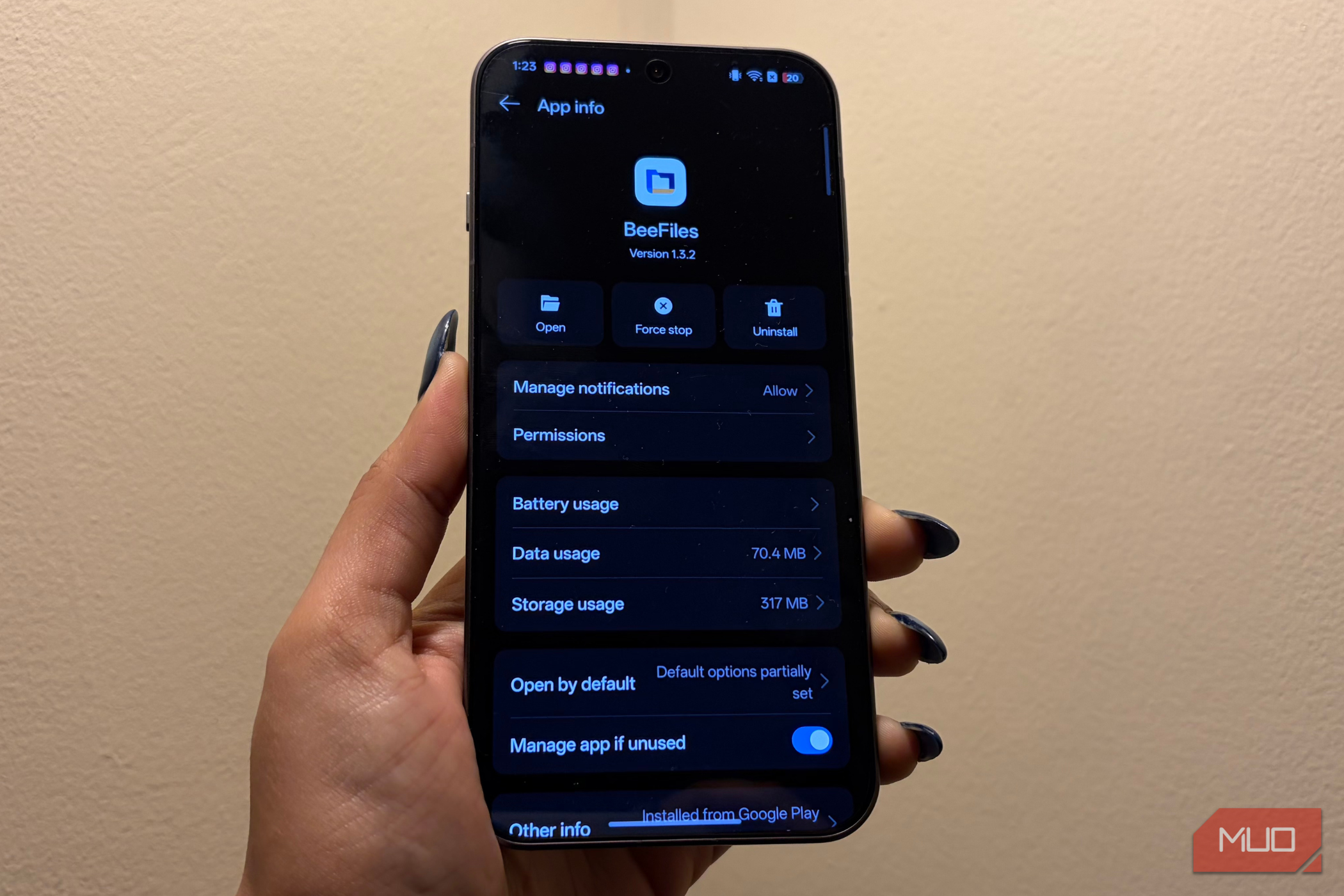
- Select the app you’d like to archive, then tap the Archive button next to Uninstall and Force stop. Repeat these steps for every app you rarely use. Don’t worry if you can’t archive every single app. Android won’t let you do this with essential system apps or many of the apps that shipped with your phone, so it’s completely normal if the option isn’t available everywhere. Once you’re finished, head back to your phone’s storage settings to see how much space you’ve reclaimed. You might be surprised by just how much room those forgotten apps were taking up. Of course, archiving an app is only half the story. The real test is how easy it is to bring it back when you suddenly need it, and thankfully, Android makes that part just as simple. Whenever I want to use an archived app again, I long-press its icon, tap App info, and hit Restore. My phone then downloads the missing app files from the Play Store, and within a few moments, it’s back exactly the way I left it. I don’t have to sign in again, change any settings, or start from scratch, which makes this feature so convenient for day-to-day use. Feeling a little lazy? Android doesn’t mind I like being in control, but you don’t have to be Personally, I prefer archiving apps myself. I like knowing exactly what’s staying on my phone and what’s being tucked away, so having that control works better for me. But if you’d rather let Android handle it, there’s an automatic option, too. To do this, follow these steps:
- Open the Play Store app.
- Tap your profile picture in the top-right corner.
- Then, go to Settings.
- Head to General.
- Enable Automatically archive apps. Once it’s turned on, Android takes care of the rest. It can identify apps you haven’t used in a long time and archive them for you, helping keep storage under control without you having to think about it. It’s also handy when your phone is running low on space, and you’re trying to install something new. Instead of asking you to delete apps, your phone can archive the ones you rarely use, freeing up just enough room to get the job done. The easiest Android habit I’ve picked up this year On my Pixel 10 Pro, this simple trick helped me reclaim around 6GB of storage. Your results will almost certainly be different. You might free up less, or you might end up with even more. It all depends on how many apps you’ve installed and how much space they’re taking up. Either way, every gigabyte you recover is space you don’t have to create by deleting photos, videos, or important files. That’s exactly why this feature has become one of my favorite Android storage tricks. It’s quick, practical, and once you start using it, you’ll probably think twice before uninstalling an app to make room for something new.