Summary
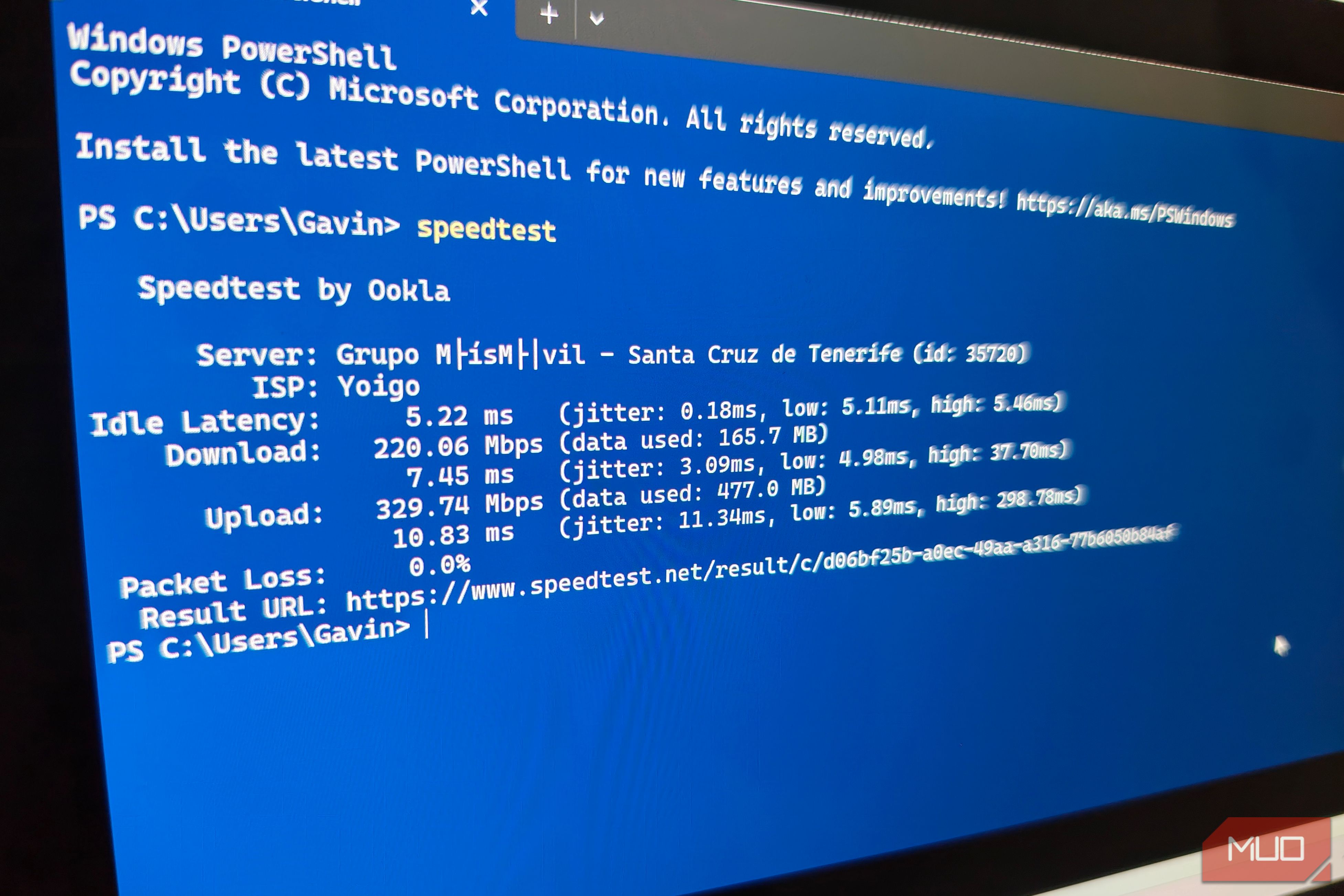
Your last speed test probably told you your internet is fast. It might even be right. Big download and upload numbers are easy to trust, mostly because they’re the only numbers on the results page, and they look nice and shiny. But 600Mbps down and a stuttering connection aren’t mutually exclusive. That big number tells you the throughput, but nothing about the four things that actually decide whether a connection feels responsive: latency, jitter, packet loss, and what happens once the pipe actually fills up. Internet speed testing isn’t as clear as you think Here’s what I tested To get a better handle on the general issues with speed testing, I ran a few tests to fully understand how latency, jitter, packet loss, and bufferbloat affect your connection. This time out, I ran an Ookla speed test with WinMTR running, followed by Waveform’s bufferbloat test. WinMTR ran for five minutes idle, then with the speed test running to grab a full trace on the traffic path. Looking at the full data spectrum, it shows every point where a connection is slowed down, making that headline figure less than reliable. In my testing, Ookla returned 617.5 Mbps down and 577.7 Mbps up, which is plenty fast. It just doesn’t tell the whole story. WinMTR is a free and open-source tool that basically combines the ping and traceroute commands into a single tool. It lets you see network hops in real-time, helping you identify where you’re losing speed. Latency is the real number that runs the show How fast does it go from A-to-B? Latency is round-trip time: how long it takes a signal to get somewhere and a response to come back. It’s the number behind why a page feels instant or sluggish, why a call sounds natural or delayed, why a game feels responsive or a half-step behind. Funnily enough, throughput barely touches any of that; you can have a 1Gbps connection that still suffers from latency issues, and more throughput won’t change a thing. Most speed tests do show a latency figure. It’s usually the smallest text on the results screen, sitting under two enormous Mbps digits grabbing the headlines. When it comes to latency, lower is better; anything above 100ms is going to really start affecting your connection to online services, particularly online games. In my testing, the online bufferbloat test Waveform pegged my idle connection at 34ms, which lined up with my WinMTR testing showing around 9-11ms per hop from my machine to the target server. In terms of latency, it could be lower, but overall, these speeds wouldn’t really impact online gaming and so on. Jitter is one of the secret connection killers It’s down to milliseconds, but it can hurt your speeds Jitter is the variation between individual pings, not any single ping’s value. A connection can have great average latency and still jitter wildly, which is exactly what makes a video call choppy or a competitive game spike without warning, even when every other number on the results page looks fine. The jitter results in my testing were interesting, actually. Waveform logged jitter at an unremarkable 4.1ms. But the original Ookla run showed upload latency at 10ms and jitter at 11ms, with spikes up to 298ms. It averaged out into something smooth, but those enormous spikes can make a connection feel unstable. Packet loss is another way for your connection to feel slow It also doesn’t show up on your speed test, ever Packet loss is data that never arrives and has to be resent, or is simply lost. It’s the difference between a video call staying steady and one that freezes and skips, and it’s the figure most likely to make someone panic the moment they see it. The only problem is, most speed test tools and apps don’t expose this information. Certainly, Ookla, Google’s integrated speed test app, Netflix’s Fast, and plenty of others don’t, as it’s not normally something most folks have to worry about. But if you are interested, Cloudflare’s speed test shows jitter, packet loss, and other information that makes it well worth using. But in my testing, every trace I ran using WinMTR showed one hop with 100% packet loss. Every single one. Shown only that line, I’d have called the connection broken, yet the testing was completing without issue. So, what gives? Well, it’s actually down to the software itself, which is something I must admit I didn’t fully realize (but makes sense!). Many routers deprioritize or rate-limit ICMP, the protocol pings and traceroutes run on, because answering them competes with the router’s real job of moving traffic. A router can be configured to silently ignore ping requests aimed at itself while still forwarding every real packet that passes through it, using a completely different internal path to handle that forwarding. That appears to be what’s happening with the ghost hop appearing in WinMTR. The traffic is still getting through, as the trace ran to completion and the final hop registered traffic, but it was registering as a black hole for data packets. Network congestion isn’t accounted for either Speed tests don’t measure your whole network Another internet-speed killer is general network congestion, which is another measurement most speed tests don’t look at. It’s not actually an issue with speed tests in general, to be fair. It’s that speed tests are specifically designed to measure one device’s speed in isolation. On a one-device network, a speed test is pretty accurate. But in a multi-person household at 20:00 on a Friday night when everyone is home, streaming, gaming, making VoIP calls, and similar, it could be a very different picture indeed. In my testing, loading the connection properly made Waveform add +29ms to download latency and +5ms to upload — still enough for an A grade, for what it’s worth. The loaded MTR trace backed that up: every hop’s worst-case value climbed once the speed test kicked in (one hop alone went from a worst of 60ms to 72ms), while the average per hop barely shifted at all. So, what should I do with my network? The biggest thing to check is your latency and jitter. If the speed test is still showing a big number but you’ve also got high latency and jitter, there are other issues in your network that may need addressing. For example, your router settings might need looking at, or your router placement in general if you’re using Wi-Fi, or there could be a congested hop in the network that’s nothing to do with you. That’s also why it’s worth testing a few times. When it comes to speed tests, you might run one that shows everything is on fire, and the next one will show a buttery-smooth connection on all fronts. None of this makes a general speed test with its Mbps (or Gbps) output pointless. But if your connection still feels sticky even with a big headline, you know the other metrics you need to check.