Summary
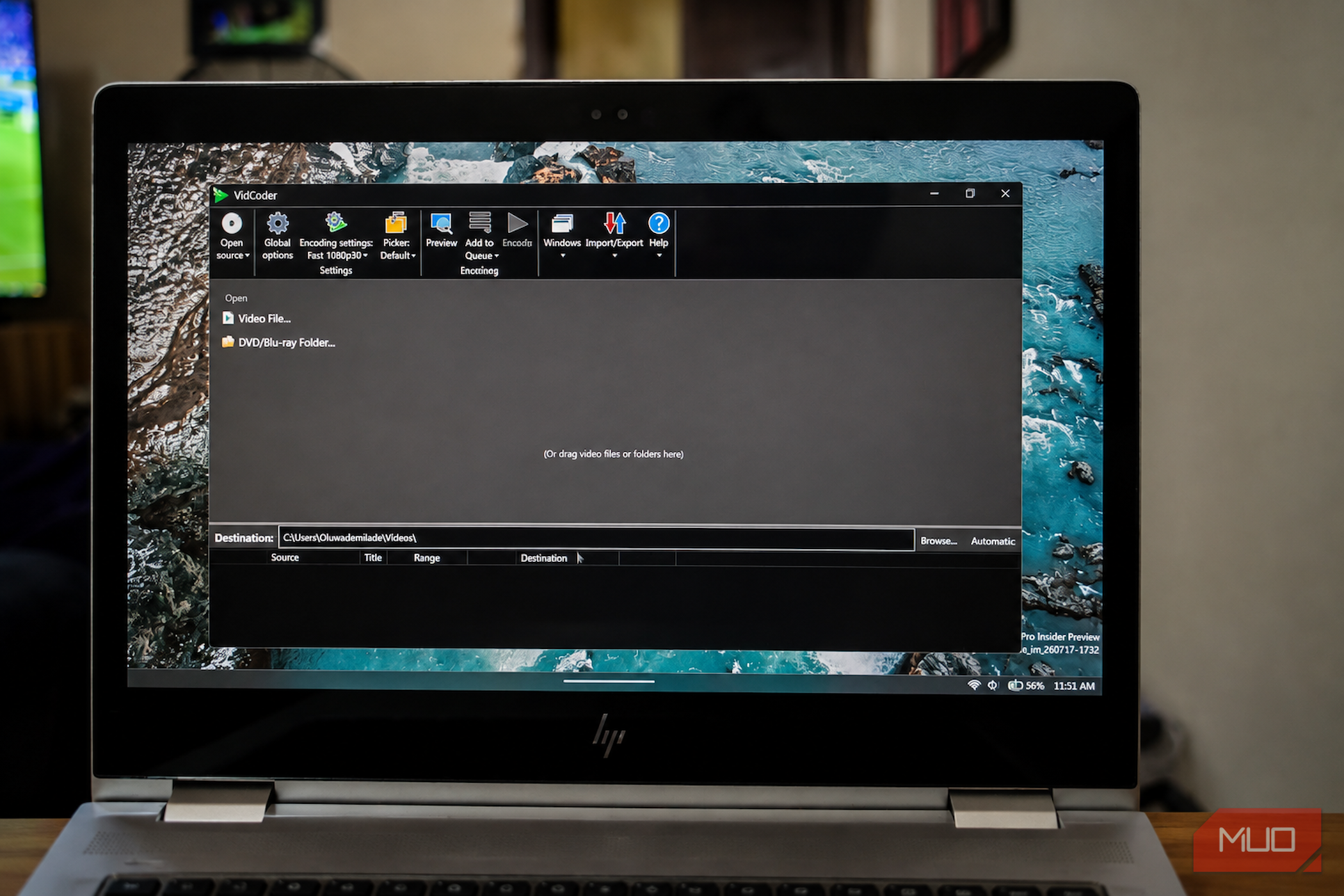
A video straight off my phone or camera can be several times larger than its runtime seems to justify, and the obvious fix is to compress it. The trouble is that opening a typical video transcoder like HandBrake can throw every setting at you at once: codecs, bitrates, frame rates, filters, and audio tracks before you have decided what matters. VidCoder is the free Windows app that made this easier for me. I configured the settings I cared about once, saved them, and reduced most later jobs to importing a file, picking a destination, and pressing Encode. The complicated part only has to happen once Because configuring the same codec twice is already too much VidCoder is a free, open-source video transcoder for Windows, available from its official website and GitHub repository. The current stable release is version 12.23, which supports 64-bit versions of Windows 10 and 11. The recommended installer places the app in your local app data folder and handles updates automatically, while the standalone edition behaves like other Windows apps that run without installation. A ZIP package is also available, although it requires the .NET 10 Desktop Runtime. You do not need to install HandBrake separately because VidCoder includes its encoding engine. VidCoder uses the same core encoding technology as HandBrake, so many of its codecs and settings will look familiar. Although you can customize HandBrake presets and queue multiple jobs, VidCoder’s Pickers gave me a more convenient way to combine compression settings with the routine decisions surrounding them. An encoding preset controls how the video and audio are compressed, while a Picker handles recurring behavior such as selecting audio and subtitle tracks, naming files, choosing destination folders, and automatically adding scanned files to the queue. Choosing the right video codec on Windows involves balancing efficiency against compatibility, so I selected H.264 and the MP4 container for my initial setup. H.265 and AV1 can produce smaller files at comparable quality, although encoding speed depends on the encoder, speed preset, and available hardware acceleration. I started with one of VidCoder’s built-in H.264 presets, adjusted the Constant Quality setting until the encoded preview gave me a reasonable balance between file size and image quality, then saved the result as a custom preset. After that, I no longer had to rebuild the same combination of container, codec, frame rate, and quality settings for every file. Drag, choose, encode My videos entered large and left considerably humbler Once I had saved my preset, the actual compression process became pleasantly routine. I opened VidCoder, dragged a video into the main window, and let the app scan the source for its video stream, audio tracks, subtitles, and metadata. When the analysis finished, I checked the detected duration and resolution, selected my preset, confirmed the output container, and reviewed the destination folder and filename. From there, I could add the job to the queue or start encoding immediately, then watch the progress and open the finished file to make sure everything had survived intact. In one representative test, a 1080p video lasting just over an hour fell from 6.46GB to 2.29GB in roughly two and a half hours. On close inspection, some fine details looked slightly softer, particularly during fast-moving scenes, but the result remained clear enough to watch comfortably on my laptop screen. That gave me a practical starting point for similar videos instead of choosing settings blindly for every new encode. The encoding queue made batch work much easier. I could prepare several videos, assign the appropriate presets and output locations, then let VidCoder process them one after another. The queue also let me pause, resume, stop, and reorder jobs as needed. Before committing to a long encode, I used Preview as a safety check. VidCoder can generate a short encoded sample, allowing me to inspect cropping, scaling, and compression quality before processing the entire file. This was more useful than examining the untouched source because it showed what the finished file would actually look like. Compression should not scramble my video library Keep the pixels smaller and the dates intact Preserving file information matters when videos belong to an organized media library. VidCoder provides two separate options that are easy to confuse. One preserves the date-created and date-modified attributes Windows records for the file, keeping those timestamps aligned with the source. Another passes supported media metadata into the encoded file, including information such as the original recording date. Both settings proved important in my workflow. Without them, an older video can appear to have been created on the day it was compressed, causing photo and media apps to place it among recent recordings. In my testing, the compressed copy retained the source file’s modified date and media creation tag, so software that sorted by recording date kept it in the correct position. VidCoder may not preserve every metadata field because pass-through support varies by field and output container. I therefore compare the original and encoded files before deleting anything important. By default, VidCoder creates a separate compressed copy rather than replacing the source unless you explicitly approve an overwrite. The usual compression trade-offs still apply. Smaller files can mean reduced visual quality, and software encoding may take considerable time, which is why I preview important jobs before processing the entire video. It is also useful to distinguish the container from the codec. MP4 and MKV are containers that package video, audio, subtitles, and metadata, while H.264, H.265, and AV1 determine how the video itself is compressed. Choosing MP4 alone says little about the final file size or quality. Compression is easier when the app takes notes VidCoder did not make compression automatic. It made my decisions reusable. I still preview important files and keep the originals until I have checked the result, but most repeat jobs now involve little more than adding a video and starting the encode.