Summary
I love tech, especially smartphones, which is why I update to the newest one available as soon as it launches. Sometimes I exchange my old phones, and sometimes I do not. I have a drawer full of old smartphones (they’re not that old, to be honest), some of which I have put to good use by converting them into a dashcam and a security camera. The other day, I was looking for ways to run Windows apps on Android — not streamed, not remote-desktopped into a PC, but running locally.
This is when I came across Winlator, which lets you run Windows apps directly on Android. Here’s how you can easily convert one of your old phones into a Windows PC.
Winlator performs a translation trick
Windows code gets translated instead of emulating the whole PC
When you think about running a different operating system on another, you think of an emulator. An emulator mimics the hardware and software environment of a specific device. Winlator, on the other hand, is different.
It isn’t a traditional emulator that pretends to be a tiny virtual PC inside your phone. Instead, it leans on Wine, the same compatibility layer Linux users have relied on for decades. It combines both Box86 and Box64, which translate x86 and x64 instructions into something that your phone’s ARM processor can easily understand.
Additionally, tools like DXVK and VKD3D convert DirectX calls into Vulkan, the graphics language most modern Android GPUs speak natively.
If we take out the technical stuff, with Winlator your phone isn’t pretending to be a PC. It is reading Windows instructions and translating them into Android-friendly ones in real-time.
 Winlator
- OS
- Android
- Open-Source?
- Yes Winlator is an Android app that lets you run Windows applications and PC games using Wine along with Box86/Box64 emulation. It provides a simple interface for creating virtual environments, managing input controls, and optimizing compatibility for different software. Its absence from the Play Store is intentional You need to sideload it on your Android phone Just like every other useful open-source app, you won’t find Winlator on the Google Play Store. You need to grab the APK file either straight from its GitHub release page. Then you need to sideload it. For those of you who don’t know, sideloading is an APK on Android. Before you head to GitHub and grab the APK, you should know that your phone needs to meet some minimum requirements.
- Processor: Snapdragon is recommended for the best experience.
- RAM: 6GB or above
- Storage: 256GB or more Here is how you can set up Winlator on your Android phone:
- Once you are done installing Winlator on your phone, launch it. Do note that it may take a few minutes to load the environment.
- You need to create a container for running Windows games. Tap on the Plus (+) icon in the top-right corner to create one.
- Select the resolution. For best performance, Winlator recommends 960x544 pixels.
- Next, choose the graphic driver preset. Pick Turnip (Adreno) if your phone has an Adreno GPU, or select VirGL (Universal) for other GPU models.
- In the DX Wrapper dropdown, choose WindeD3D for best compatibility. But if you want improved performance, choose DXVK; for Direct3D 12 games, choose VKD3D, and for Command and Conquer titles, choose the dedicated CNC DDraw.
- Under Advanced, you can choose which Windows version to load.
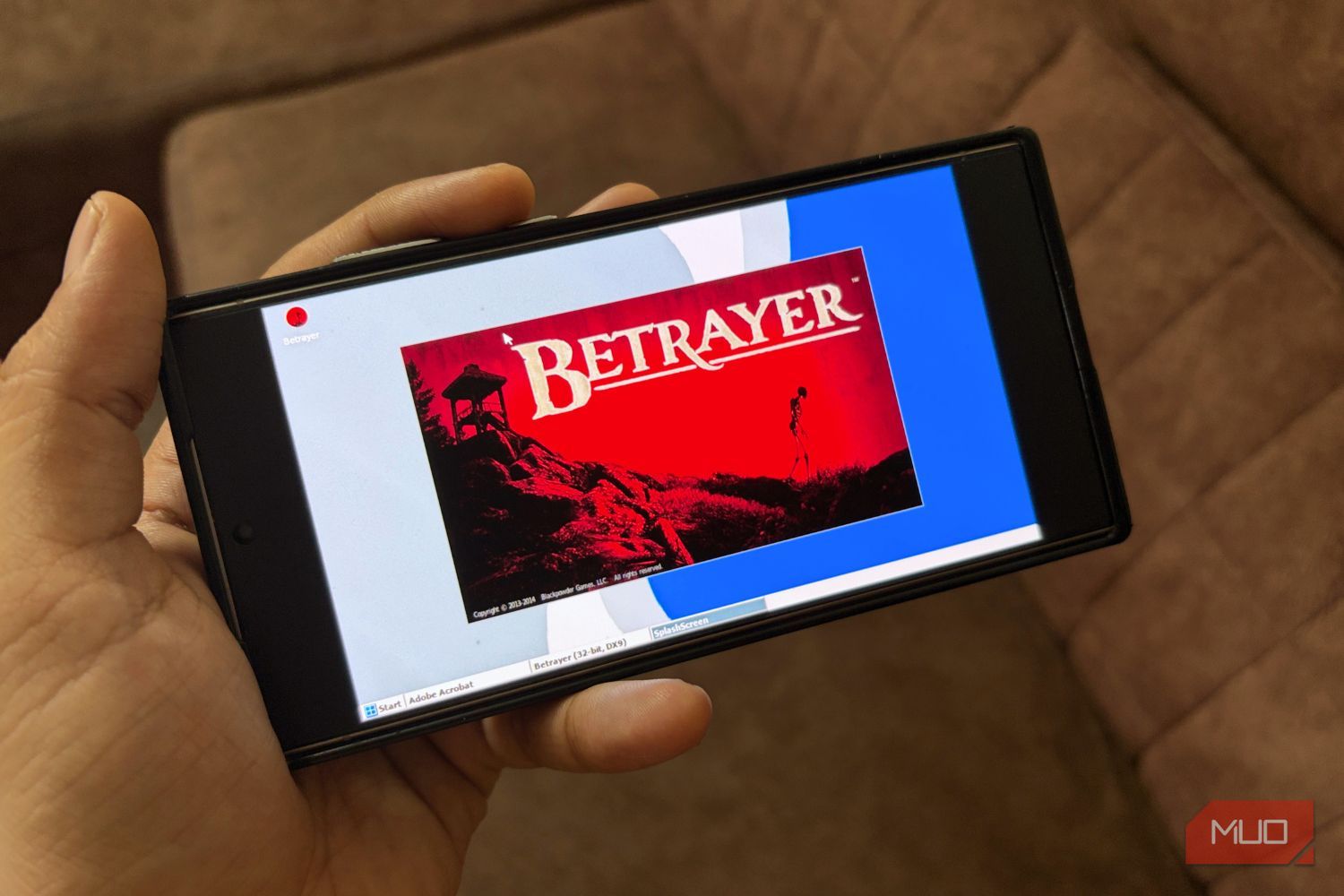
- Once everything is set up, tap the checkmark at the bottom right to save your container settings. While the touch controls are good, you should connect a keyboard and a mouse to your phone. This will take gaming to the next level. 2D and older 3D games are its sweet spot Modern games are where it gets rough Our friends at XDA tested a bunch of games on Winlator, and the pattern that emerged matched what I found too. Notably, 2D games such as Hollow Knight, Deus EX, F.E.A.R., and Dead Space (2008) ran at a playable frame rate on a mid-range Snapdragon phone, but they ran well on my flagship Galaxy S24 Ultra, consistently delivering 60FPS gameplay. I was able to play Betrayer, and it ran smoothly. However, newer games like Just Cause 2 and Disco Elysium were a bit of trouble, but they ran on my flagship phone. But don’t expect them to run on a mid-range Snapdragon phone. Winlator cannot run anything that is locked behind Steam, Epic, or similar DRM systems. Your source for game files should be GOG, which sells DRM-free installers. You simply need to drop the game files into the Downloads folder of a Winlator container. Anything tied to an always-online launcher won’t simply launch. It is okay to try for curiosity Mobile games have evolved, and many now offer a PC-like feel. Winlator is nice if you want to revisit old games and have them in your pocket. Winlator doesn’t convert your phone into a full-fledged gaming PC, but it gives you an environment to play around with some old games. Frankly, the first 5 minutes of seeing my phone boot Windows were exciting; after that, I quickly uninstalled everything and turned to my PS5. If you still want Windows on your Android phone, you should check out Windows Phone.