Summary
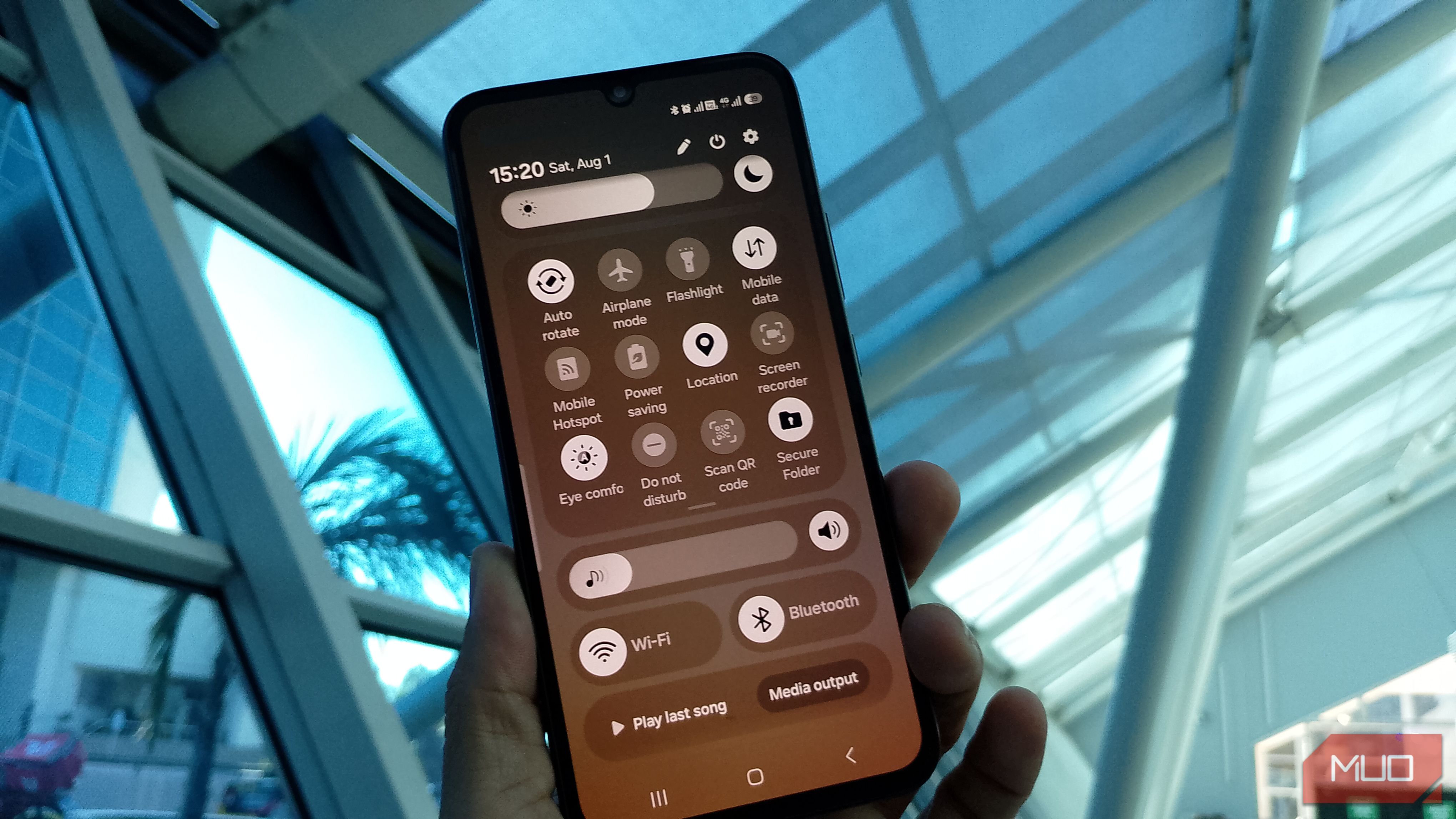
When you swipe down once on Quick Settings, it’s easy to think you’re seeing all the available options. On my Galaxy A34, the first view shows Wi-Fi, Bluetooth, brightness, and a few others, so it feels like Samsung has already shown you everything Quick Settings has to offer. That’s why many people miss the extra options underneath, including some that could become their favorite. I checked the Galaxy S26 Ultra too, and while the controls weren’t the same, history repeated itself. There were more useful options waiting in the expanded panel. Finding the second page was useful, but what I did after opening it made an even bigger difference. Quick Settings makes it look like the first swipe is all you get Swiping sideways feels obvious, which is why the other controls get missed When you first open Quick Settings, it may be easy to assume that what’s in front of you is everything that’s available. The model you have will also play a huge part in what options you see. The first options you see may be Bluetooth and Wi-Fi, while other Samsung users may see a different set. The line you see at the bottom of Quick Settings doesn’t really indicate that swiping down again shows you more options. You may try swiping sideways because, when you hear there’s a second page, your muscle memory tells you to move left or right. So, when nothing happens, you think there’s nothing there to see. If you’re not very tech-savvy, you might not want to explore much, fearing you might move something around accidentally. As a result, you decide to keep everything as is and forget about the remaining options. The second swipe is where Quick Settings gets more useful That’s where I found Screen recorder, Scan QR code, and a few controls I actually use Back when I first started exploring Quick Settings on my Galaxy A34, swiping down a second time showed me all the extra controls I had been missing. The options and layout may look different depending on the Samsung model you have, but mine include Mobile data, Flashlight, Screen recorder, Do not disturb, and Scan QR code, among others. Mobile data is one I use often because I can keep it under control without going into Settings. The flashlight is another classic, but still one of my favorites. I’m always dropping something, usually my keys, and it helps me light the way when I’m walking somewhere dark and would rather not step into a pond or something. When I saw Screen Recorder, my eyes opened wide. It was more of an “Oh, there it is” moment. I have friends who are always asking how to do this or that on their Android phone, so creating a quick video tutorial is much faster than typing out the steps. Scanning a QR code is another option I like having quick access to. More restaurants and coffee shops now give you a code to scan instead of handing you a physical menu. I also compared my panel with the one on a Galaxy S26 Ultra. It had many of the same options, along with some extras such as Interpreter, Wireless DeX, and Audio broadcast. Interpreter was my favorite feature I didn’t have on the A34. I like learning languages because they can help you get your message across when you don’t speak the same language as someone else. Don’t be afraid to explore the panel. Swiping around in Quick Settings won’t break your Android phone. You might move an icon or accidentally turn something on, but you can always change it back. Once I saw everything available, I started wondering why some controls I use most were so far down. I moved the controls I use most to the top Screen recorder, Do not disturb, and Scan QR code are now one swipe away I reached a point where even swiping down twice started to feel annoying. Some controls I hardly used were taking up the top row, while the ones I regularly needed were sitting farther down. So I moved my favorite options, such as Screen recorder, Do Not Disturb, Scan QR code, Power saving, and Quick Share, to the top for faster access. The ones I rarely used could stay at the bottom. Once I finished rearranging everything, the panel made more sense because it matched how I use my phone. I could reach my most-used controls faster, and that matters when I’m in a hurry. Sometimes I’m holding something in my other hand or barely holding onto the phone. In those moments, even one extra swipe is so annoying. Moving everything around made using Quick Settings with one hand easier. On my Galaxy A34, the path was simple: Swipe down from the top right → tap the pencil icon → tap Edit under Control panel → long-press and drag a control where you want it → tap Done. Your phone may look a little different, but that isn’t a problem. What matters is that the setup works for you and keeps your most-used controls easy to reach. Before pushing an option aside, give it a shot. See what it can and can’t do, then decide whether it deserves a spot up top. Quick Settings can look however you want it to, so make it The second swipe taught me that you should never assume what you see is all there is. Once I found all the options Quick Settings offered, I made sure my favorites were at the top, so I would only need one swipe to use them. It’s not a rule, but you can treat the first row as your favorites and leave the less important options in the second and third rows. Just because Samsung sets them up a certain way doesn’t mean you can’t, or shouldn’t, move them. Set everything up so it works best for you.