Summary
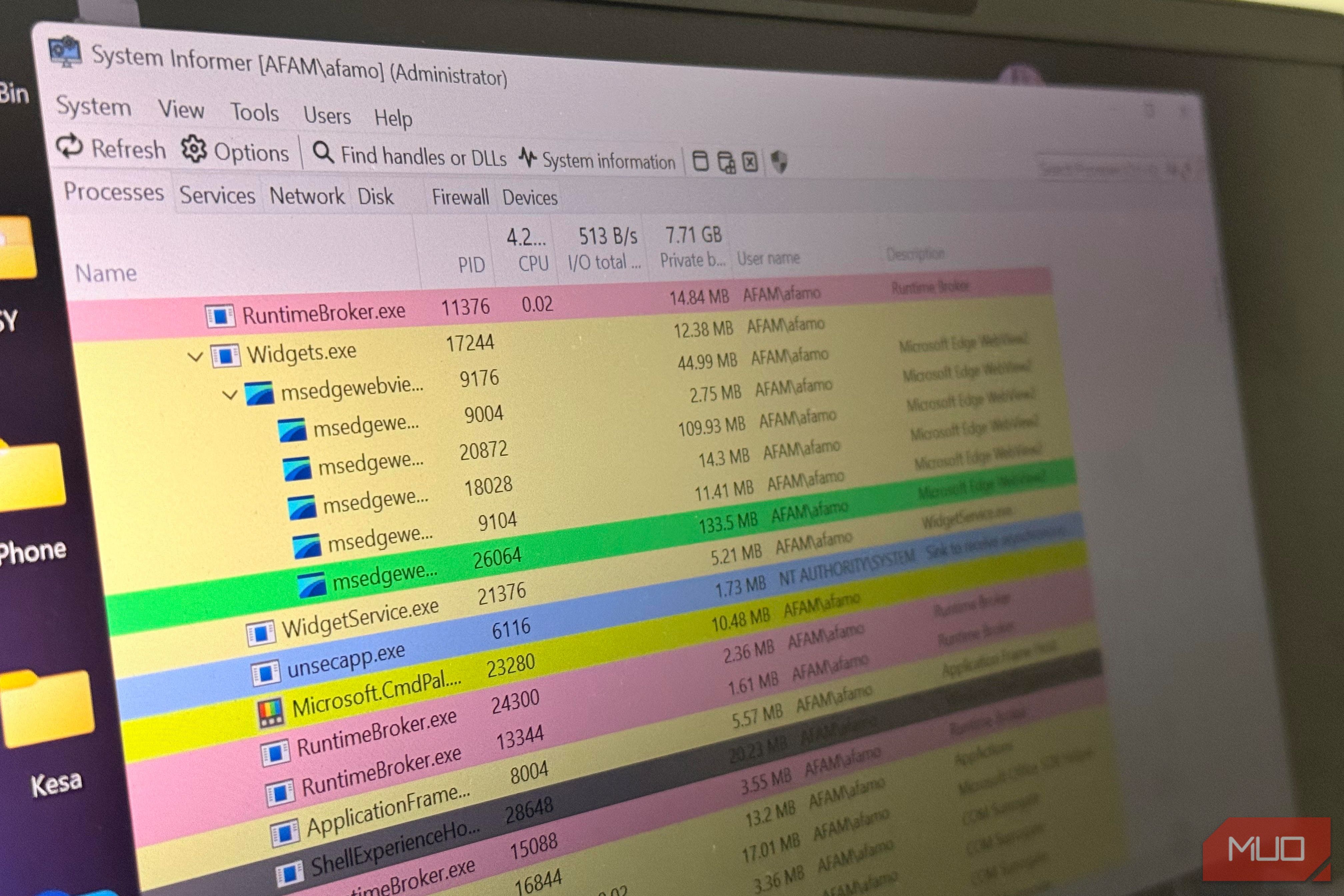
I’ve used Task Manager for as long as I’ve used Windows to track hardware usage or locate apps and services slowing down my computer. However, I use it mainly because it’s the default Windows tool, not because it’s the best option. Recently, when my CPU was pinned at about 40 percent by a dllhost.exe process, it was frustrating that all Task Manager showed me was the process’s name and number. I explored other options, and a 17-year-old tool called System Informer did a better job at revealing the process’s parent and origin folder. The process had no identifying information Parent, path, signature — the needed context When a process uses far more system resources than you expect, you instantly want to investigate. However, when your go-to monitoring tool still doesn’t readily answer basic questions such as what launched the process or where it is located, it’s a sign that it may be insufficient for real-world use. System Informer gave me the process’s parent, the folder, and the command line that launched it. I even saw its digital signature, which confirmed who wrote it. You still get fragments of this information in Task Manager, but you usually have to dig through columns, and a lot of it is buried. But the major drawback is that Task Manager doesn’t connect these clues as System Informer does. Seeing how one piece points to another is the kind of context that is practical when something feels off. In this case, the process led to a parent, which led to a service that ultimately pointed me to a printer utility I had installed. Forty percent felt like too much CPU; my first thought was malware. But that wasn’t the case, and it took this 17-year-old tool to surface it. The first time I opened System Informer, I honestly felt I had landed on the wrong tool. After using Task Manager for years, you get used to its polish and order. System Informer doesn’t look half as neat; tabs and columns seem to be everywhere. However, the first four tabs — Processes, Services, Network, and Disk — and associated columns reveal a lot, and I only explore more of its options when something feels off. Additionally, System Informer is color-coded, which makes identifying and classifying processes even easier:
- Blue: Core system processes and kernel-level tasks
- Cyan: Processes that host Windows background services
- Pink: Immersive/UWP (Universal Windows Platform) processes
- Yellow: .NET/managed processes running in a managed runtime.
These are just the defaults, but color codes are customizable.
I was rebooting away the evidence
One locked file convinced me to stop
Sometimes, when you try to open a file, you get the message “This file is open in another program.” For years, my workaround was closing everything I could think of, and when the file still didn’t open, I ultimately had to restart the computer. This route worked, but it took 10 minutes to resolve something that already had a specific trigger.
System Informer’s handle search provides the simplest solution to this problem. I used it on a locked folder the first time, and it showed me that my minimized photo editor was holding it open. It eliminated guessing and the 10-minute interruption that followed.
System Informer has a hierarchical, parent-child layout that’s become valuable for uninstalling stubborn applications. Some programs may leave a background process behind after removal that continues running even when the main window closes. Looking at the process tree makes this obvious at a glance; it’s more effective than searching through the flat alphabetical list of Task Manager.
When you start System Informer with admin rights, the Disk tab populates with real-time disk activity, including the exact file paths for processes, along with their average read, write, and total rates. It was far easier to trace an unexplained spike in disk activity to a specific Windows service running under svchost.exe than to look through Task Manager’s grouped view.
Aside from the interface, which still feels dated, it’s more practical than a few other Task Manager alternatives that I’ve tried.
I lined up three tools, expecting a tie
Just one kept getting reopened
The two prominent choices for troubleshooting Windows devices are System Informer and Sysinternals’ Process Explorer. So I thought I would need to run them side by side on my devices.
|
Task Manager |
System Informer |
Process Explorer |
|
|---|---|---|---|
|
Best for |
Everyday monitoring |
Deep troubleshooting |
Advanced diagnostics |
|
Process relationships |
Basic |
Detailed |
Detailed |
|
Handle search |
No |
Yes |
Yes |
|
Loaded modules |
No |
Yes |
Yes |
|
File-lock investigation |
No |
Yes |
Yes |
|
Open source |
No |
Yes |
No |
|
Learning curve |
Low |
Medium |
Medium to high |
When I stack the three tools against each other, System Informer and Process Explorer, which is built and maintained by Microsoft’s Sysinternals team, rank higher than Task Manager. What gives System Informer the edge for me is that it’s open source; I’ve been switching to open-source software lately.
It just isn’t where the answers live anymore
I still occasionally reach for Task Manager, especially if I need to check memory usage or force-close a frozen app. It’s the quickest to open (Ctrl + Shift + Esc) and does these jobs faster than other options.
However, I now find the answers to most troubleshooting issues in System Informer, a tool whose roots trace back to a project called Process Hacker that started in 2009. It’s free and open-source. Even though there was a slight learning curve, I realized the simplified view of Task Manager doesn’t answer most of the questions I asked.
 System Informer
 - OS
- Windows
- Price
- Free A powerful, open-source, multipurpose tool for system monitoring, software debugging, and detecting malware.