Summary
I’ve come across lots of cases where people spend hundreds of dollars on high-end monitors that support 144Hz or higher, only to end up unknowingly failing to use them to their full potential. You see, in many cases, Windows sets your display to 60Hz by default, regardless of the monitor you’re using. So even if you plug a 2000Hz monitor into your Windows PC, you could still be stuck at 60Hz until you actually go into the settings and change it. But a lot of people don’t know this; they just assume Windows should automatically detect the higher refresh rate and switch to it. Honestly, I kind of agree with them. Windows should at least display a prompt or notification indicating that a higher refresh rate is available and offer you the option to switch. But to be fair, we can’t really blame Windows for every problem on our PC. There’s another factor that can stop your 144Hz monitor from hitting its advertised refresh rate, and it has nothing to do with Windows at all. The wrong cable (or port) could be holding your monitor back Bandwidth matters more than most people realize This is, by far, the most common reason I see a 144Hz monitor stuck at 60Hz. Older HDMI cables often lack the bandwidth needed to transmit that much data, and a monitor can only display what your cable can carry. So if your cable doesn’t have enough bandwidth, Windows won’t even let you select 144Hz. Many older HDMI cables, such as HDMI 1.4, struggle to reach 144Hz at 1080p and don’t even support 144Hz at 1440p. If you want to guarantee 144Hz support over HDMI, you’ll need an HDMI 2.0 cable or newer. But what a lot of people also miss is that the monitor port itself matters just as much as the cable. I actually ran into this myself when setting up my new monitor. My monitor has three HDMI ports, but only one of them supports HDMI 2.0. The other two are limited to HDMI 1.4. I didn’t know this at first, so I plugged my HDMI 2.0 cable into one of the HDMI 1.4 ports and spent way too long wondering why I couldn’t get a higher refresh rate. Personally, I’d even recommend using DisplayPort over HDMI whenever possible. It’s usually the better choice for high-refresh-rate monitors, and even older DisplayPort 1.2 will comfortably handle 144Hz at 1080p or 1440p. On top of that, most monitors come with just one DisplayPort, so you won’t be making the same mistake I made with my monitor’s HDMI ports. Windows still won’t use 144Hz until you tell it to You have to do it yourself Even if your monitor and cable both support 144Hz, Windows won’t switch to it automatically. You still have to go to your Windows Settings to change the refresh rate, and it’s quite easy to do.
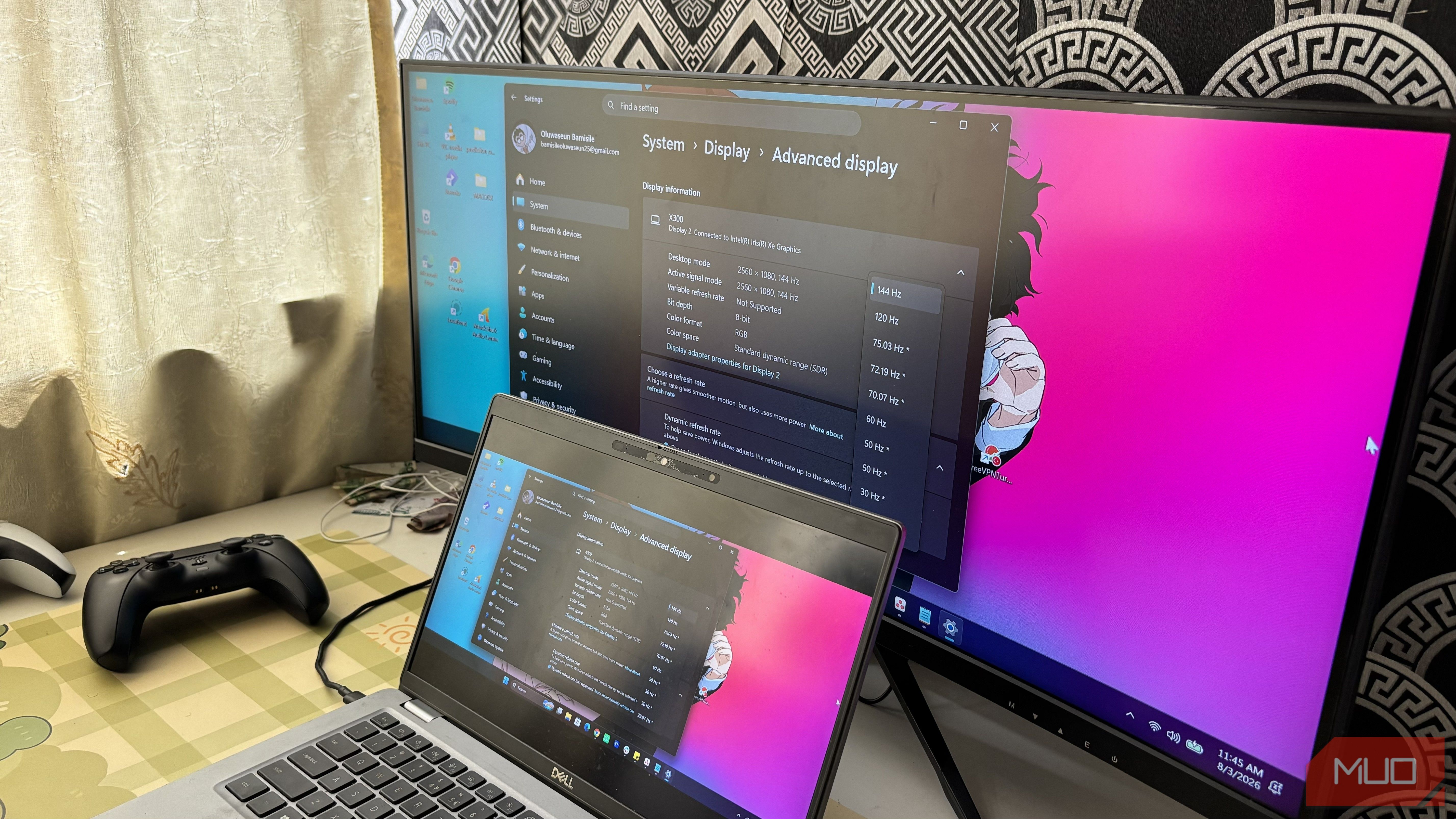
- Right-click your desktop and select Display settings.
- Scroll down and click Advanced display.
- Under Choose a refresh rate, click the drop-down menu.
- Select 144Hz or the highest refresh rate your monitor supports. I always recommend checking this whenever you connect a new monitor because it’s one of those settings that’s easy to forget about. Once you’ve changed it, simply moving your mouse around the screen usually makes the difference obvious, and it’s one of the more satisfying “why didn’t I do this sooner” moments you’ll get from a settings change. Your graphics driver might be holding you back Updates can sometimes reset your refresh rate In some cases, an outdated graphics driver may not correctly detect your monitor’s capabilities. This can leave you stuck at 60Hz or even prevent higher refresh rates from appearing in Windows altogether. Updating your graphics driver is often enough to fix the issue, and it’s a step I think gets overlooked far too often. The opposite can happen too, and this is the one that bothers me. I’ve seen Windows updates and graphics driver updates quietly reset a monitor back to 60Hz without any warning. Everything will still work fine, so it’s easy to miss until you notice your desktop doesn’t feel as smooth as it used to. There’s no reason an update should be allowed to silently undo a setting you deliberately chose, and I’d argue this is exactly the kind of thing Microsoft should automatically flag for users. That’s why I make it a habit to check my refresh rate after installing major Windows or graphics driver updates. Spending more on a monitor doesn’t automatically make it better Buying a 144Hz monitor is only half the equation, and I think this is the part most buying guides conveniently leave out. If Windows is using a lower refresh rate, your cable doesn’t have enough bandwidth, or your graphics driver isn’t cooperating, you won’t actually experience what you paid for, no matter how good the panel itself is. That’s why checking these things is important with a high-end monitor. Skipping it is the difference between wondering why your expensive display feels ordinary and finally seeing just how smooth a high-refresh-rate display can be.