Summary
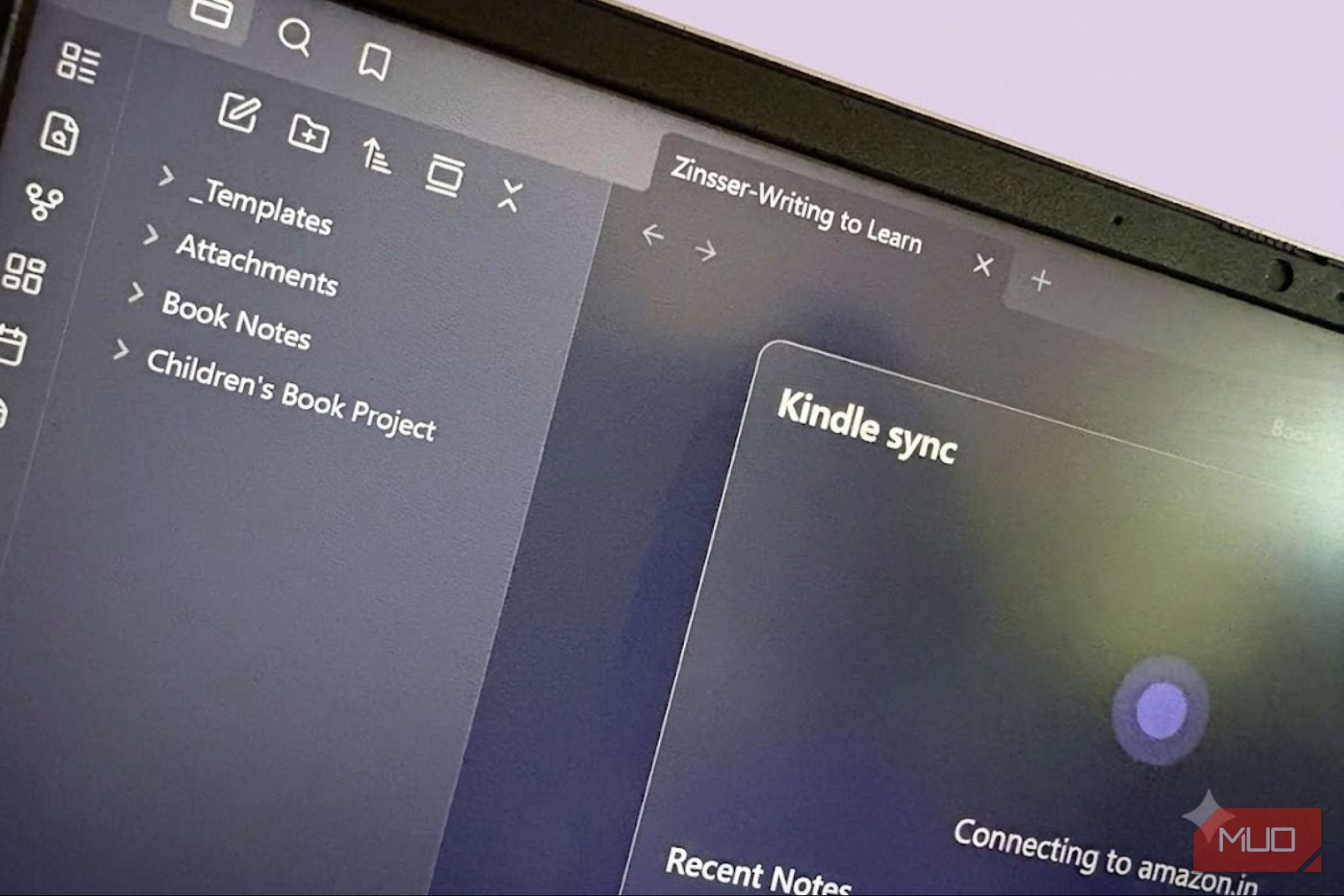
I love highlighting on my Kindle, but I never wanted to pay a monthly fee just to review those highlights. Readwise is an excellent option, but it’s another subscription stacked on top of my other subscriptions. Instead, a well-planned Zettelkasten note-taking system can make Obsidian help us think better with our Kindle highlights. A few free tools can pull every highlight, note, and clipping straight into your vault. It’s more work than Readwise up-front, but hey, that’s the “price” of free. The Kindle plugin syncs via Amazon One login connects your whole library The Kindle Highlights community plugin logs into your Amazon account and pulls highlights straight from Kindle’s cloud reader. Install it from Community Plugins, sign in once, and it keeps highlights for every purchased book up to date automatically. Run the sync again after finishing a book, and only the new highlights get added. I hesitated the first time I saw it asking for my Amazon password inside a third-party plugin. Handing over login credentials to any app feels risky, even an open-source one built by a trusted developer. The plugin doesn’t store your password; it just holds the session token needed to scrape the page. You can also revoke access from your Amazon account at any time, so the risk is lower than it appears once you look under the hood. I read a few social threads where readers said the plugin can fail or hang on non-US stores. You have to manually override the Amazon Region in the plugin settings. I haven’t come across this error in my limited testing, with my “amazon.in” region in the settings. Upload My Clippings.txt for every book This method covers your sideloaded books and docs Plug your Kindle into your computer, grab the “My Clippings.txt” file, and then drop that into the plugin. All your highlights from personal PDFs and sideloaded books (EPUBs/MOBIs, borrowed books from Libby/OverDrive) are imported within a few seconds. Hunting around for a cable in our cordless world can be a pain sometimes. But it helps us to bypass any errors the earlier method may throw up, and for me it’s an opportunity to charge my Kindle as the import begins. Also, it’s the only method that captures notes from documents you sideloaded yourself on the Kindle. I just have to remember to do it at least once after I finish a book. By the way, you will also need the same cable, and then use email to import highlights from your documents and sideloaded books into Readwise via the My Clippings.txt file. There’s another lesser-known advantage of the USB method for those of you who are heavy clippers. Publishers allow only 10-20% of any book to be exported. So, using the My Clippings.txt file is an obvious way to bring your highlights into Obsidian. Export Notes turns highlights into clean HTML The Kindle app can hand you a file directly When you read in micro-sessions, the Kindle app is an excellent choice. Open a book’s notebook in the Kindle app, tap Share, then Export Notes. Amazon emails you an HTML file of every highlight and note from that book, formatted and ready to convert into a proper note. I find this clunky for a full library of books. Exporting book by book is cumbersome if you don’t do it as a habit. Paired with a browser-based converter like kindle2md, which turns that HTML into ready-made Markdown with frontmatter, it takes seconds per book. Readwise has its own customization options to neatly format the highlights. You can customize your Obsidian book note or use the customization template on the kindle2md conversion site. And why stop there… you can visualize any Obsidian note with the help of a local AI. Bookcision grabs highlights from your browser A bookmarklet pulls highlights off the web reader Readwise has its own extension. You can use this neat Kindle notes-downloading bookmarklet with Obsidian, too. Open any book on read.amazon.com, click the Bookcision bookmarklet, and it scrapes that page into a clean, downloadable list of highlights. I don’t love that it only works one book at a time; there’s no bulk export across your whole shelf in a single pass. If a book has hundreds of highlights, you must manually scroll down the entire Amazon web page to load all highlights before triggering Bookcision, or it will only scrape the top 20%. For an occasional deep-dive book, though, it’s the fastest path from Kindle to Obsidian. Combine it with a free formatter like the open-source highlights tool, and you get clean Markdown ready to drop straight into a note. Paste My Clippings.txt with zero tools The fallback that never needs an update My Clippings.txt is plain text, split by double divider lines between entries. Open it in any text editor, and you can copy a book’s section straight into a new Obsidian note without installing anything at all. Location numbers, timestamps, and highlight text all run together, and you’ll want to clean up the formatting by hand before it looks like a real note. But it’s the one method that helps you create an Obsidian book note with complete control. While cleaning up timestamps, location lines, and dividers by hand feels like digital manual labor, Obsidian’s built-in search and replace (or VS Code) with regex can help clean a raw text dump quickly. I prefer this method when paired with the Zettelkasten system. It helps me think about what I have highlighted, rewrite it in my own words, and give it more context. And the manual method helps you create neater book notes with your preferred frontmatter properties. As you can see in the screenshot above, the plugin adds many unnecessary backlinks and block references by default. However, you can go to the plugin’s settings and customize the Template to control how the imported highlights appear. A highlighting and notetaking habit beats chasing a perfect tool None of these free methods matches Readwise’s daily automation, and that’s fine for me. Our usual mistake is sitting on highlights without doing anything about them. I try to set a 10-minute block each week to run a sync and then a bit more time to process the book highlights into a more enduring Zettelkasten system.