Summary
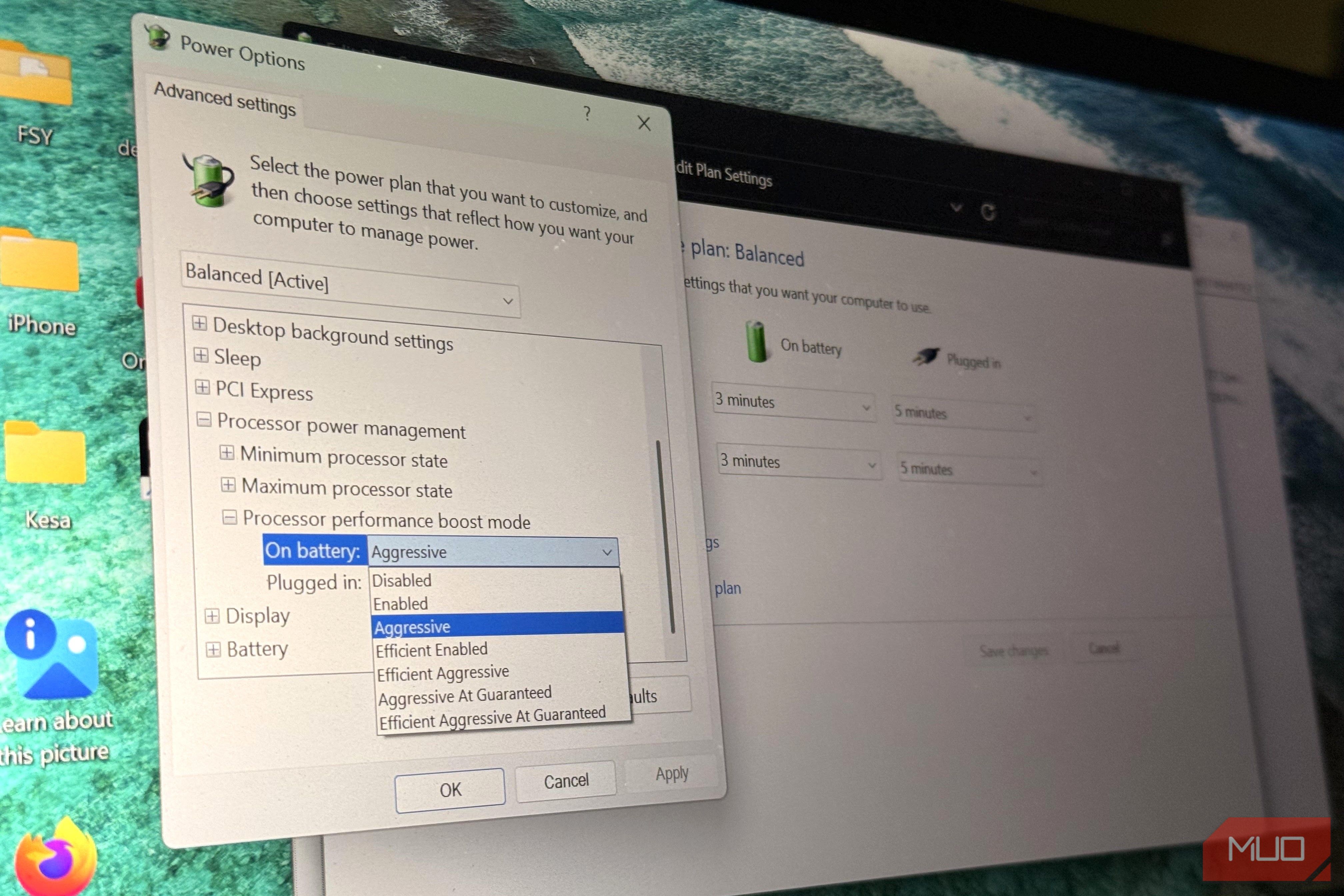
There is a Processor performance boost mode in Windows 11 that determines how aggressively Windows requests CPU boost frequencies, but Microsoft keeps it hidden deep within power options. I found it, enabled it, and tested every mode from “Disabled” to “Efficient Aggressive at Guaranteed,” through gaming, compiling, and everyday multitasking. This secret setting changes CPU behavior far more than I expected in specific workloads; I’m shocked Microsoft has kept it locked away. Finding the Processor performance boost mode From regular to aggressive processor power behavior Power Options has many settings, including an entire folder dedicated to processor power management. However, the Processor performance boost mode isn’t in it, which suggests Microsoft expects your CPU to behave in a certain way and doesn’t want you to weigh in. If you want to access this additional control, navigate the Registry Editor to the path below, double-click Attribute in the right pane, and change it from 0 to 2: HKLM\SYSTEM\CurrentControlSet\Control\Power\PowerSettings\54533251-82be-4824-96c1-47b60b740d00\be337238-0d82-4146-a960-4f3749d470c7 This isn’t overclocking: it doesn’t directly change CPU voltage or maximum frequency. Processor performance boost mode controls how “eagerly” the OS requests the CPU to boost in the first place. I initially thought this was a small distinction, but that changed when I understood how much daily CPU usage depends on how eager Windows is to request it. What does “Efficient Aggressive at Guaranteed” mean? Translating Microsoft’s power management jargon . The first that caught my attention was “Efficient Aggressive at Guaranteed.” I had to check what it meant before even trying it. But I also tested every other option. “Disabled” prevents Windows from requesting a boost above the CPU’s guaranteed base performance level. Several systems seem to ship with “Enabled”, which allows the OS to request a reasonable amount of extra performance when needed. “Aggressive” tells Windows to request the maximum boost the CPU can deliver whenever it decides a boost is needed. There are efficient variants for Aggressive and Enabled which add a power-saving bias to the selected behavior. The two “At Guaranteed” variants cause Windows to calculate a specific requested performance amount above the CPU’s baseline before requesting an extra boost. Since I can’t try every possible CPU combination, I decided to go with a setup most people use: my 11th-gen i7 CPU. Testing every mode on my i7-1165G7 Gaming barely moved; compiling actually did I use a 15-watt Tiger Lake ultrabook with Iris Xe graphics—a system constrained by thermal limits—which shaped my test results. The least dramatic results were in gaming. I got about 3-7% higher average FPS while playing lighter, more CPU-sensitive titles. I also had slightly smoother 1% lows. The gap seriously decreased to 1 to 4 percent for more GPU-bound titles, but honestly, at the moment, just by playing, I couldn’t really tell the difference. However, it takes about 10 to 15 minutes for any aggressive edge to evaporate because the laptop reaches sustained thermal limits, reducing boost. Compiling, however, was a different story. The same multi-core build that took about 10-12 minutes on Disabled finished about 6–8% faster on Aggressive, shaving roughly 40–55 seconds. The gap between Enabled and Aggressive was narrower, and Disabled was the clearly and obviously slowest option. The gap between Efficient Aggressive and Aggressive was somewhere in between Aggressive and Enabled. However, once the system reached its sustained power limit, more aggression did not help; the processor had already settled into its long-term power limit. I saw the smallest gains in everyday multitasking. I barely saw a difference using Slack, a couple of browser tabs, light photo editing, and system updates. So, this is probably not the setting for someone looking to make daily workflows feel snappier. However, it was incredibly difficult not to notice the fans. Under Aggressive the fans spin up faster, settle at a higher pitch, and the laptop’s bottom becomes noticeably hotter — after 10–15 minutes on your lap, the heat is evident. To see the exact number currently in use, run powercfg /q SCHEME_CURRENT SUB_PROCESSOR PERFBOOSTMODE in an elevated Command Prompt or PowerShell. More boost isn’t free on a thin laptop For daily use, leaving Processor performance boost mode on Enabled is the best option. I’ll only switch to Aggressive when I need to compile or perform other tasks that require sustained CPU work. On battery, the Aggressive and At Guaranteed modes drain the pack noticeably faster and can trigger earlier thermal throttling. Full-time aggression has very little benefit for gaming or general use on my laptop, which has a very thin chassis and modest cooling.