Summary
My Pixel 10 Pro only has 128GB of storage space. I elected for a lower-storage model since the majority of what I do on my phone taps the cloud, plus like many, I have unlimited data, so local storage is not that important to me.
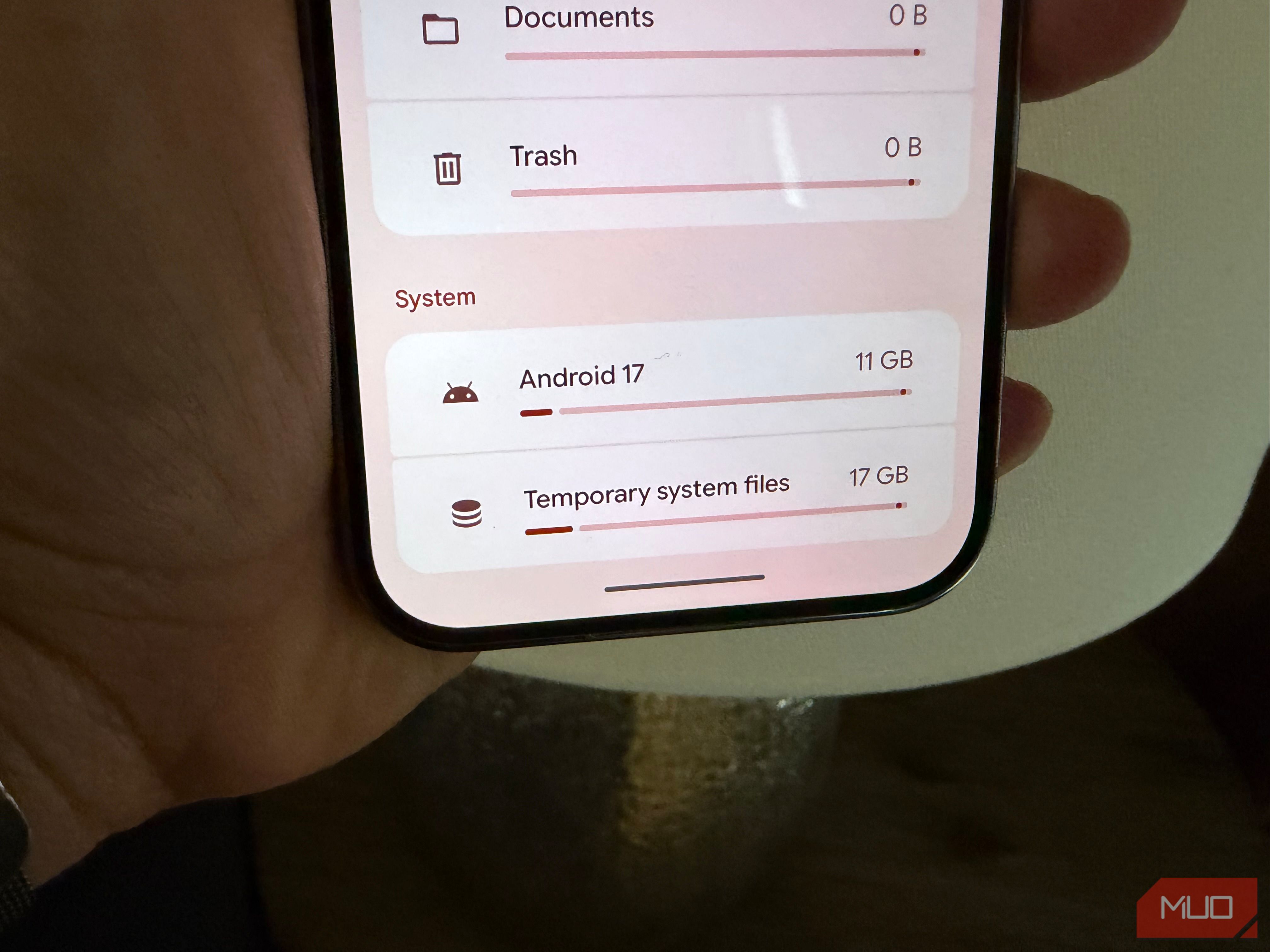
But when I investigate how my phone is using my limited storage space, I notice how a massive 28GB is used up by something called “System” (comprised of 11GB of Android files, and 17GB of Temporary system files).
In Android, there is no shortage of tools to reduce your storage footprint plus you always have the option to clear app data, easily clear out big files, or delete downloads.
So I was intent on finding out how to reduce this almost 30GB allocation of precious space from my Pixel and certain I could reduce it. But I quickly came to a surprising conclusion. I learned the true origin of the System bucket of data and what I could (and couldn’t) do about it.
The cache-clearing trap
And why the obvious does nothing
What about clearing app storage and cache on individual apps—will that reduce the size of Android’s “Sysetm storage”? This includes everything an app stores on your device. For example, I noticed that the combined app storage for my Spotify and PocketCasts app totaled 6GB, which included media I had downloaded for offline listening.
That seemed like a smart temporary solution that could give me a bump in storage with minor ill-effects (apps can re-download data once you run the app again). And indeed, deleting app data on certain apps like PocketCasts and Spotify increased my phone’s available storage, but had no impact on the System bucket.
What about uninstalling apps?
While you can certainly uninstall apps, (or better yet, archive them) to save space, that doesn’t solve the problem of my Android system taking up almost 30GB of storage space as there are no associated apps listed.
What’s actually inside “System”
And what Google won’t tell you
From the System > Storage screen here, you can see a breakdown of what is using your storage space. Tapping on most of these will bring up apps that let you adjust them (like tapping Trash opens your system trash bin which you can empty, etc), but as mentioned, Android gives you no such options to reduce System when you tap on the entry.
When you seek more information as to the origin of this mysterious bucket of storage, Android says this for Android (the 11GB entry): “This includes your operating system and files that are needed to keep your phone running smoothly. To protect their integrity, these files can’t be accessed”. For “Temporary system files” (the 17GB entry), it says something similar. This looked like a dead end.
The point is that Google doesn’t want you to be able to remove or reduce these nearly 30GB of system files. They’re important files needed for the functioning of Android, but it bums me out that on my 128GB Pixel 10 Pro, System is taking up nearly 22% of my total storage.
That said, I stumbled on one thing I was able to cut from my Pixel that did increase my free storage significantly, although temporarily.
The one thing that actually worked — until it didn’t
It has to do with AI Core
There’s an app on Pixel called AI Core that uses nearly 7GB of space. AI Core provides the full AI framework for your Pixel (or at least, the parts that run on-device) and includes features like Gemini Nano, the on-device model behind features like Recorder, Pixel Screenshots, and Pixel Studio and more. They are vital components that allow your Pixel to perform certain AI tasks locally on-device.
You can clear the app data and cache from AI Core. In fact, I did just that. I was able to get the size of AI Core from 6.8GB down to around 200MB. Doing that immediately increased my phone’s available storage by about 4GB, by far the biggest gain in available storage out of anything I tried. But again, don’t get too excited.
After leaving the phone overnight and after opening various apps in the morning (I focused on opening AI apps like Recorder, Pixel Screenshots, etc), AI Core repopulated entirely back up to its previous size of around 6.8GB. All the while, the space used by System didn’t budge from 28GB total, and actually increased during one test to more than 28GB.
I have no idea why this happened (why would the System storage drop, only to later increase beyond the baseline?), but my best guess is that when I deleted AI Core app data, which is probably not a thorough delete of all AI Core components, I also triggered a re-download of AI Core components. This left me with old AI Core components plus the new ones, resulting in a net increase in used space through this action. Later that day, I noticed the System entry settled back to that 28GB baseline.
You can reclaim some storage from “System”, but it comes back
The fact of the matter is that a flagship in 2026, with all the AI components we love (and some that are slop, unfortunately), it takes a significant amount of storage just for the phone to operate. While I was overall unsuccessful at making a dent on the 28GB of space my Pixel uses for System, I figured out why. I learned that clearing app data and cache does nothing, but that clearing out the storage and cache from AI Core does temporarily boost your storage space, only to have it go away again when Android re-downloads AI Core components as you need them.
The moral of the story here is that you should buy as much storage as you can afford, since Android is going to use a large portion of that for system files, and there’s not much you can do about it.
 Google Pixel 10 Pro
- Brand The Pixel 10 Pro is Google’s highest-end flagship smartphone. It features an improved rear camera system, the Tensor G5 chip, seven years of software updates, and a 6.3” Super Actua display.
- SoC
- Tensor G5