Summary
I prefer to clean install Windows 11 whenever a major update is due, because it keeps my PC fast and clears out the junk that’s often hard to find any other way. The downside is reinstalling the hundreds of apps I have on my PC. While I can rebuild my Windows setup using a Winget software snapshot, it can’t restore app settings and lacks a GUI. Instead, I used Endstate, an open-source app manager that captures your app list and settings and makes restoring them a one-click affair after a clean install. What’s Endstate and how it works An open-source app manager that goes beyond a plain app list Endstate is a free, open-source application manager built on top of Winget and Chocolatey. Where Winget’s export and import commands only handle the app list itself, Endstate adds a settings layer on top. It scans your PC for installed apps, captures their configuration files and preferences, and bundles everything into a single portable file you can carry to a new machine or a fresh Windows install. The app is built in Go by developer Hugo Ander Kivi and is licensed under Apache 2.0. It uses Winget as its primary package manager for Windows, with optional Chocolatey support for apps outside Winget’s repository. Under the hood, it follows a declarative model where you describe the desired state of your machine, and Endstate figures out the steps to get there. What sets it apart from a plain winget export is the settings restoration. Endstate currently supports capturing and restoring settings for a growing list of apps, including tools like Notepad++, Visual Studio Code, 7-Zip, Audacity, Microsoft Office, and more. For apps without a dedicated settings module, it falls back to Winget or Chocolatey for installation, so you don’t lose any coverage. You still get every app reinstalled; you also get your preferences back for the ones Endstate knows about. Endstate is a newer, community-driven tool without Microsoft’s backing, and its settings support is limited to its module catalog rather than being universal. But for anyone who regularly clean installs Windows, even partial settings restoration saves a lot of post-install tedium. Creating an Endstate software snapshot Scan your PC and save everything to one file Creating a snapshot in Endstate is a two-step process: first you scan your machine, then save the results. Here’s how I did it on my PC with over 100 apps installed.
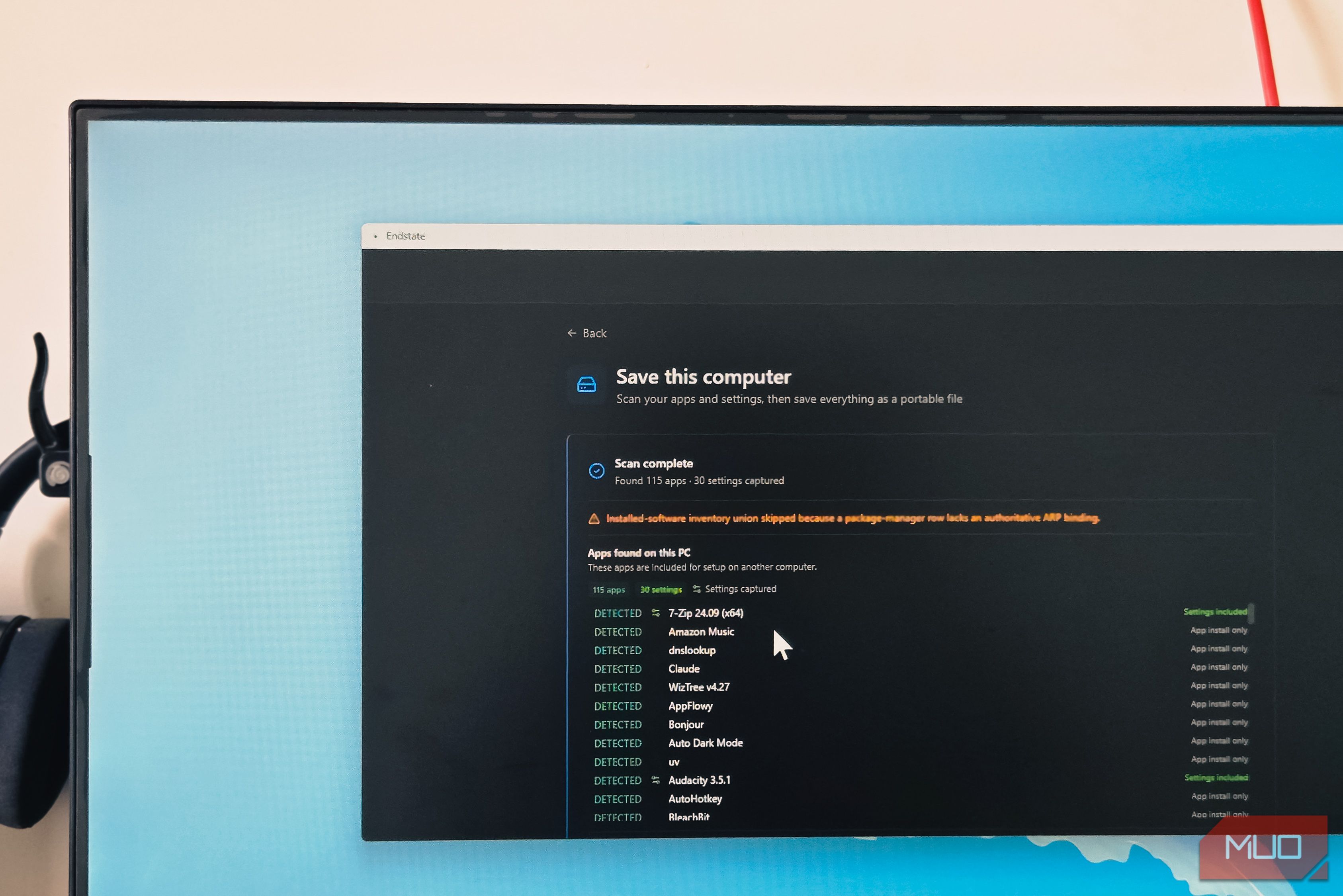
- Launch Endstate and click Save this computer. The app describes the process where it scans your apps and settings, then saves everything as a portable file.
- Click Start scan. Endstate first checks your installed apps through Winget, then collects app settings. On my system with 114 apps, the scan took about 30 to 40 seconds. You’ll see a progress indicator that shows it checking installed apps first, then collecting app settings.
- Once the scan finishes, you’ll see a summary showing how many apps were detected and how many settings were captured. In my case, it found 114 apps and captured 29 settings. The app list shows each detected program along with whether it’s marked as “App install only” or “Settings included” for apps where Endstate has a settings module.
- Below the app list, you’ll also see a Settings only section. These are apps where Endstate captured configuration files but doesn’t handle the installation itself, like AnyDesk, Claude Code, Stardock Fences, and others. You’d need to install these manually, but your settings will still be restored.
- Click Save file, choose a location (I saved mine to an external SSD), and Endstate bundles everything into a single .endstate file. Mine came out to about 314 MB, which includes the app manifest and all captured settings files. The .endstate bundle is a zip archive you can store on a USB drive, an external SSD, or even a cloud storage service for safekeeping. Reinstalling the apps with Endstate Restore your apps and settings from a single file After a clean install, getting your apps back with Endstate is just as simple. To restore your apps:
- Install Endstate on your fresh Windows setup and select Set up this computer.
- You’ll see a drop zone that accepts .endstate bundles, .zip files, or .jsonc manifest files. Click Click to browse or drop a file and navigate to your saved .endstate bundle. Endstate validates and imports the profile.
- Once imported, your profile shows up under the available profiles list. Click Review setup to preview what will be installed.
- Endstate now evaluates the changes, comparing what’s in your snapshot against what’s currently on the machine. It shows a preview with filters for total apps, apps already present, apps with available settings, and apps without settings. You’ll also see an option at the bottom to choose between Install apps only and Install apps and restore settings. Pick the latter if you want your configurations back.
- For settings, Endstate shows a detailed breakdown including settings with compatibility checks, those already matching the target, and any that failed validation. Some settings are marked “planned” (ready to restore), while others show “skipped” (already present or incompatible). In my test, it flagged Stardock Fences with a validation failure, which was expected since I hadn’t installed that app yet.
- Click Apply changes, and Endstate starts installing your apps one at a time through Winget. Do note that the apps install individually, not silently in the background. You’ll see each installer’s permission prompts and setup wizards as they appear. This means you’ll need to be around to click through the occasional UAC prompt or license agreement. The full restore on my test machine took a while with 114 apps, but I didn’t have to hunt down a single installer manually. Once Endstate finished, most of my apps were right where I left them, settings and all. Clean installing Windows just got a whole lot easier Endstate’s free tier handles local snapshots, full app restoration, and settings recovery for supported apps. But if you want off-site protection, there’s a premium Hosted Backup option at €4/month that stores your machine setup in encrypted cloud storage. Your data is end-to-end encrypted with keys derived client-side, so even Endstate’s servers can’t read your backups. For anyone managing multiple PCs or keeping a pre-install checklist for Windows, that’s a useful safety net. The tool isn’t perfect. Settings restoration only covers its module catalog, not every app on your system. Some apps will still need manual configuration after a restore. But compared to what I was doing before, which was exporting a Winget JSON, reinstalling everything with default settings, and then spending some more time tweaking every app back to the way I like it, Endstate cuts that post-install busywork down to almost nothing. For someone who clean installs Windows at least twice a year, that’s worth the minor limitations.