Summary
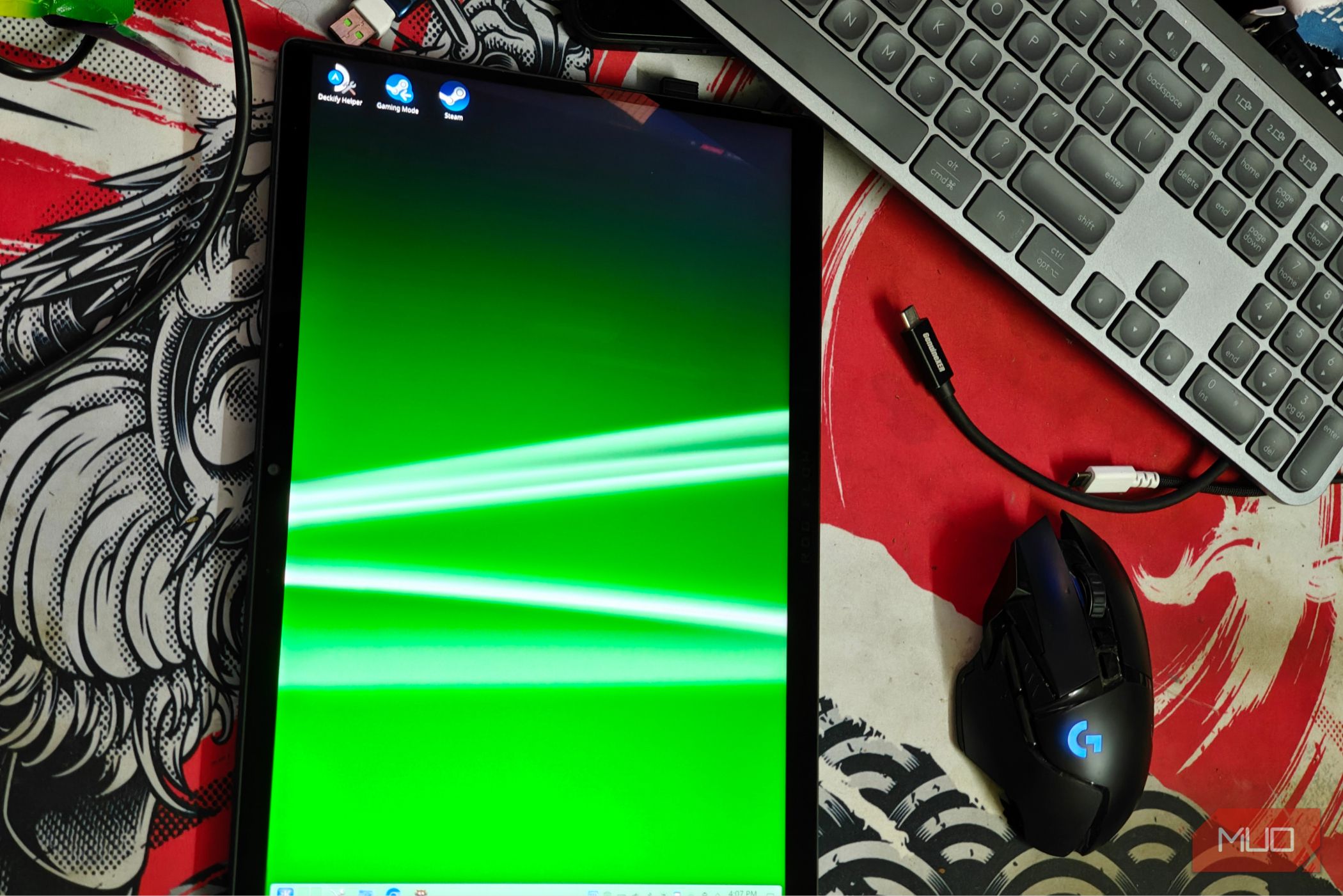
Using a desktop operating system with a traditional tablet-like design has its challenges. For starters, you have to deal with worse battery life and, more importantly, a user interface that is just not built for a touchscreen. It’s been especially bad on Linux, and while touch-focused interfaces have existed for decades, there really haven’t been many suitable options for an x86 tablet. That is, until now. I took out my trusty Flow Z13 and installed KDE Plasma on it, expecting it to be completely disappointing — but imagine my surprise when Plasma 6 just worked, with minimal tweaks. Installing KDE Plasma 6 and some specific packages Tablet mode detection is something that still needs work KDE Plasma 6 brought a lot of new additions and tweaks, many of which improved the touchscreen experience. Still, if you’re on something that requires a bit more manual intervention (which in my case was vanilla Arch Linux), you might find yourself missing a few key packages. For the most part, installing the Plasma 6 Wayland session (the current default over the X11 session) and the updated plasma-keyboard package is enough to get started. I wouldn’t recommend the Maliit keyboard; it feels much more dated by comparison. Of course, you can map custom gestures and shortcuts, but for my use case the defaults were plenty. The four-finger swipe to bring up the “recents” tray was particularly useful for multitasking, even if full desktop KDE can get a bit overwhelming at times. That said, one of Plasma 6’s more convenient features is Tablet Mode. As the name implies, Tablet Mode automatically turns a device into a tablet whenever you remove its keyboard folio case. If your device supports it, it can be quite useful. Simply removing the folio is enough to boost the render scaling, start auto-rotate, and enable touch input. Setting it up was a nightmare though — not every device supports it out of the box, and in most cases you’ll have to set it up manually. KDE’s Plasma Bigscreen mode is quite good on a tablet Testing out some common features KDE Plasma also recently introduced Plasma Bigscreen mode, a TV-centric user interface that works surprisingly well even on a tablet. The comparatively tiny 13.4-inch display of my Z13 didn’t seem to mind the change at all. I was a bit reluctant towards switching at first, but Plasma Bigscreen worked out well in the end. It supports gestures, the virtual keyboard works as it should (most of the time), and it even supports autorotation. Portrait mode was one of my favorite ways to use the device, making it ideal for documents and some light web browsing. Plasma Bigscreen also fully supports controller input out-of-the-box, meaning you can navigate the user interface without just a mouse and keyboard, just like on SteamOS. It also supports HDMI CEC, which was a pleasant surprise. I wouldn’t call it perfect, though, and there are some things that need work, like fixing the UI scaling and additional touch-friendly tweaks, but it’s still a great way to use a Linux tablet right now. Almost everything works out of the box Since this is an x86 PC, the possibilities are endless There’s a reason why tablets mostly use ARM processors and are restricted to a specialized (and often, heavily modified) OS. x86 tablets have historically been quite underwhelming, compromising on either performance or efficiency. It made sense to use Android or iPadOS instead of a full-fledged desktop operating system. They’re far lighter on resources and offer touch-based navigation gestures (and many, many more tweaks) that make the whole experience feel much more fluid. That being said, there’s only so much you can do with Android or iPadOS. Nothing comes close to a full-fledged x86 PC, and with a tablet form-factor, it makes it possible to run apps you’d otherwise be restricted from. I’ve had remarkable success propping the FlowZ13 up with its built-in kickstand, using it to consume content, and often scribbling down notes. My only gripe is that it’s uncomfortably heavy for a tablet, but there was no way to tone down the size without compromising thermals on this particular machine. You’re not restricted to app stores or a particular OS As I mentioned earlier, the best part of using a Linux tablet is its freedom of choice. You’re not going to be locked down to a particular ecosystem or suite of apps, and you can use it as a normal desktop replacement too — should you want to. Office apps and even some light gaming flies on this beast, although I wouldn’t want to stress it too much while unplugged. You’ll be getting worse performance and a quick shutdown as you rapidly run out of charge. I found great success in transforming my Z13 into a portable Steam Machine too, using the arch-deckify script. It was remarkably easy to set up, and a few tweaks later, it functions just as well as a Steam Machine would, with the added bonus of being able to use the built-in screen while also being able to transform into a proper desktop when needed.