Summary
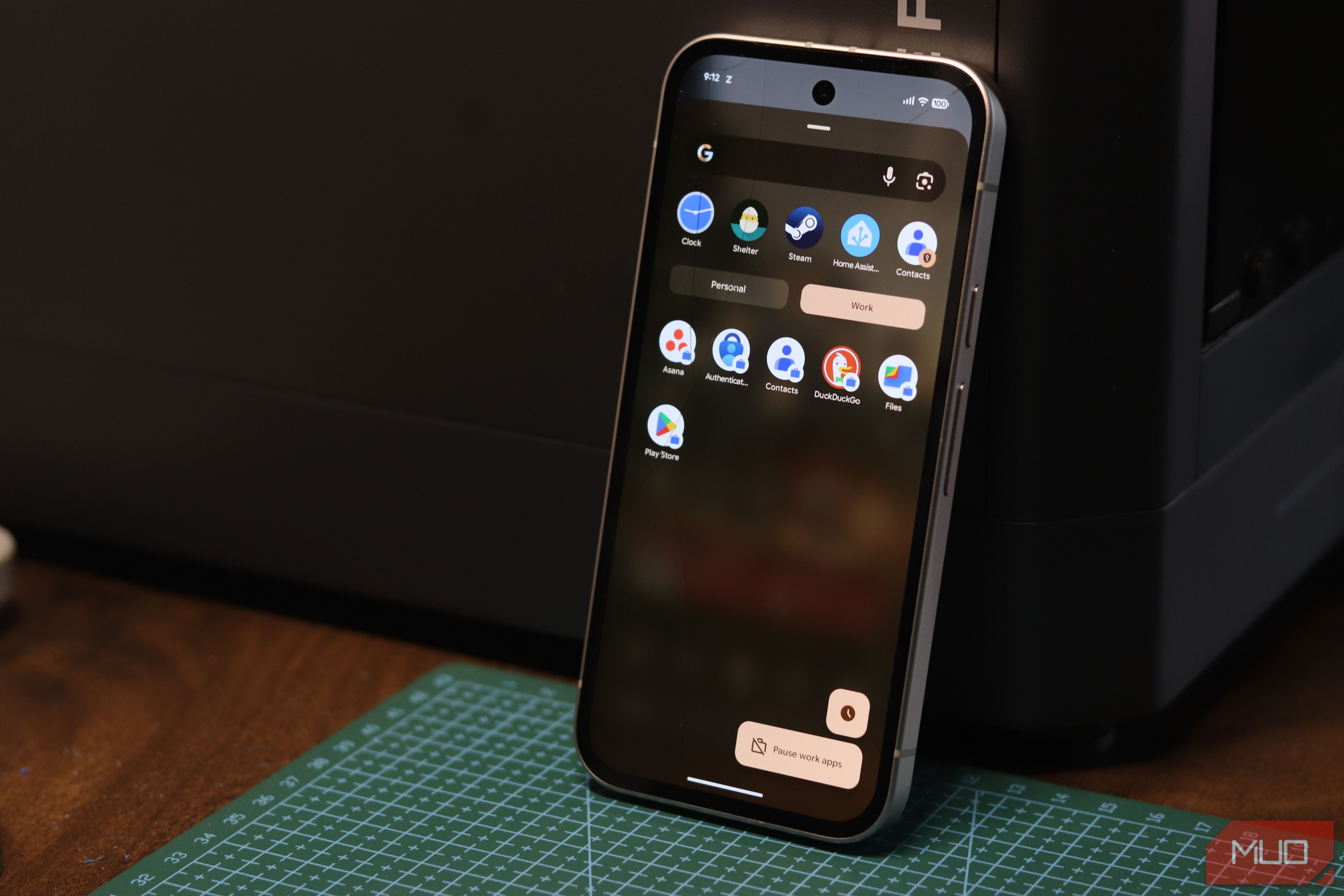
Every time you sideload an APK from a sketchy forum, or install a free app that asks for more permissions than it should, you’re taking a leap of faith. But if you’ve been installing apps and hoping for the best, Android has a much better alternative, and it’s been around since Android 5.0. The feature is called Work Profile, and you’ll rarely see it being used outside of corporate IT deployments. It was built for businesses that wanted employees to use one phone for both office and personal life. But the underlying mechanism is effectively a sandbox, and you can repurpose it for much more. What a work profile actually is It’s not a folder or a launcher trick A Work Profile is not an app, a folder, or a launcher trick. It’s a second, isolated profile that runs alongside your regular one on the same device. Google describes it as a way to separate work apps and data from personal apps and data. This lets an organization manage the work side, while your personal apps, data, and usage remain private. Apps inside the profile get their own storage, contacts, files, and accounts. An app installed there does not automatically see the contacts, photos, downloads, or app data in your normal profile. On Android 11 and newer, the Work Profile apps cannot access SMS or MMS data from the personal profile as well. This distinction is more important than you’d think. Android permissions are useful, but they’re not always enough. Some apps refuse to work unless you grant broad access, and others make it difficult to understand why they want it in the first place. A Work Profile changes that equation, meaning even if an app inside the profile has access to contacts or files, it sees the profile’s contacts and files — not the ones you actually use every day. Why it works as a sandbox Apps get their own tiny slice of nothing Android designed Work Profiles for managed business devices, but the same built-in profile system can also be created by apps such as Shelter, Island, and the F-Droid-friendly Island fork, Insular. These tools act as the profile owner and guide you through Android’s standard provisioning process; no root required. Once the profile exists, you can install new apps directly into it or make a separate copy of an app already on your phone. That copy has its own data, and its own login state. You could run a second messaging account, for example, or test an app without letting it mix with your main profile. More usefully, it gives you a secure place for apps you don’t trust entirely. An APK you downloaded outside the Play Store, a shopping app from a company with aggressive data mining habits, or an app you need for a one-time task but do not want hanging around your main phone — all of these can go here. Put it in the Work Profile, give it only the data it really needs, and it starts from an almost empty environment. This isn’t magic invisibility either. An isolated app can still access device-level information and anything you intentionally share with it. It can also still use the network, which means it can track what you do inside that app. But it cannot casually go through ordinary app data, accounts, contacts, and files in your personal profile. That is a meaningful improvement over simply allowing every permission you’re prompted for and hoping for the best. The freeze button is a superpower Uninstalling without actually uninstalling Isolation is only half the story. Work Profiles can also be paused with a toggle that Android exposes via quick settings in many phones. Turning off the profile stops the apps inside it. Their notifications stop, background work stops, and the work side effectively goes dormant until you turn it back on. Tools like Island and Shelter add more granular controls, including the ability to freeze individual apps. That can come in handy for apps you only need occasionally. Instead of allowing it to run in the background, receive updates, and wake itself up whenever it wants, you can keep it frozen until you need it. Think of it as uninstalling an app without actually uninstalling it. Your login and settings stay in place, but the app is not active. For tracking-heavy apps, this is just as useful as the sandbox itself. Three ways into the sandbox Pick your path: work-issued, DIY, or Google’s own If your employer has already set up a Work Profile, you may already see a Work tab at the bottom of the app drawer or briefcase badges on certain app icons. Those badges identify apps that belong to the separate profile. For personal use, you can enable the Private Space setting if you’re running Android 15 or later. It works identically to Work Profile, except you’re in full control of the space. All other benefits like app isolation and the ability to use separate accounts are carried over. Alternatively, you can use apps like Shelter, Island, or Insular and follow the on-screen prompts to create a Work Profile. If for whatever reason you decide that you’re done with your sandbox, Android can remove the entire Work Profile from system settings. This wipes the apps and any data stored in the profile while leaving the rest of your phone intact. A feature hiding in plain sight A decade-old enterprise trick, repurposed for you Android users have spent years installing app lockers, duplicate-app utilities, and privacy tools that promise control over their software. Meanwhile, Android has included a stronger option for over a decade now. Work Profile isolation may be enterprise technology, but it’s also a practical consumer privacy tool. It won’t turn an untrusted app into a trustworthy one. What it can do is reduce your exposure, and on a phone that holds your photos, messages, documents, accounts, and pretty much your whole life, that’s an extremely useful feature to have.