Summary
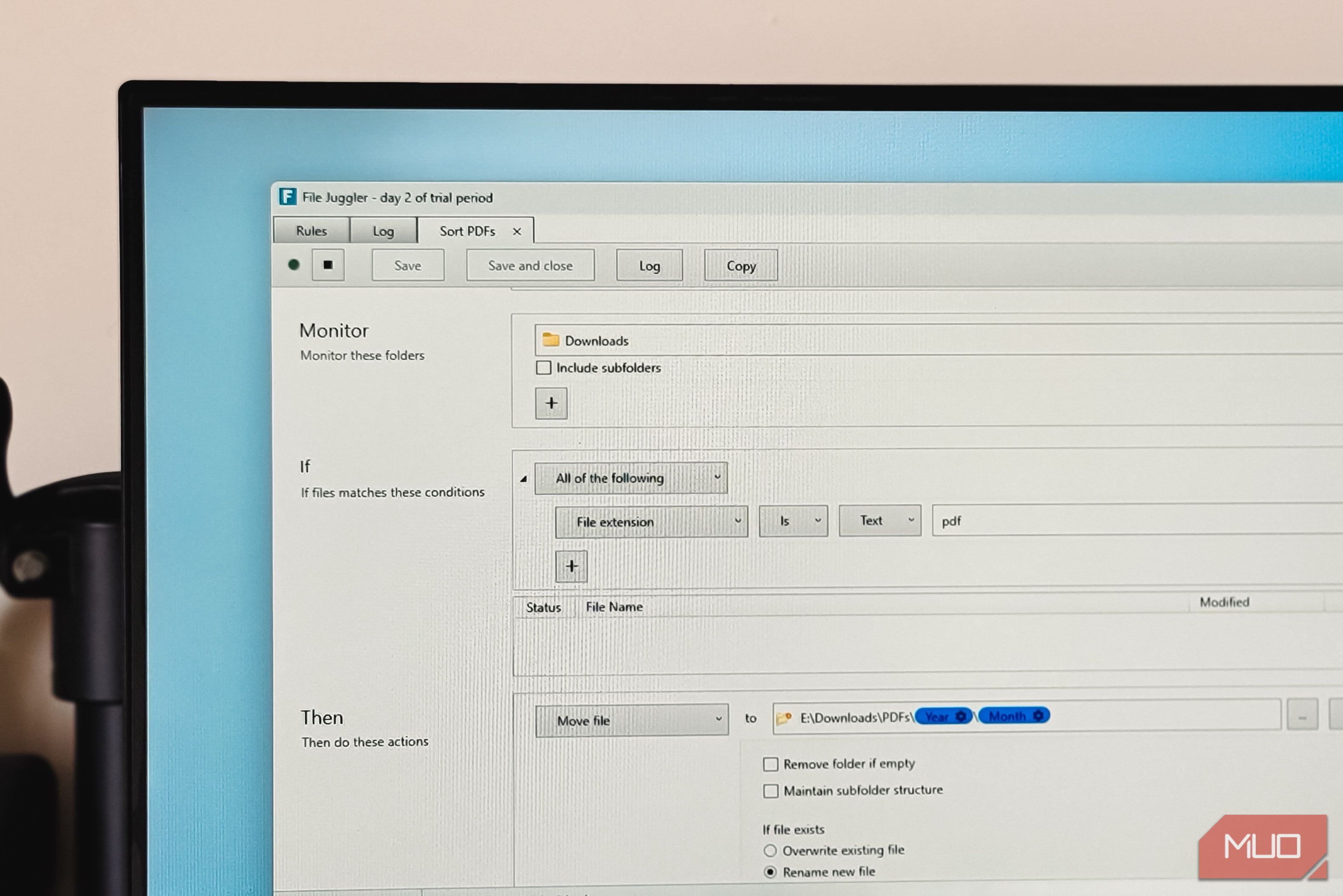
The Downloads folder on most computers is a mess, and I have yet to see one that is neatly organized. My Downloads and Quick Share folder is no different and has all kinds of files, from PDFs and Markdown documents to installers, and I often don’t have the patience to organize them neatly in folders. Turns out, I don’t need to sort and organize any of my files manually. File Juggler is an app that can help you create workflows to automate file organization and move files based on their type to a dedicated folder. I’ve used free tools like DropIt to automate file sorting on my desktop before, but File Juggler offers deeper condition-based rules that go beyond simple extension matching. Configuring File Juggler Setting up rules to sort your downloads automatically File Juggler is a Windows utility that you can tell which folders to watch, what conditions a file needs to match, and what to do when it matches. Instead of a sort-by-type magic toggle, you build one rule per file type or group of types, each monitoring the same folder but moving files to a different destination. To set up a rule for sorting PDFs out of your Downloads folder, for example, you create a new rule and point the Monitor panel to your Downloads path. In the If section, set the field to File extension, the operator to Is, and the value to pdf. Then in the Then section, set the action to Move file and pick a destination folder like Downloads\PDFs. File Juggler treats a file’s metadata, including its modification date, as a usable variable in the destination path. Next to the destination field is a Variables button that lets you insert date tokens into the folder path. So instead of dumping every PDF into a flat folder, you can build a path like Downloads\PDFs\2026\August, and File Juggler will create the year and month subfolders on the fly as files arrive. You don’t need to pre-build a folder tree. Once you have one rule working, duplicating it is easy. Use the Copy button in the rule editor to clone your PDF rule, swap the extension to jpg and the destination to Images. I set up over five rules for PDFs, images, installers, archives, and Markdown files, each landing in its own subfolder with date-based organization. Rules and Logs Two views for building and verifying your automations File Juggler opens to two main views. The Rules view is the landing screen, listing every automation rule you’ve set up. Each rule shows three parts: which folders it monitors, the “if” conditions a file has to match, and the action to take when those conditions are met. The app can also use a single rule to watch multiple folders at once. If you want the same PDF-sorting rule to apply to both your Downloads folder and your Desktop, you just add both paths in the Monitor section. That’s a small but useful difference from tools like Hazel on macOS, where rules are tied to individual folders. The conditions aren’t limited to file extensions, either. You can filter by filename patterns, file size, modification date, and even file contents, which is more than what most Windows apps that handle file sorting automatically offer out of the box. File Juggler can search inside the document text and match keywords, so you could set up a rule that moves invoices containing the word “invoice” into an Invoices folder automatically. The Log view sits separately and acts as a running record of everything File Juggler has done since it started. Every file moved, renamed, or deleted shows up here. It includes a search function for digging through entries if you’re watching a lot of folders, though I haven’t needed it much in practice. I mostly glance at it after setting up a new rule to confirm files are landing where I expected. A checkbox on each rule enables or disables it, and once enabled, File Juggler runs quietly in the background. File Juggler is a paid app, but continues to work post-trial The 40 USD for a perpetual license, which covers all future upgrades and can be used on multiple computers as long as you’re the only user. Before you commit, there’s a fully functional 30-day trial with no feature restrictions. In my testing, however, the app continued to work without any issues. My rules kept running, files kept getting sorted, and nothing was disabled. The only change was persistent upgrade popups reminding you to buy a license. The developer is upfront about this on their FAQ page, noting that it “won’t stop working at any point, and is not limited in features” after the trial. A rather simple solution to messy folders What makes File Juggler work for me is that it doesn’t try to be a file manager or a productivity suite. It watches folders, checks conditions, and moves files. The rules take a few minutes to set up, the date-based subfolder trick keeps things organized over time, and the whole thing runs in the background without demanding attention. For $40, or even for free if you can tolerate the occasional pop-up, it’s a solid way to make sure your Downloads folder never becomes a graveyard of unsorted files again.